B.12
SEL-311C Relay Instruction Manual Date Code 20060320
Firmware Upgrade Instructions
Upload completed successfully. Attempting a restart.
A successful restart sequence can take as long as two minutes,
after which time the relay leaves SEL
BOOT. You will see no
display on your PC to indicate a successful restart.
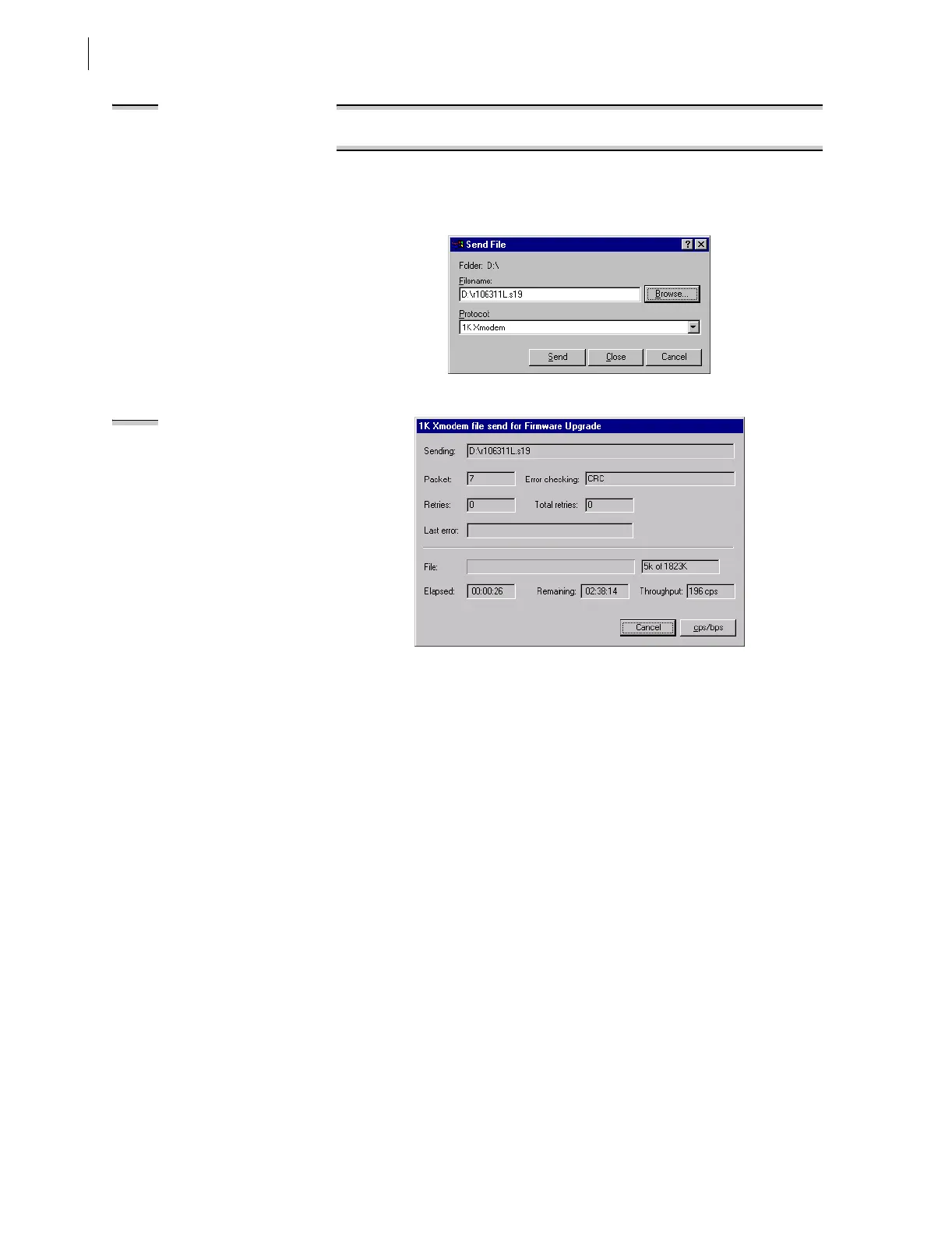
Figure B.14 Selecting New Firmware to Send to the Relay
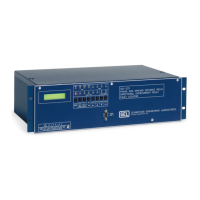
Figure B.15 Transferring New Firmware to the Relay
Step 6. Press <Enter> and confirm that the Access Level 0 = prompt
appears on the computer screen.
Step 7. If you see the Access Level 0 = prompt, proceed to G. Check
Relay Self-Tests on page 13.
NOTE: Unsuccessful uploads can
result from Xmodem time-out, a
power failure, loss of communication
between the relay and the computer,
or voluntary cancellation. Check
connections, reestablish
communication, and start again at
Step 2 on page 11.
If you want to reload the previous
firmware, begin at Step 2 on page 11
and use the firmware you saved in E.
Download Existing Firmware on
page 9. Contact the factory for
assistance in achieving a successful
firmware upgrade.
NOTE: The relay restarts in SELBOOT
if relay power fails while receiving
new firmware. Upon power-up, the
relay serial port will be at the default
2400 baud. Perform the steps
beginning in B. Establish a Terminal
Connection on page 2 to increase the
serial connection data speed. Then
resume the firmware upgrade process
at F. Up l o a d N ew F i r mwa re o n
page 10.


 To Next Page