8.20
SEL-2032 Communications Processor Instruction Manual Date Code 20120126
Serial Port Communications and Commands
Command Set
SHOWSET t
Use the SHOWSET command (Access Level 1) to display settings.
SHOWSET works with all settings classes: P, A, M, U, L, O, G, R, and C.
The P, A, U, M, and L classes require a port number parameter (1–16 or F). In
the SEL-2032, classes P, A, M, L, O, and U are also available for Ports 17 and
18. For example, enter the command SHOWSET P F to examine the front-
panel port settings or enter the command SHOWSET G to examine the global
settings. You can display P, A, M, U, L, and O settings for a port by giving the
port number as the only parameter to SHOWSET. (For example, use
SHOWSET 5 to view all Port 5 settings.) Enter parameters following the
SHOWSET command in any order.
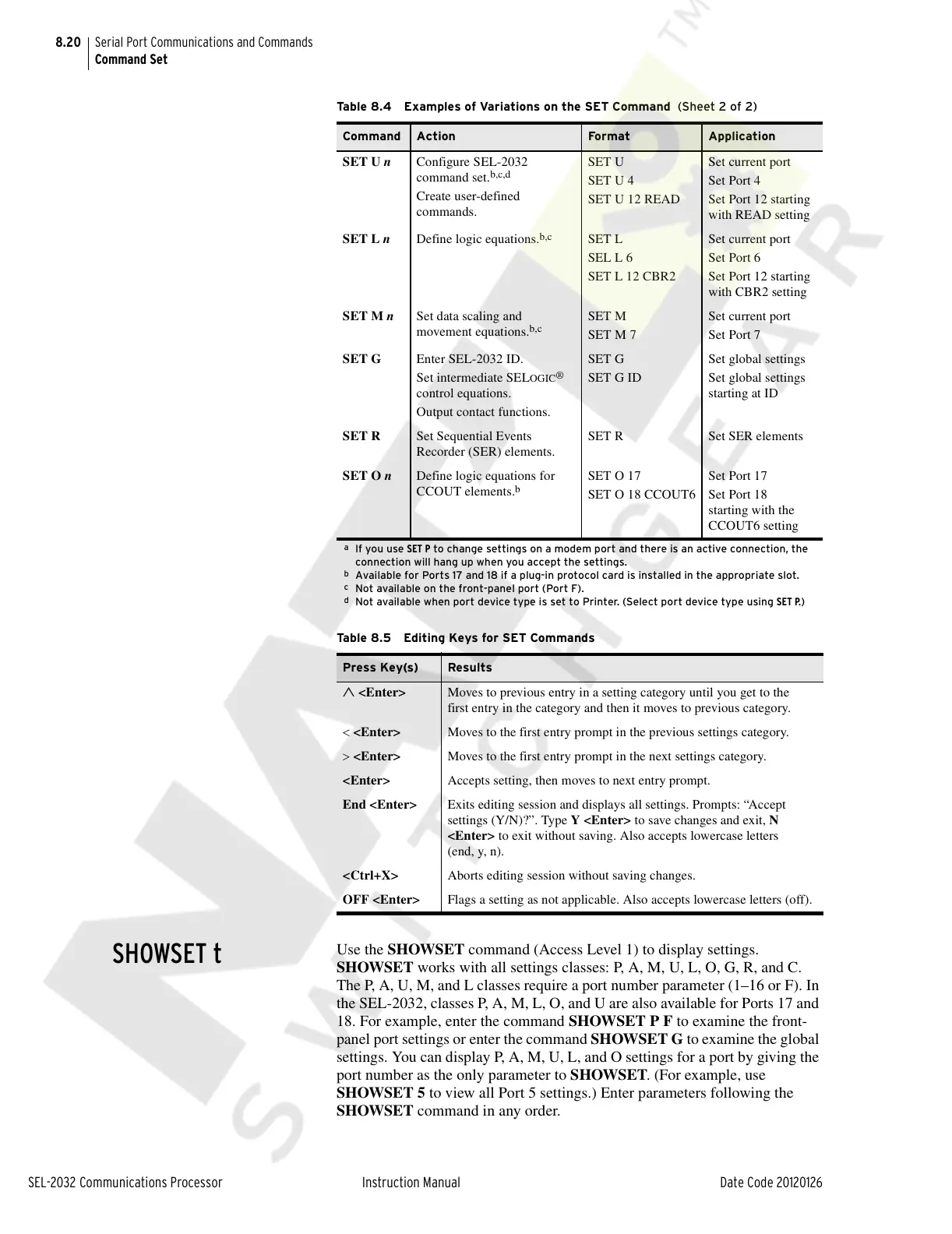
SET U n Configure SEL-2032
command set.
b,c,d
Create user-defined
commands.
SET U
SET U 4
SET U 12 READ
Set current port
Set Port 4
Set Port 12 starting
with READ setting
SET L n Define logic equations.
b,c
SET L
SEL L 6
SET L 12 CBR2
Set current port
Set Port 6
Set Port 12 starting
with CBR2 setting
SET M n Set data scaling and
movement equations.
b,c
SET M
SET M 7
Set current port
Set Port 7
SET G Enter SEL-2032 ID.
Set intermediate SEL
OGIC
®
control equations.
Output contact functions.
SET G
SET G ID
Set global settings
Set global settings
starting at ID
SET R Set Sequential Events
Recorder (SER) elements.
SET R Set SER elements
SET O n Define logic equations for
CCOUT elements.
b
SET O 17
SET O 18 CCOUT6
Set Port 17
Set Port 18
starting with the
CCOUT6 setting
a
If you use SET P to change settings on a modem port and there is an active connection, the
connection will hang up when you accept the settings.
b
Available for Ports 17 and 18 if a plug-in protocol card is installed in the appropriate slot.
c
Not available on the front-panel port (Port F).
d
Not available when port device type is set to Printer. (Select port device type using SET P.)
Table 8.5 Editing Keys for SET Commands
Press Key(s) Results
<Enter> Moves to previous entry in a setting category until you get to the
first entry in the category and then it moves to previous category.
<Enter> Moves to the first entry prompt in the previous settings category.
<Enter> Moves to the first entry prompt in the next settings category.
<Enter> Accepts setting, then moves to next entry prompt.
End <Enter> Exits editing session and displays all settings. Prompts: “Accept
settings (Y/N)?”. Type Y <Enter> to save changes and exit, N
<Enter> to exit without saving. Also accepts lowercase letters
(end, y, n).
<Ctrl+X> Aborts editing session without saving changes.
OFF <Enter> Flags a setting as not applicable. Also accepts lowercase letters (off).
Table 8.4 Examples of Variations on the SET Command (Sheet 2 of 2)
Command Action Fo rma t Application
Courtesy of NationalSwitchgear.com


 To Next Page