The Snap-on® Cloud Using the Snap-on Cloud
206
17.3.3 Snap-on Cloud Get Connected Screen
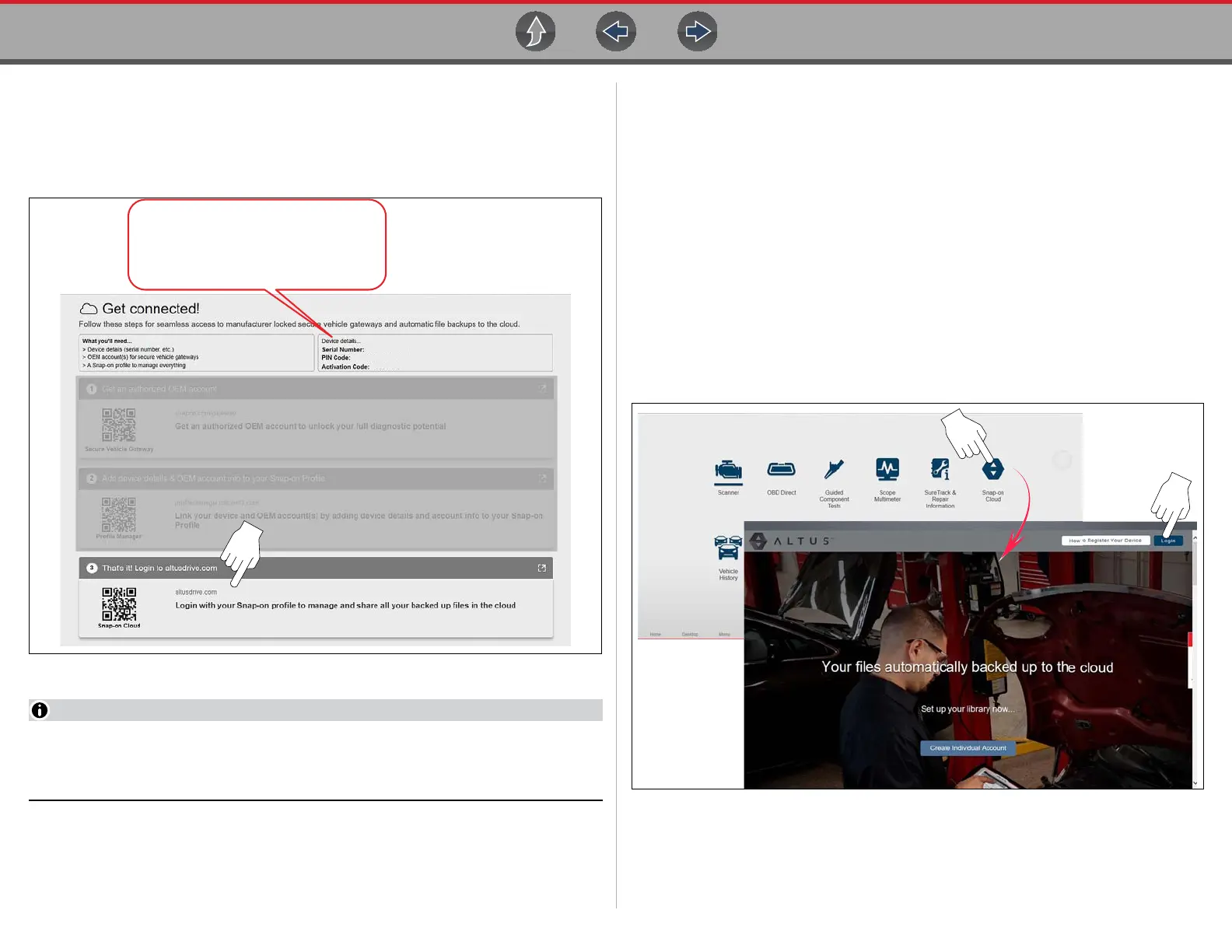
From the Home screen, selecting System Settings > Get Connected, allows you
view the diagnostic tool serial number, PIN and Code needed to register
(Figure 17-3). Select the weblink to open the Login page (Figure 17-3).
Figure 17-3
The PIN and Code numbers will change each time you view
the Snap-on Cloud Get Connected screen (Figure 17-3). This is normal, any
displayed set of PIN and Code numbers may be used to register.
17.4 Using the Snap-on Cloud
To use the Snap-on Cloud:
• A Snap-on Cloud account is required, see Registration - Getting Started on
page 203.
• The diagnostic tool must be connected to a Wi-Fi network, see Wi-Fi Setup on
page 13.
17.4.1 Logging on the Snap-on Cloud (registered user)
z Logging in to Snap-on Cloud (registered user):
1. From the Home screen select the Snap-on Cloud icon (Figure 17-4). If using
your mobile device or PC visit ALTUSDRIVE.com.
2. Select the Login icon (Figure 17-4).
Figure 17-4
Device details...
Serial Number: XXXXXXXXXXXXX
PIN Code: XXXXXXX
Activation Code: XXXXXXXXX


 To Next Page