Programming
76
NetLinx Studio - Instruction Manual
3. The cursor jumps to the top of the selected section in the Editor window.
Bookmarks
You can place bookmarks in your program files for quick navigation to key points in the code. Bookmarks are indicated
by blue rectangles in the left margin of the Editor window (FIG. 139).
Select Edit > Bookmarks to open the Bookmarks sub-menu. Use the commands in this sub-menu to create, jump to, and
clear bookmarks:
To create a bookmark, place the cursor in the line that you want to bookmark, and select Edit > Bookmarks >
Bookmark .
Push Messages
The PUSH keyword is used to find out if a channel has had an input change from off to on, such as when a button is
pressed. If the channel has been turned on, the corresponding Push statement is activated. The operation or operations
following this Push statement are only executed once after the channel is turned on.
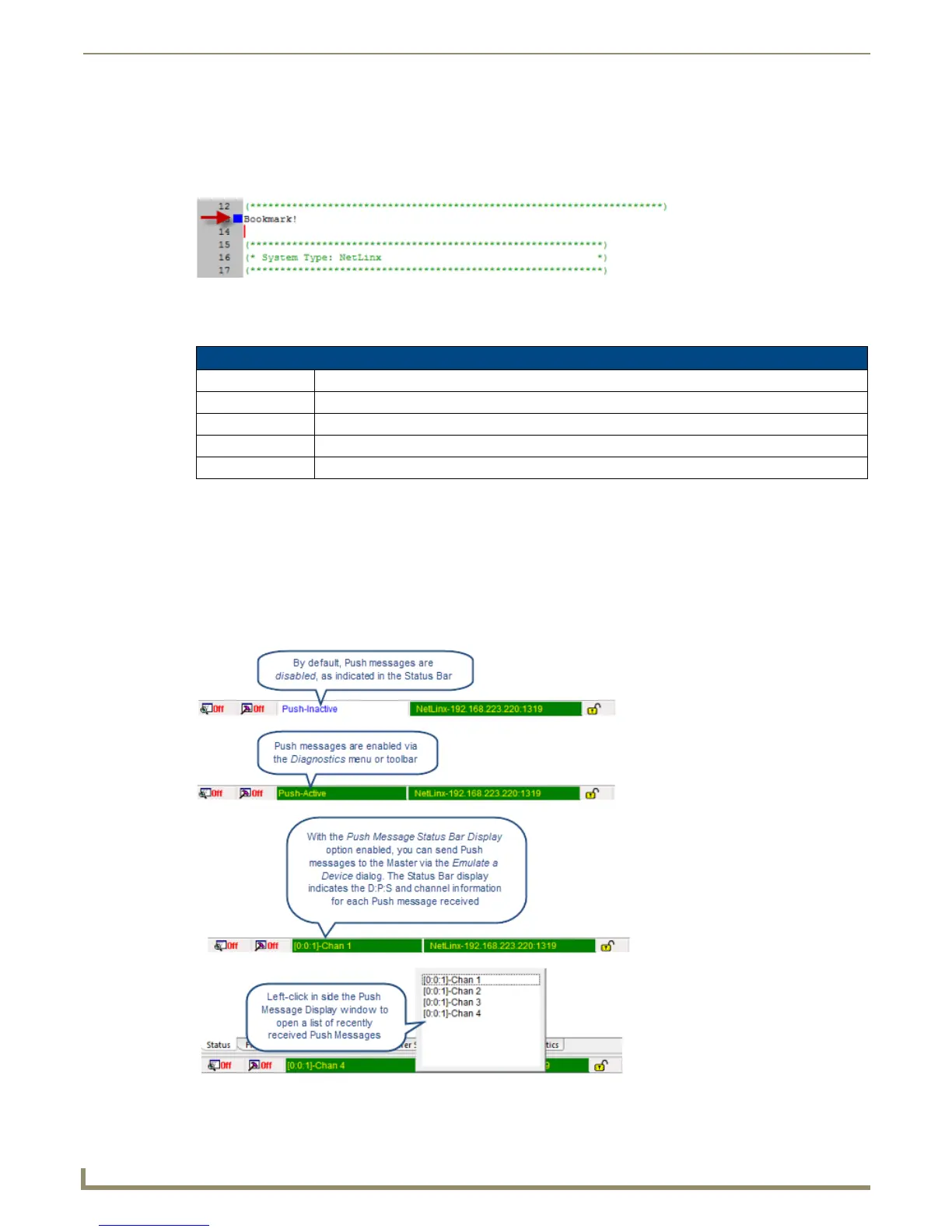
NetLinx Studio displays the most recently received Push, or Push status (Push Enabled/Disabled) in the Status Bar
(FIG. 140).
FIG. 139 Bookmark example
Bookmarks Sub-Menu Options
Action Description
Bookmark Click to create a bookmark at the cursor’s position.
Next Bookmark Click to jump to the next bookmark.
Previous Bookmark Click to jump to the previous bookmark.
Clear Bookmarks Click to clear all bookmarks from the active file.
FIG. 140
Status Bar - Push Message display



 To Next Page