Chapter 4 Everest Software
Status Description
Shutting Down The system is shutting down.
Off The system is shut down.
Table 30. Possible system statuses, continued
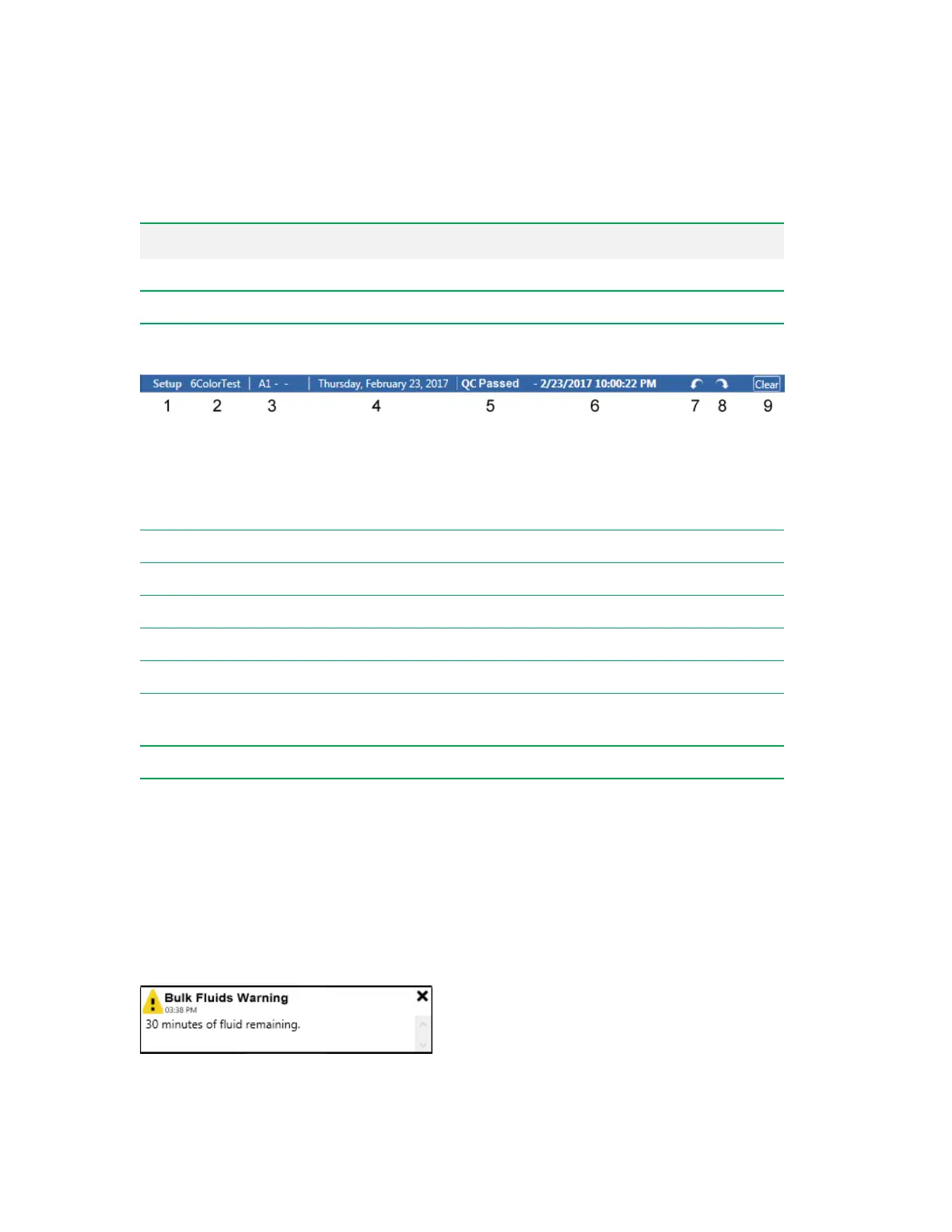
An additional workspace status bar appears at the top of the workspace after you apply a run list.
The workspace status bar turns green when sampling is performed in Acquisition mode.
Legend
1
Sampling mode: Setup or Acquisition
2
Experiment name
3
Currently selected sample position
4
Current date
5
QC status
6
Date of last QC run
7
Undo
— reverses the last action taken. Applies only to creating, moving, resizing, or deleting a
region; creating, moving, resizing, or deleting a plot; and applying or removing a gate.
8
Redo
— reverses the last Undo action.
9
Clear
— removes plots and histograms that have been added to the workspace.
Notifications and System Logs
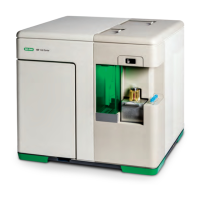
Everest Software displays error, warning, and information notifications in the lower right area of the
screen after you log in. (Errors and warnings that occur before you log in are not displayed in this
area, but are included in the notification window that you can add to the Acquisition workspace after
you log in.) For information about adding notifications to the Acquisition workspace, see Status Bar on
page 99.
100 | ZE5 Cell Analyzer and Everest Software


 To Next Page