Chapter 4 Everest Software
Legend Further Information
1
Acquisition, Analysis, and Publish tabs; after
setting up an experiment and acquiring
samples in the Acquisition tab, you can move
data to the Analysis and Publish tabs
Experiment Builder on page 64, Creating
Experiments and Workspaces on page 167,
Acquiring Samples on page 275, and
Analyzing, Saving, and Printing Data on page
301
2
Experiment buttons Experiment Buttons on page 58
3
Help and Information menu Help and Information Menu on page 59
4
Home window tools and logged-in user name Home Window Tools on page 60
5
Recent Experiment Sessions panel Recent Experiment Sessions on page 62
6
Quick actions Quick Actions on page 63
Experiment Buttons
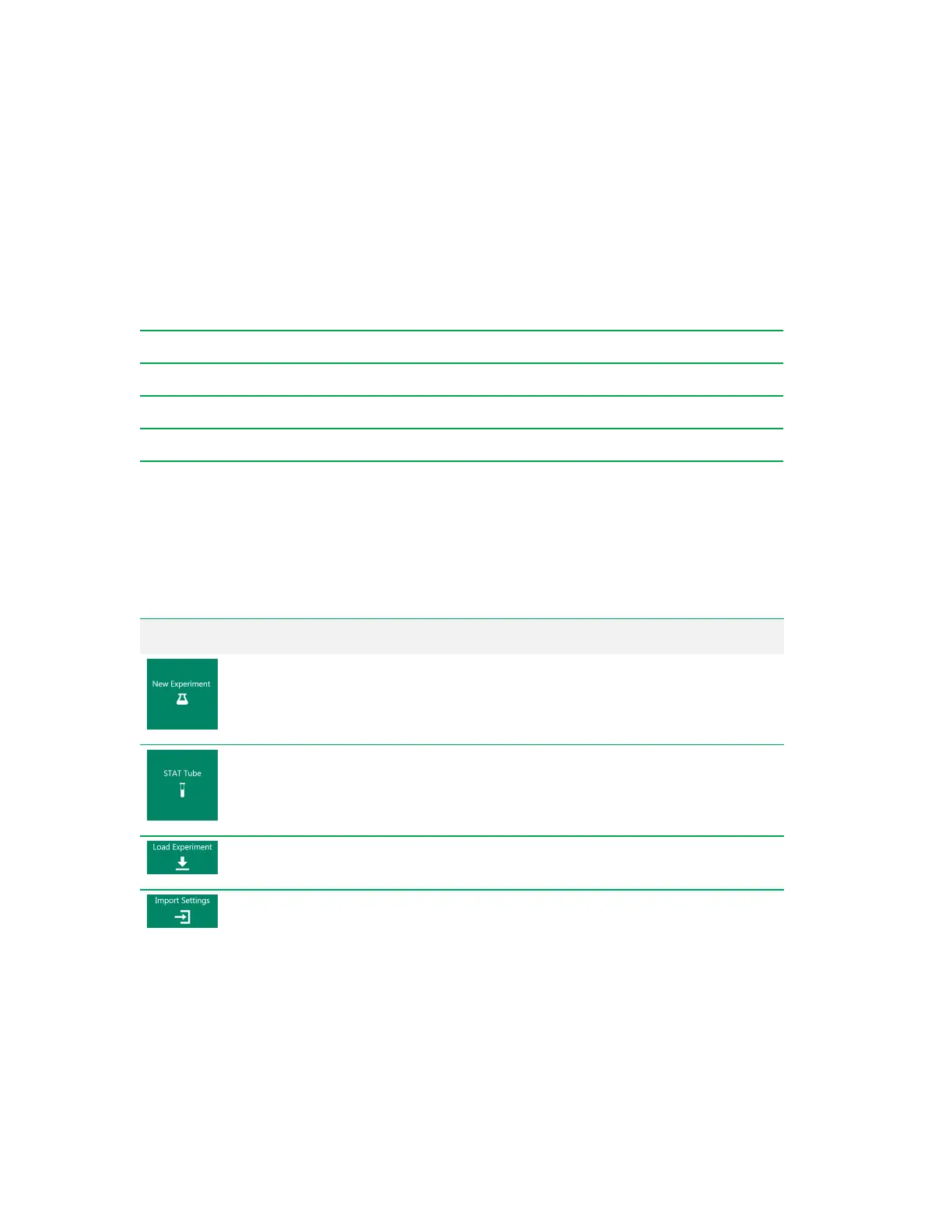
This set of large buttons in the Home window allows you to initiate experiments in various ways.
Button Function
Launches the Experiment Builder, which guides you through setup of
fluorophores/detectors, samples, workspace, and plots.
Skips the Experiment Builder and allows you to run a sample quickly from the single tube
position in the loader. By default, all lasers and all parameters are active when acquiring
sample in stat tube mode.
Loads a previously generated experiment for use as a template for the current experiment.
After the experimental file is opened, you can modify it before running it.
Imports the following settings from the selected run list file: fluorophores (activated PMTs),
parameter names, instrument settings, plots, and compensation matrix.
Note: Sample positions are not imported, so, for example, you can import a run list
configured for tubes and easily reconfigure it for a plate.
Table 8. Home window experiment buttons and their functions
58 | ZE5 Cell Analyzer and Everest Software


 To Next Page