Setting Up the Run List
n Click Apply to All to apply the name to all positions.
n Click Apply to Selected to apply the name to the selected positions.
n Click Clear Selected to remove names from the selected positions.
n Click Undo to reverse the last naming action.
To change the Custom component of a name
1. Modify the value in the Custom box.
2. Clear the Custom checkbox and then select it again bfore applying the change.
Importing Names from a Spreadsheet
The Multiple tab in the Sample Naming panel also allows you to import names from a spreadsheet.
To assign multiple names to positions using a spreadsheet
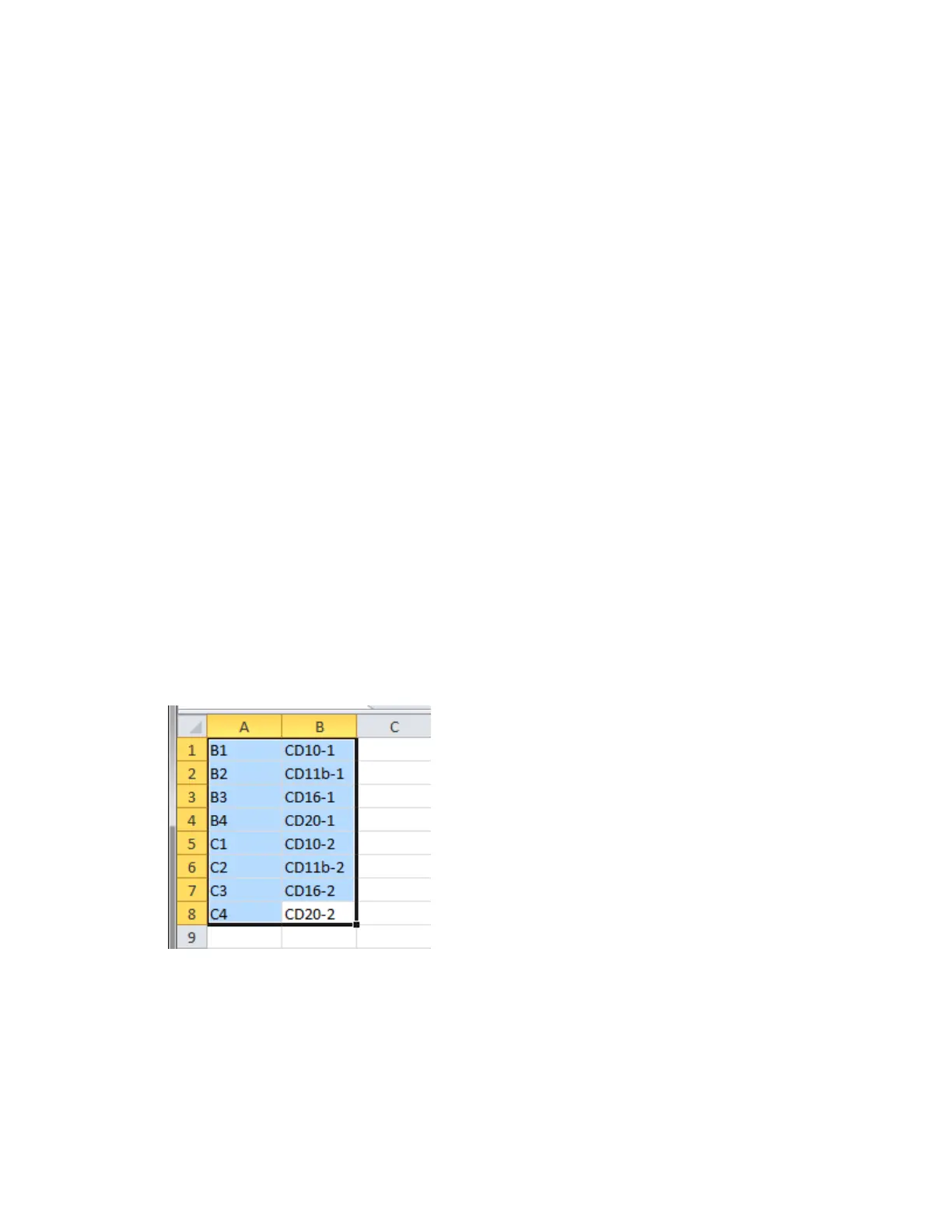
1. Create an external spreadsheet with two columns:
a. Populate the first column with position IDs (for example, B1, B2, B3) corresponding to the
samples in the tube rack or plate.
b. Populate the second column with name values.
2. In the spreadsheet, select the values in both columns.
Note: Do not select the column headings.
3. Ensure that all positions selected in the first column in the spreadsheet are an assigned Sample
location in the plate map.
4. Right-click the section in the spreadsheet and select Copy.
User Guide | 187


 To Next Page