07K5-02S
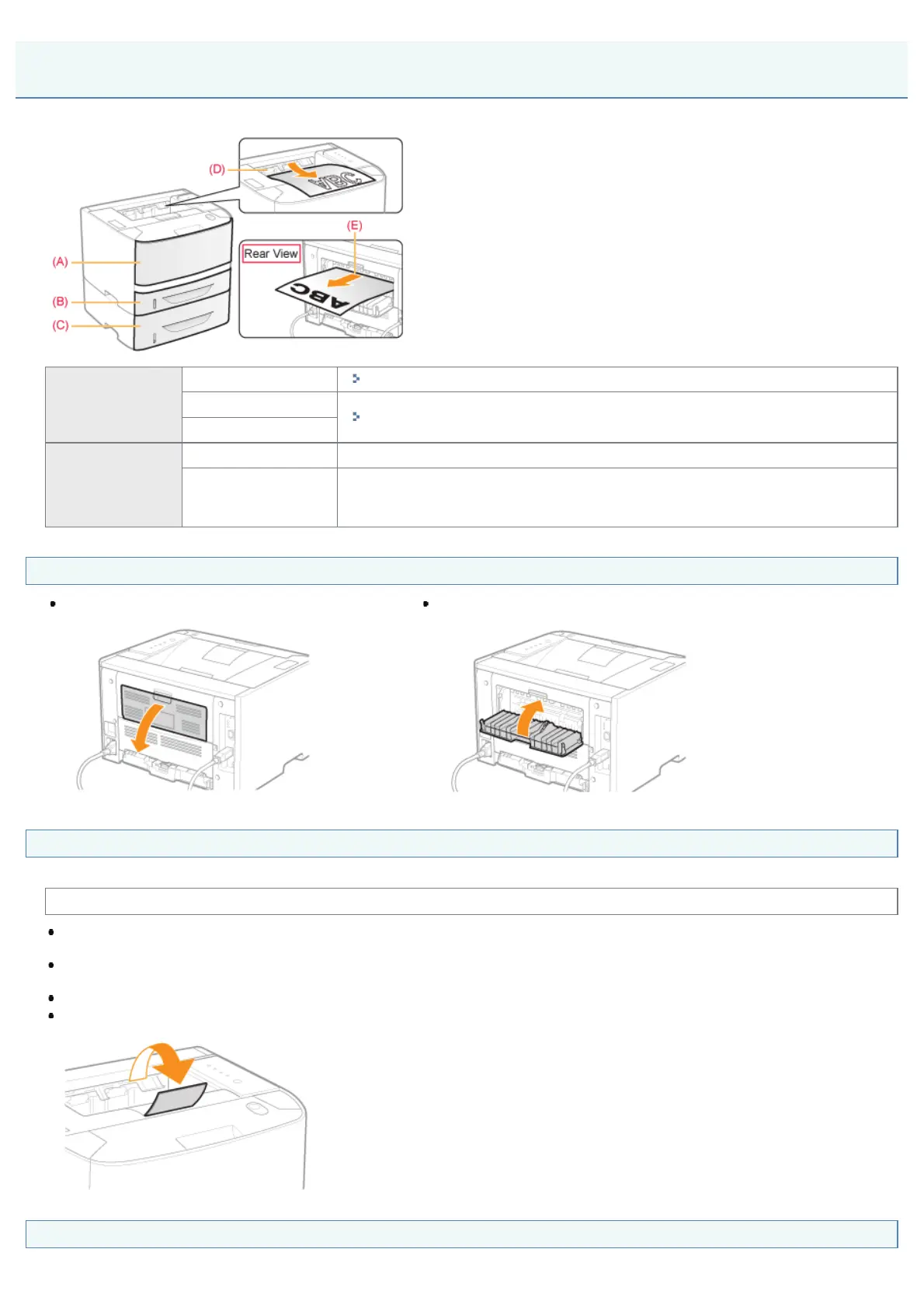
This printer has the following paper sources and output trays.
Paper Source
(A): Multi-purpose tray
"Loading Paper in the Multi-purpose Tray"
(B): Drawer 1
"Loading Paper in the Paper Drawer"
(C): Drawer 2 (optional)
Output Tray
(D): Output tray Outputs paper with the printed side facing down.
(E): Sub-output tray
Outputs paper with the printed side facing up.
The sub-output tray is suitable to print transparencies, labels, or envelopes which tend to curl,
since the printed paper is output flattened.
How to Switch Output Trays
When switching to the sub-output tray
Open the output selection cover as shown in the figure.
When switching to the output tray
Close the output selection cover as shown in the figure.
Precautions for Output Trays
Pay attention to the following points when handling the output trays.
See "Important Safety Instructions" also.
When performing 2-sided printing, close the output selection cover.
(When outputting paper to the sub-output tray, you cannot perform 2-sided printing.)
During 2-sided printing, do not touch the paper until it is output to the output tray completely. The paper is first output partially after the front side
is printed, and then it is fed again to be printed on the reverse side.
When paper is output to the sub-output tray, take out one piece at a time each time it is output.
When outputting long-size paper, such as Legal paper, to the output tray, open the auxiliary tray to prevent the paper from hanging out of the
output tray.
Paper Capacity of the Paper Sources and Output Trays
Paper Loading and Output
㻝㻟㻥㻌㻛㻌㻠㻡㻞










 To Next Page