07K5-035
1
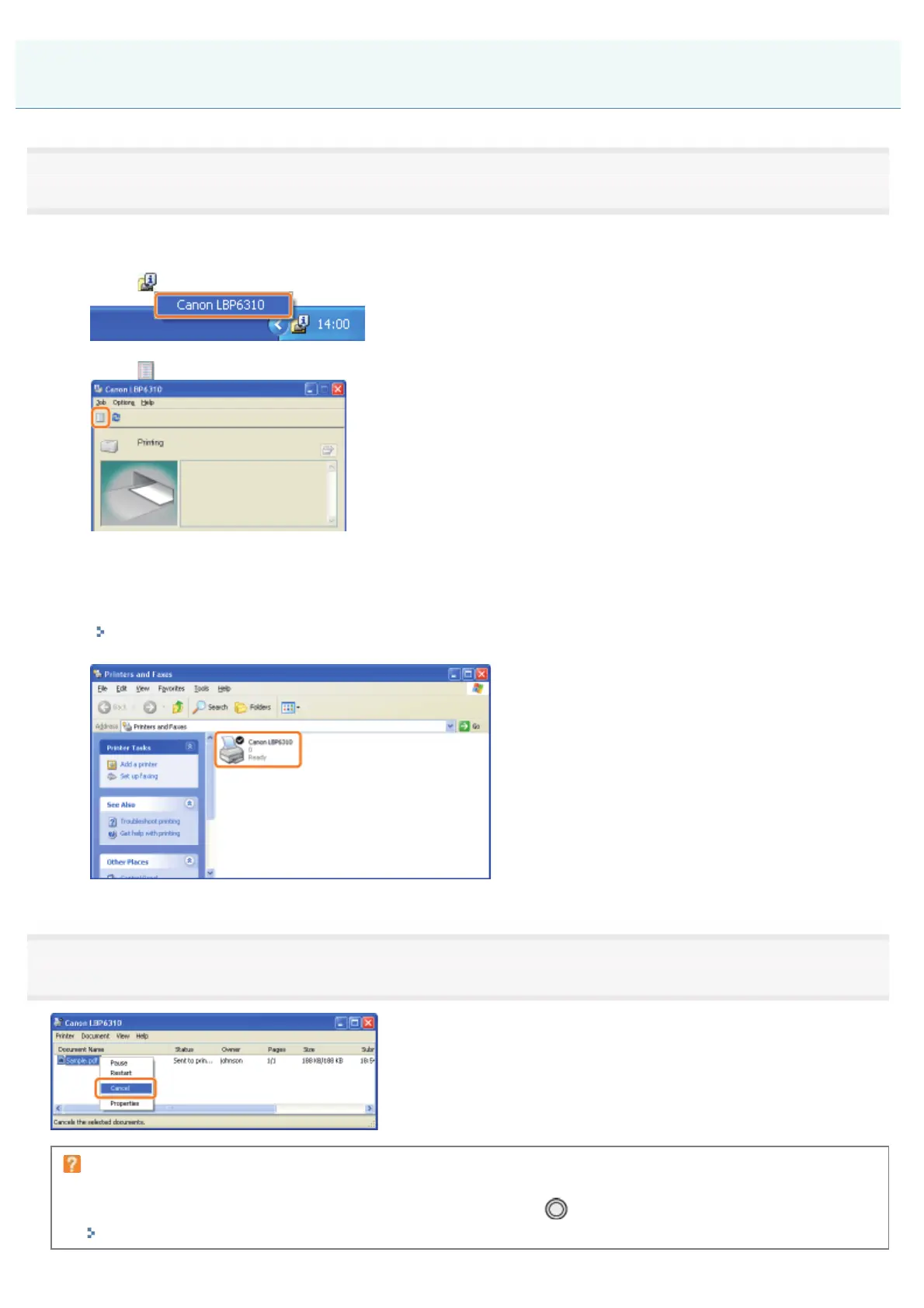
Display the print queue.
When displaying Help from the Printer Status Window
1. Click [
] in the Windows task tray, and then select the printer name.
2. Click [ ] (Print Queue).
When displaying from the printer folder
1. Open the printer folder.
"Basic Operations/Various Information for Windows"
2. Double-click the icon for this printer.
2
Right-click the job that you want to cancel, then select [Cancel] from the pop-up menu.
If a print job does not appear
Another user's job is not displayed. (For the print server environment, all print jobs are displayed on the print server.)
If an error is occurring with a print job from another user, use the [
] (Cancel Job) key to cancel the job.
"Canceling a Print Job Using the Cancel Job Key"
Canceling a Print Job Using the Print Queue
㻝㻡㻥㻌㻛㻌㻠㻡㻞










 To Next Page