07K5-054
1
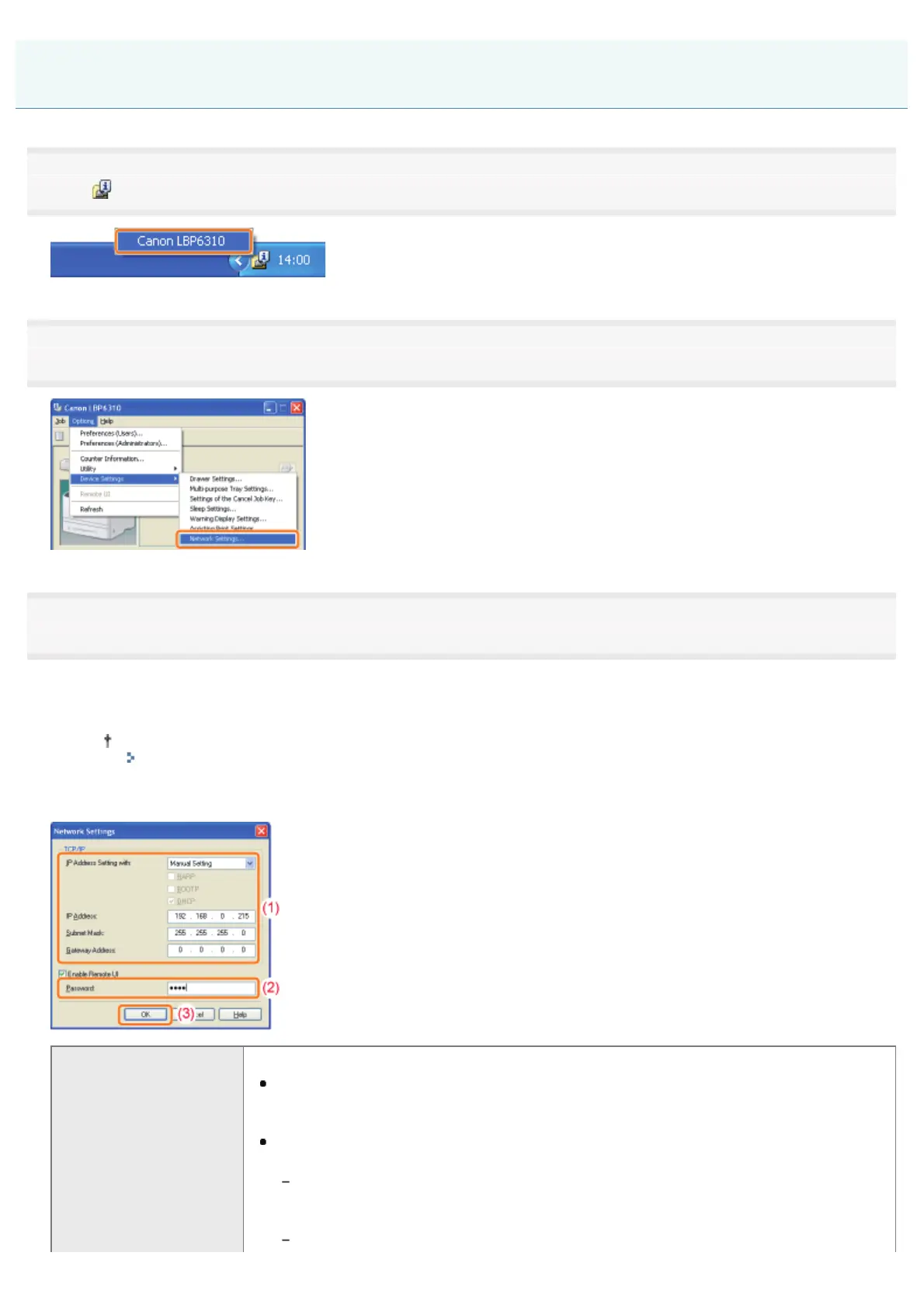
Click [ ] in the Windows task tray, and then select the printer name.
2
3
Set the IP address.
(1) Specify each setting.
(2) Enter the administrator password for the printer (the password that is specified in the Remote UI).
If the password is not specified, you do not need to enter the password.
"Setting the Administrator Password"
(3) Click [OK].
[IP Address Setting with]
Select the method for setting the IP address.
[Manual Setting]
Allows you to set the IP address directly. The IP address entered in [IP Address] is
set for the printer.
[Auto Detect]
Obtains an IP address using RARP, BOOTP, or DHCP.
[RARP]
Obtains an IP address using RARP.
(The RARP daemon needs to be running.)
[BOOTP]
Setting the IP Address Using the Printer Status Window
㻞㻠㻞㻌㻛㻌㻠㻡㻞










 To Next Page