07K5-07J
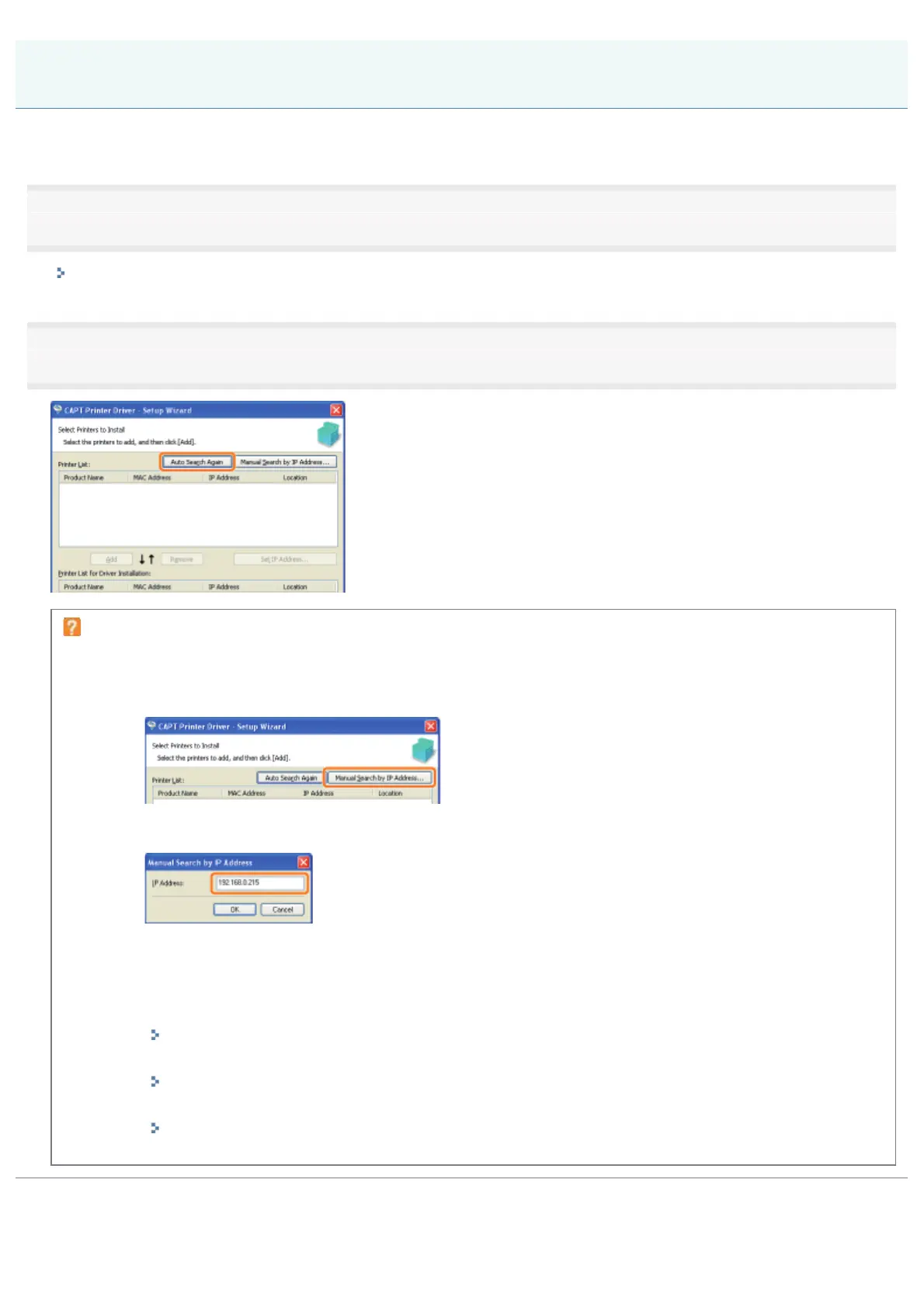
If the printer cannot be searched for (no devices are displayed in [Printer List]), perform the following procedure.
1
Make sure that the LAN cable is connected properly, and the printer is turned ON.
"Connecting the Printer and Computer"
2
Click [Auto Search Again], to search for the printer on the network again.
If the printer cannot be searched for (no devices are displayed) even by performing the above
procedure
<Solution 1>
1. Click [Manual Search by IP Address].
2. Enter the IP address of the printer to be installed.
(The default IP address of the printer is "192.168.0.215".)
3. Click [OK].
<Solution 2>
1. Install the printer driver with a USB connection.
"Installing the Printer Driver"
2. Set the IP address using the Printer Status Window
"Setting the IP Address Using the Printer Status Window"
3. Change the port for the print driver to that used for LAN connection (Standard TCP/IP Port).
"When Changing the IP Address (Changing the Port)"
The Printer Cannot Be Searched for (Auto Setup)
㻟㻤㻠㻌㻛㻌㻠㻡㻞










 To Next Page