07K5-053
1
Make sure that the LAN cable is connected properly, and the printer is turned ON.
"Connecting the Printer and Computer"
2
Turn the computer on, and then log on to Windows as a user with administrative rights.
3
Run Command Prompt.
)URPWKH>6WDUW@PHQXVHOHFW>$OO3URJUDPV@RU>3URJUDPV@ĺ>$FFHVVRULHV@ĺ>&RPPDQG3URPSW@
4
Enter "arp -s <IP address> <MAC address>", then press the [ENTER] key on your keyboard.
<IP address>
Enter the IP address to assign to the printer.
Specify the address with four numbers (from 0 to 255) separated with a period (.).
<MAC address>
Enter the MAC address of the printer.
Separate the number every two digits with a hyphen (-).
Input Example: "arp -s 192.168.0.215 00-1E-8F-05-70-31"
NOTE
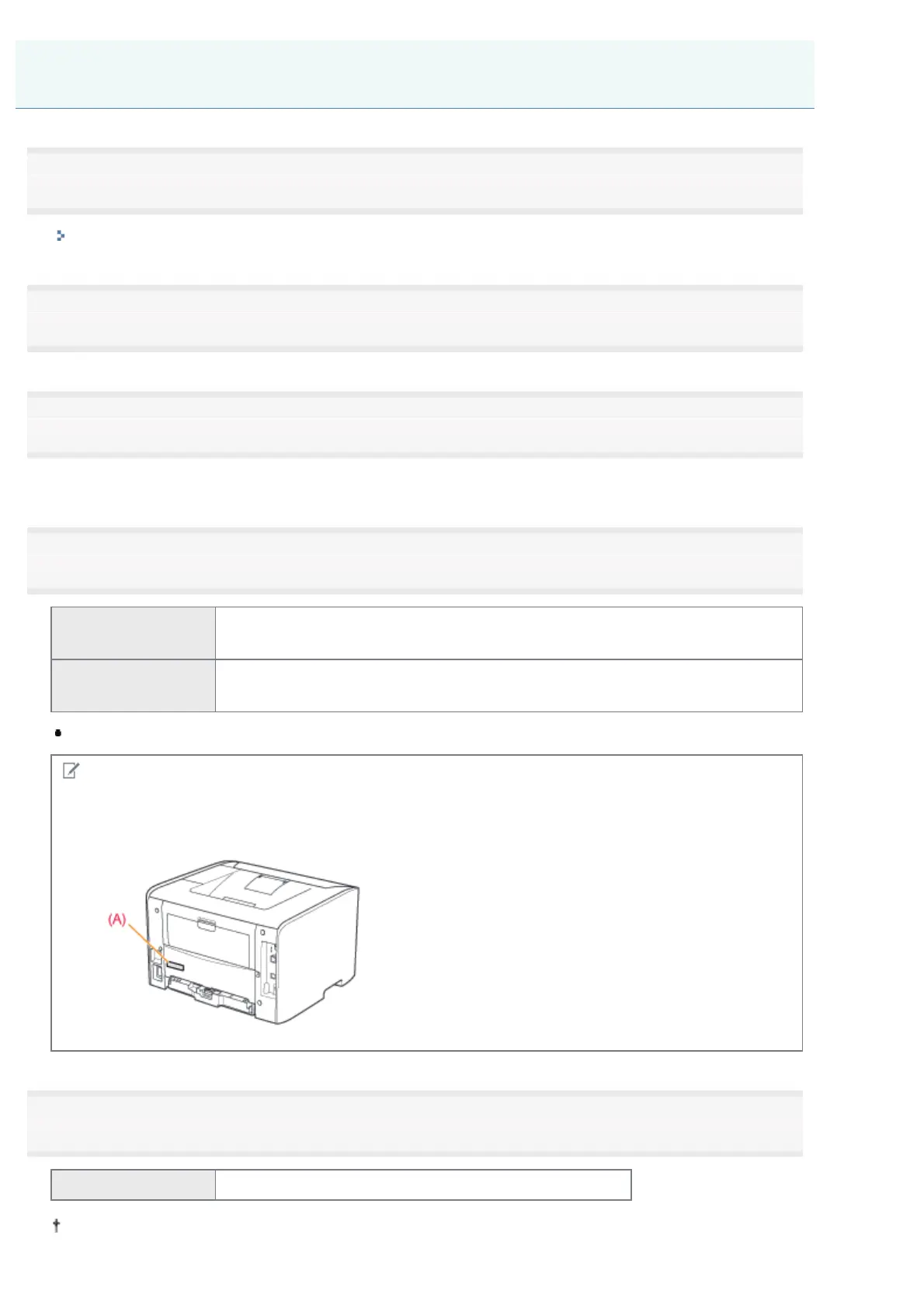
MAC address location
The MAC address is listed at (A) on the printer.
5
Enter "ping <IP address> -l 479", then press the [ENTER] key on your keyboard.
<IP address> Enter the same IP address as the one entered in Step 4.
Enter a lowercase "L" for "-l".
Setting the IP Address Using the ARP/PING Command
㻞㻠㻜㻌㻛㻌㻠㻡㻞










 To Next Page