07K5-063
There are the following two ways to start the Remote UI.
Starting the Remote UI from the Printer Status Window
Starting the Remote UI Directly from a Web Browser
Before starting the Remote UI, see "Attention (Remote UI)."
Starting the Remote UI from the Printer Status Window
1
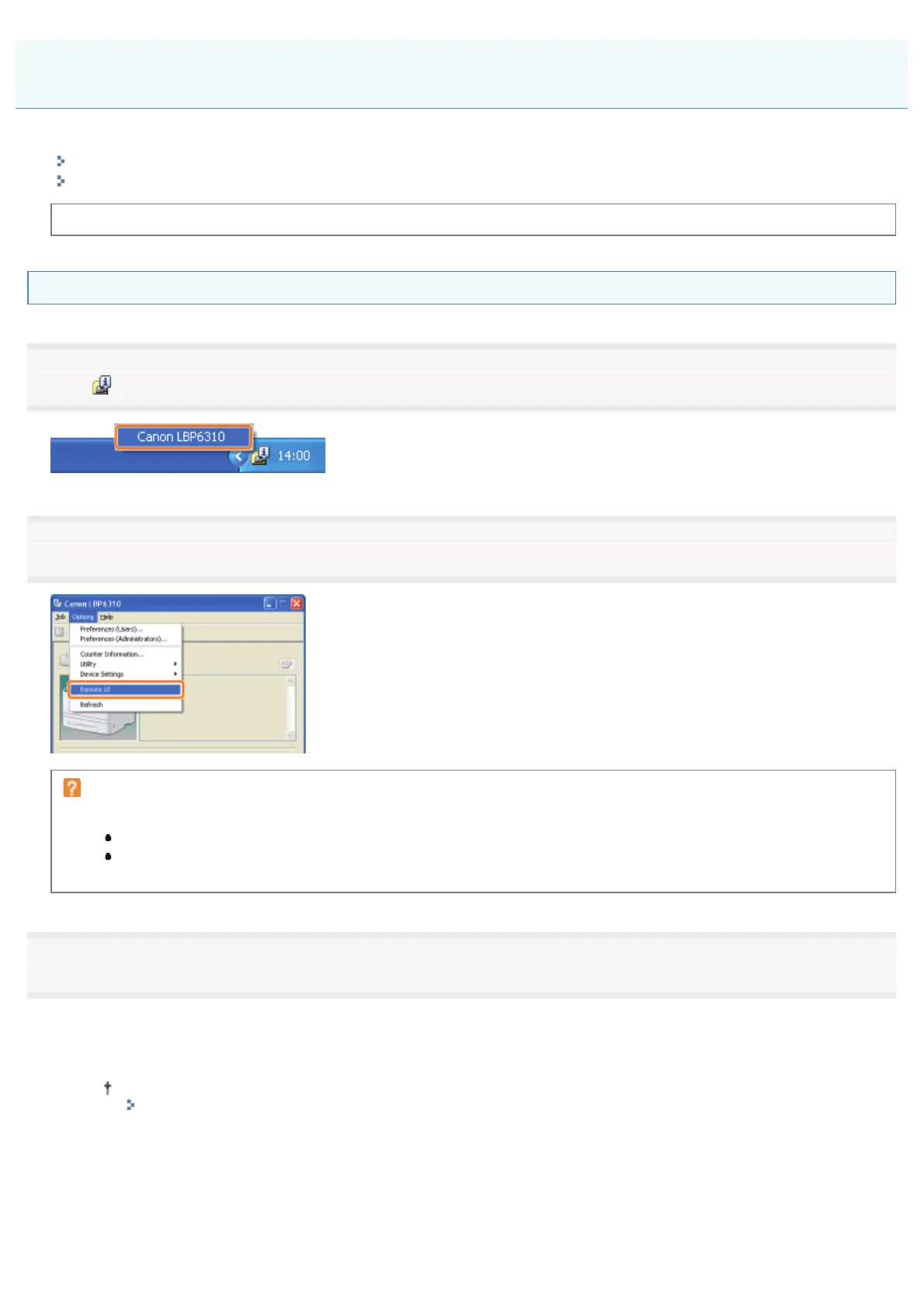
Click [ ] in the Windows task tray, and then select the printer name.
2
Select [Remote UI] from the [Options] menu.
If you cannot select [Remote UI]
Check the following points.
The printer and computer are connected properly via a network.
The printer is turned ON.
3
Log in as Administrator as needed.
By logging in as Administrator, you can perform all the operations and settings of the Remote UI.
(1) Enter a password in [Administrator Password].
If the administrator password is not specified, you do not need to enter the password.
"Setting the Administrator Password"
(2) Click [Log In].
Starting the Remote UI
㻟㻜㻡㻌㻛㻌㻠㻡㻞










 To Next Page