07K5-016
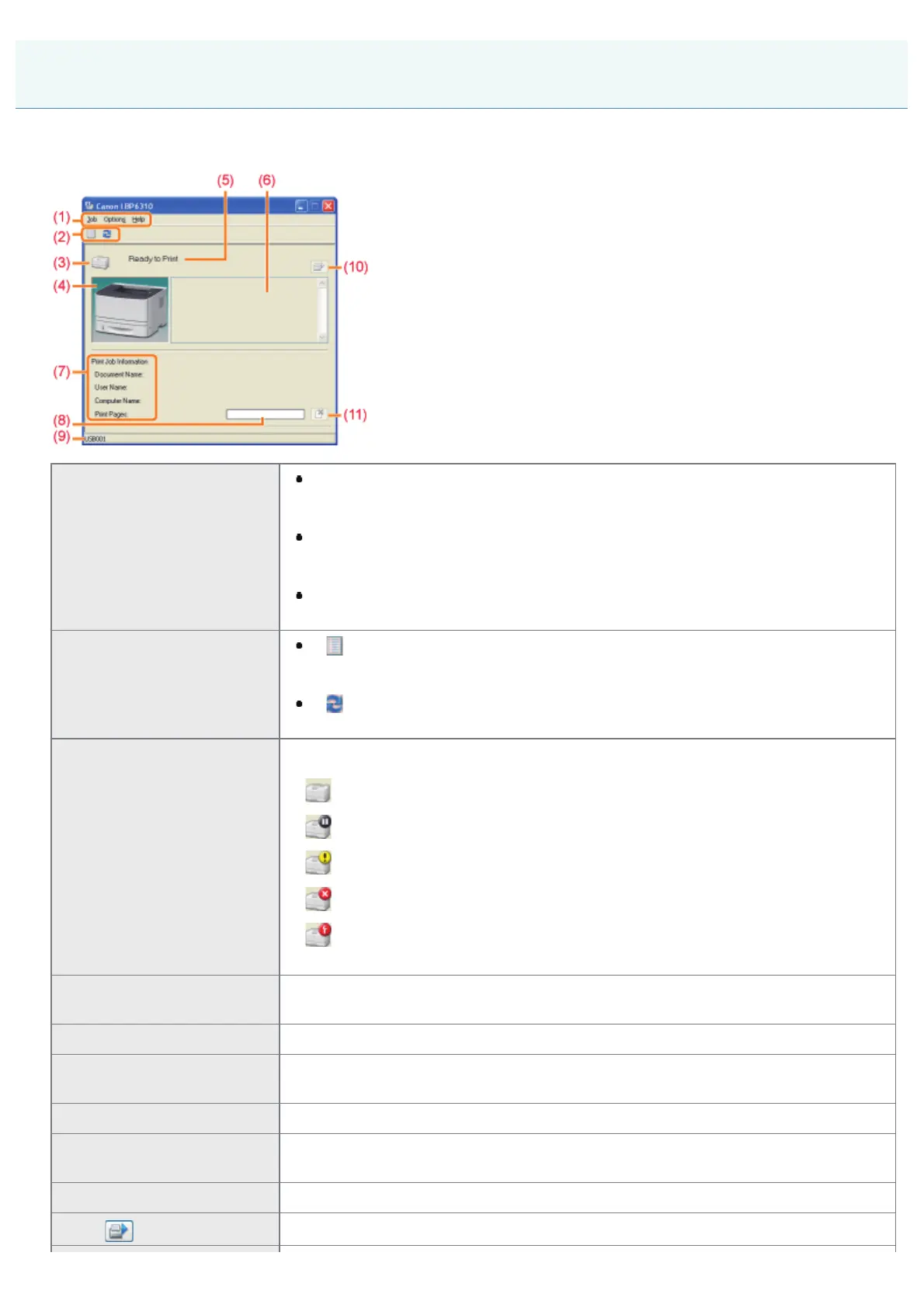
The Printer Status Window allows you to check the printer status (such as the operation status and job information),
perform utility functions, specify the settings for the printer unit, and so on.
(1) Menu bar
[Job] menu
You can cancel a job, resume a job which is paused during printing for some
reason, or display the print queue.
[Options] menu
You can perform utility functions, specify the settings for the printer unit, and so
on.
[Help] menu
Use this menu to display Help and the version information.
(2) Tool bar
[
] (Print queue)
Displays the print queue, a function of Windows.
For details on the print queue, see Windows Help.
[
] (Refresh)
Obtains the printer status and refreshes the Printer Status Window display.
(3) [Icon]
Displays the printer status.
The printer is ready to print or in the sleep mode.
The printer pauses.
The printer problems need to be corrected.
Communication cannot be performed with the printer.
A service call is occurring.
(4) [Animation Area]
Displays the printer status using an animated graphic. This area displays the printing
progress or error conditions depending on the printer status.
(5) [Message Area] Displays messages about the printer status.
(6) [Message Area] (Auxiliary)
Displays additional information (such as situation explanation and solutions) if an error
or other such event occurs.
(7) [Job Information Area] Displays information about the job.
(8) [Progress Bar]
Displays the printing progress of the current job. The bar gradually grows indicating
the printing progress.
(9) [Status Bar] Displays the device to which the printer is connected.
(10) [
] (Resolve Error)
You can resume a job when it is paused during printing for some reason.
Printer Status Window
㻡㻟㻌㻛㻌㻠㻡㻞










 To Next Page