07K5-08J
Perform one of the following solutions according to the cause.
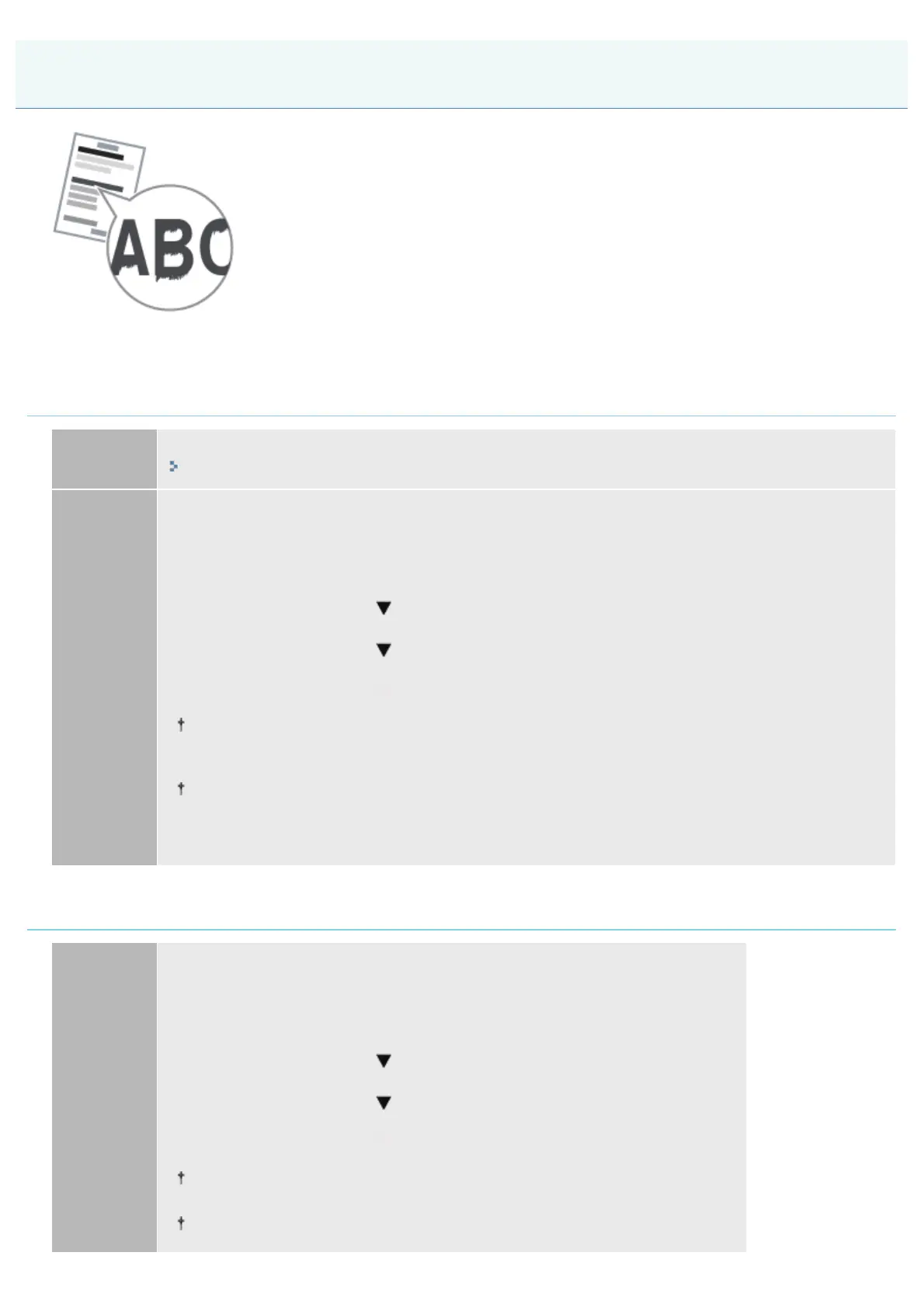
<Cause 1> Depending on the paper type or the operating environment, vertical streaks may
appear on the printed paper.
Solution 1
Replace the paper with new paper in an unopened package.
"Precautions for Paper"
Solution 2
Perform the following procedure in the printer driver.
1. Display the [Finishing] sheet.
2. Click [Advanced Settings].
3. Set [Special Print Adjustment A] to [Mode 2].
If the problem is not solved, specify [Mode 3].
If the problem is not solved, specify [Mode 4].
Resetting the setting to [Mode 1] due to change in paper type or operating environment may also
avoid vertical streaks appearing on the printed paper.
In this case, reset the setting to [Mode 1].
Vertical streaks are alleviated by specifying a setting between [Mode 2] and [Mode 4]. However,
this decreases print density compared to when [Mode 1] is specified.
This may also make outlines appear to be blurred or slightly jagged.
<Cause 2> The toner cartridge was replaced, or the printer was not printed for a long period
of time.
Solution
Perform the following procedure in the printer driver.
1. Display the [Finishing] sheet.
2. Click [Advanced Settings].
3. Set [Special Print Adjustment B] to [Mode 1].
If the problem is not solved, specify [Mode 2].
If the problem is not solved, specify [Mode 3].
Selecting [Off] may also avoid vertical streaks appearing on the printed paper.
In this case, reset the setting to [Off].
If [Special Print Adjustment B] is specified, printing speed may drop.
The Printed Paper Has Vertical Streaks
㻠㻞㻢㻌㻛㻌㻠㻡㻞










 To Next Page