4
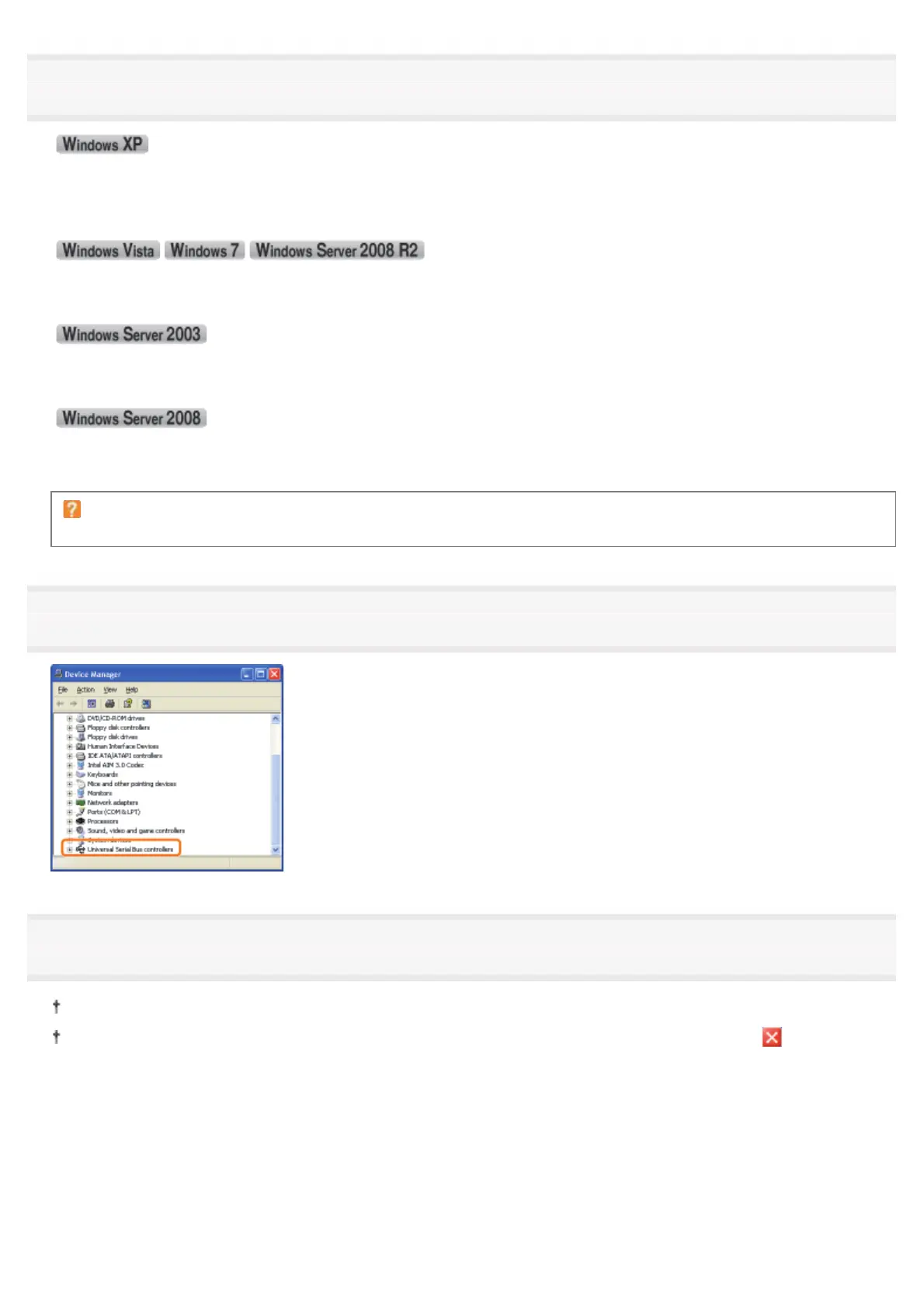
Display [Device Manager].
1. From the [Start] menu, select [Control Panel].
2. &OLFN>3HUIRUPDQFHDQG0DLQWHQDQFH@ĺ>6\VWHP@
3. &OLFNWKH>+DUGZDUH@WDEĺ>'HYLFH0DQDJHU@
1. From the [Start] menu, select [Control Panel].
2. &OLFN>+DUGZDUHDQG6RXQG@RU>+DUGZDUH@ĺ>'HYLFH0DQDJHU@
1. )URPWKH>6WDUW@PHQXVHOHFW>&RQWURO3DQHO@ĺ>6\VWHP@
2. &OLFNWKH>+DUGZDUH@WDEĺ>'HYLFH0DQDJHU@
1. From the [Start] menu, select [Control Panel].
2. Double-click [Device Manager].
If the [User Account Control] dialog box appears
Click [Continue] or [Yes].
5
Double-click [Universal Serial Bus controllers].
6
Right-click [USB Printing Support], then select [Uninstall] from the pop-up menu.
Do not uninstall any drivers for other devices. If you uninstall them by mistake, Windows may not operate properly.
If the USB class driver is not installed properly, [USB Printing Support] is not displayed. Then, click [ ] to close the
[Device Manager] dialog box.
㻟㻥㻜㻌㻛㻌㻠㻡㻞



 To Next Page