482 Eos Apex, Eos Ti, Gio, Gio @5, Ion Xe, Ion Xe 20, and Element 2 User Manual
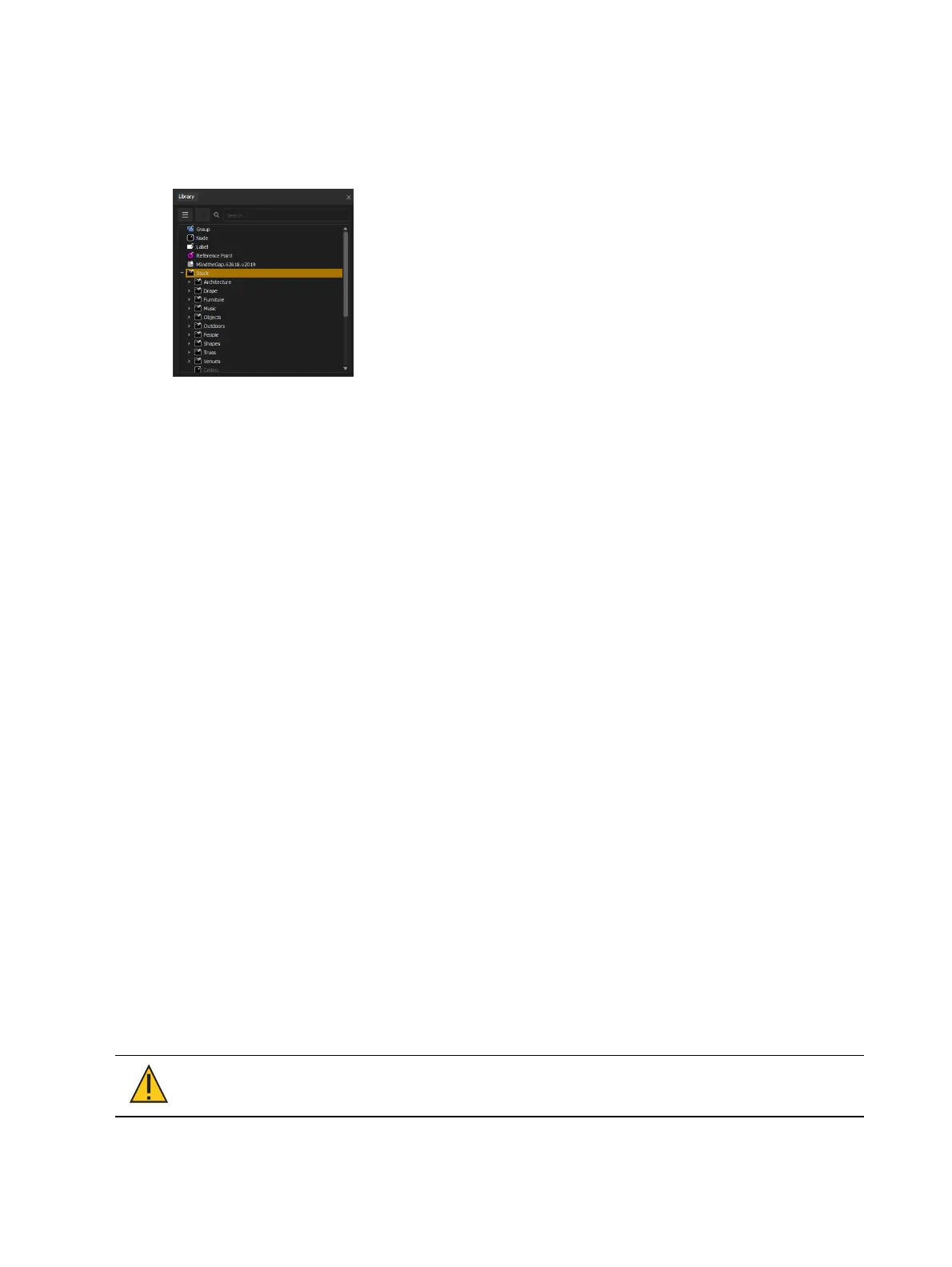
Library
The Library contains all of the non-fixture items in an Augment3d project and comes
preloaded with a large number of stock objects for your convenience. You can also import
your own Augment3d objects (see
Importing Augment3d Objects (on page516)
).
Drag objects to add them from the Library into your model at the origin. Use the Search
function to quickly locate specific items. Create folders from the dropdown to organize Library
items.
Library Items
Objects
Any objects contained in the Stock folder can be added to an Augment3d model (see
Augment3d Objects (on page514)
).
Any custom objects imported into Eos will also appear here (see
Importing Augment3d Objects
(on page516)
).
Nodes
Nodes can be associated with one or more Augment3d objects in the
Hierarchy (on page490)
.
This allows those objects to be controlled together; for example, as patched scenic elements
(for more information, see
Scenic Elements (on page515)
).
Scenic elements can be given intensity values, moved, rotated, etc. This allows you to change
the visibility and position of Augment3d objects using cues, submasters, and so on.
Groups
A group is an Augment3d object designed to be the parent of other objects which have their
own unique coordinates. Fixtures that have a group parent will display their relative
coordinates in Patch.
A group cannot be scaled, but can be moved and / or rotated. Moving or rotating the group
node will move or rotate all of its child objects.
Labels
Labels are floating text that can be positioned anywhere in your Augment3d model.
Materials
Materials in Augment3d are collections of assets that can be applied to objects. Materials can
affect aspects of an object's appearance like color, texture, reflectiveness, and so on.
CAUTION:
Augment3d materials are referenced data, meaning any material
edits will be reflected across all objects with those materials applied.



 To Next Page