88 MI-42-0001 Rev. 19
SCANNING: Typical Scan Sequence: New Scan
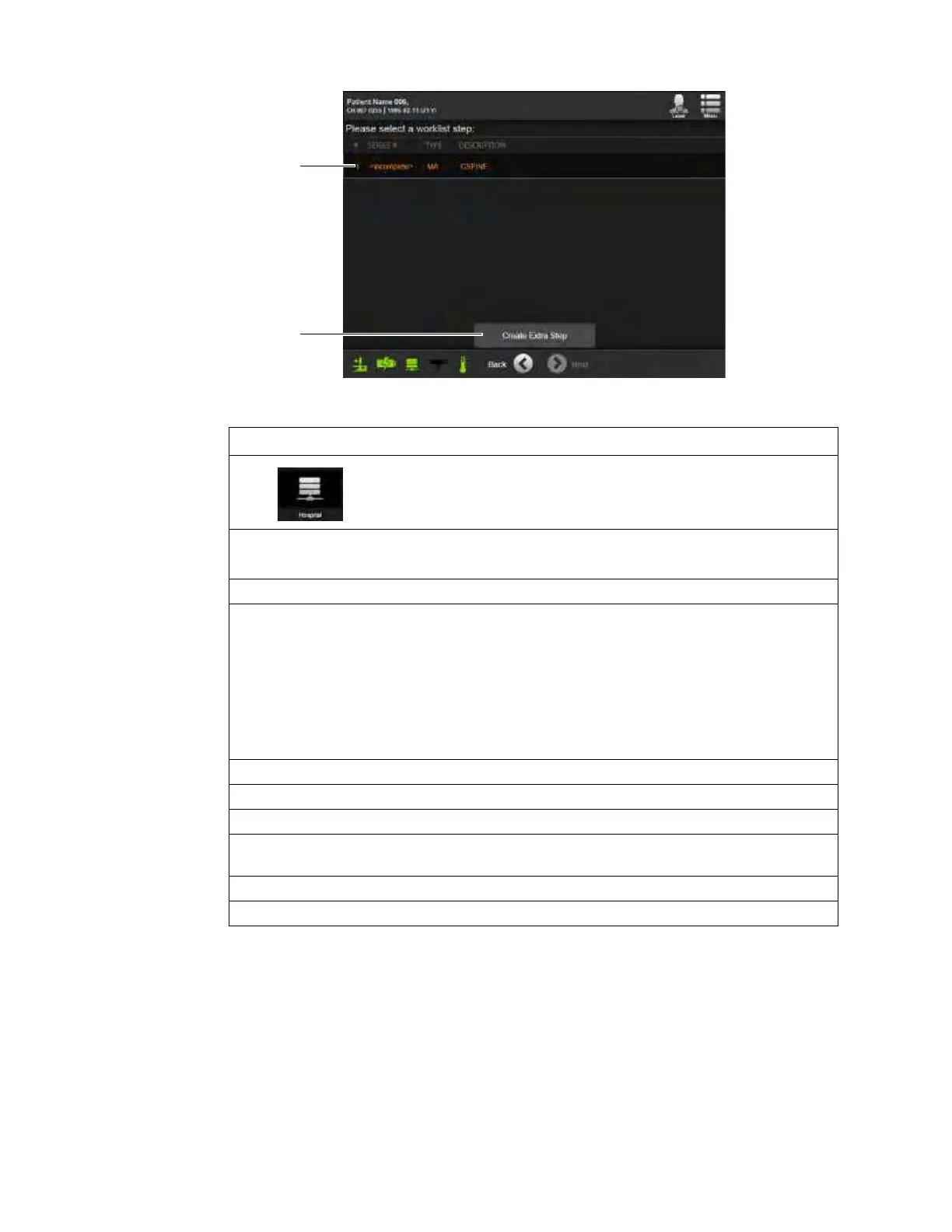
Figure 56
Steps
1.
Select Hospital from Patient Data Screen. See section 6.8.1 New Scan.
NOTE: The Network icon
a must be green before Hospital patient lists and
worklists will be available.
2. From the screen showing configured servers, select a server
s.
Available PACS servers have green status icons d.
3. Touch
Next
.
4. Select a patient name from the list
f or search by patient name or ID g.
To facilitate the search for patient records, the Hospital patient list includes:
• Patient name
• Birth date
• Gender
• Study count
• Patient ID assigned by the hospital
5. Touch
Next
.
6. From the Worklist Details dialog, review patient and session DICOM data h.
7. Touch
Select Worklist
j to continue or
Cancel
k to return to the patient list.
8. After continuing from the Worklist Details dialog for a patient, fill in the patient’s height and
weight and then touch
Next
. See Figure 51.
9. Select either a listed worklist step
l and touch
Next
, or select
Create Extra Step
;.
10. Begin the scan setup sequence. See section 6.8.6 Confirming Scan Direction.



 To Next Page