MI-42-0001 Rev. 19 119
SCANNING: Typical Scan Sequence: New Scan
Verify Image with
Patient Position
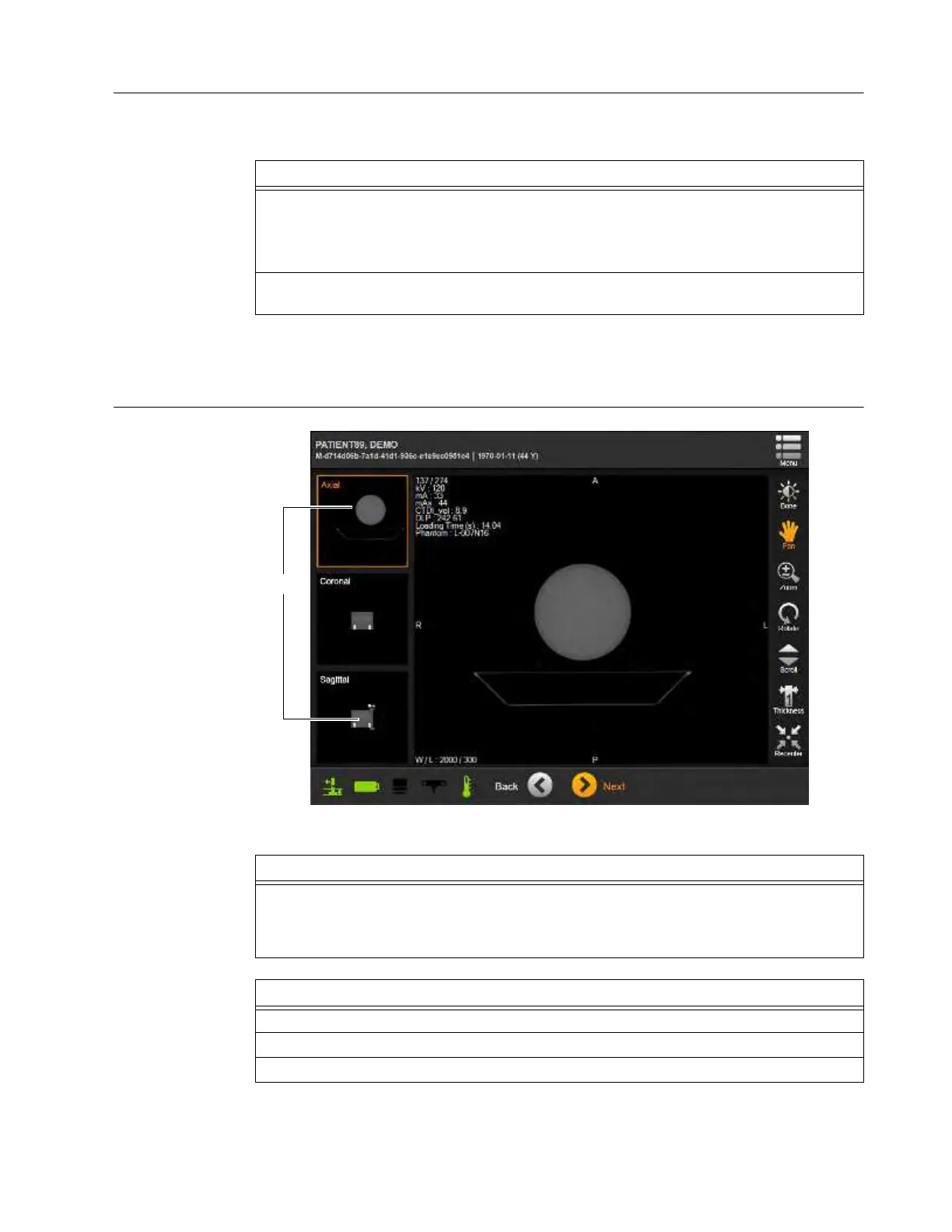
Before using viewing controls to adjust view of the 3D image, verify that the DICOM markers
displayed in the default view match the actual position of the patient.
6.8.20 Main Image View
How to Change the
Main Image View
Figure 92
Steps
1. In the default view, make sure that the DICOM markers correspond to the patient position
during the scan.
For example, in Figure 91 the axial view displays transverse slices of the scan with L, R, A,
and P markers for the left, right, anterior, and posterior ends of the anatomical axes.
2. If necessary, change the Main Image view by selecting a different thumbnail
a and verify
that the new marker collection also corresponds to the patient position.
Step
Touch
a a thumbnail image.
The main image changes to that view.
NOTE: Views are standard anatomical-plane views.
Options
Axial (transverse)
Sagittal
Coronal



 To Next Page