124 MI-42-0001 Rev. 19
SCANNING: Typical Scan Sequence: New Scan
NOTES:
• All patient data and all data within a study can be exported.
• An option to include the QC Report is available when exporting QC scans to USB storage
devices. See Figure 145.
• When exporting anonymized data after running or viewing a scan, only the images and dose
report (if selected) for current series are exported with patient data redacted.
6.8.25 Next Steps
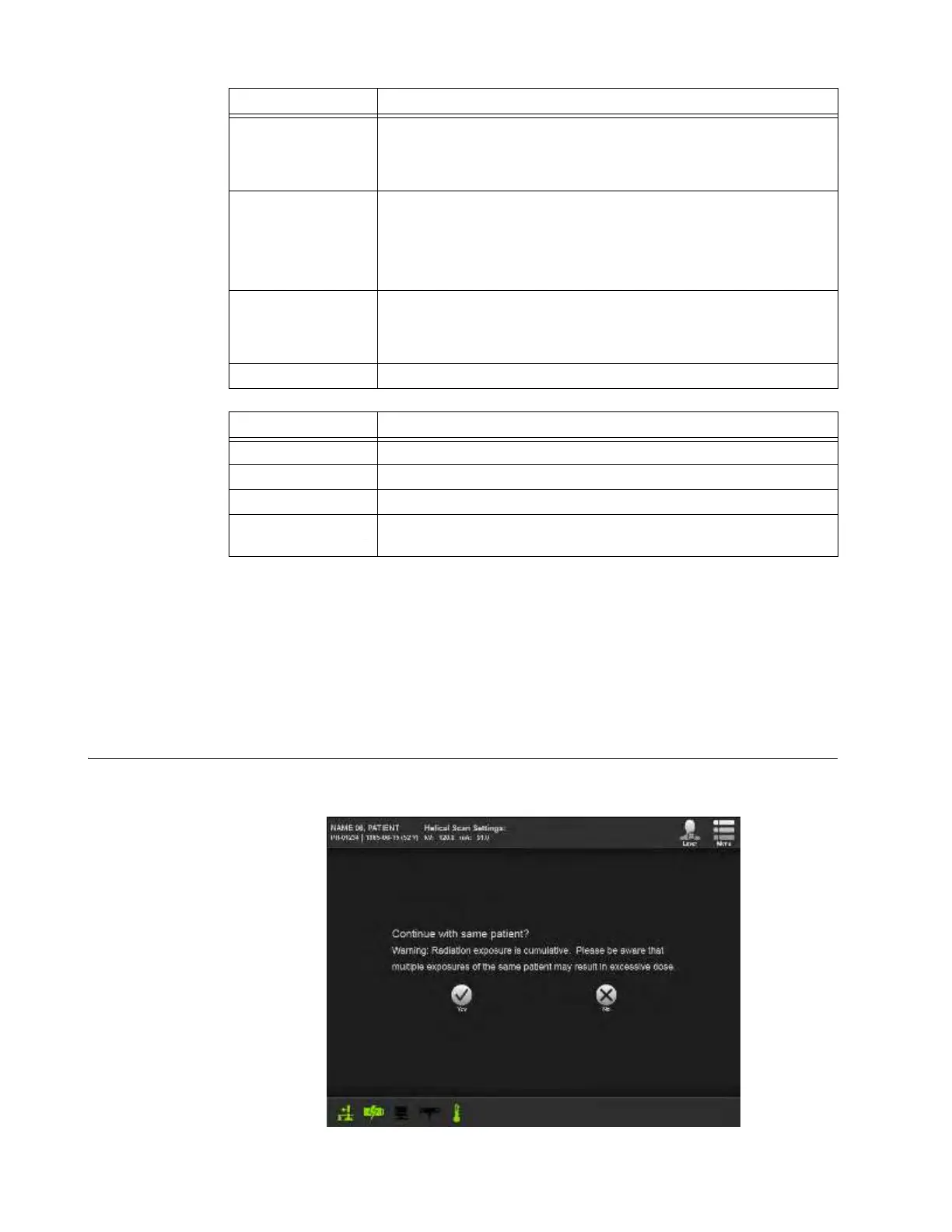
Continue with
Same Patient?
After saving and viewing the scan, the system warns users that radiation exposure is cumulative for
patients and provides two choices.
Figure 99
To send the scan to
a DICOM node
1. Select the node name under
Server
.
2. Select Send to DICOM node
a.
3. Touch
OK
to acknowledge data transfer.
To export to USB
1. Insert USB storage device into USB port on holster.
2. Select Export to USB
s.
AIRO creates a DICOMDIR on the USB device and exports the file.
3. Touch
OK
to acknowledge data transfer.
To take another scan
or exit scanning
1. Touch Next.
2. If scan was not exported, touch
OK
on the dialog. See image above.
3. Select the next patient or task. See section 6.8.25 Next Steps.
To return to the scan
• Touch Back.
Options Action
Slice Averaging
Default is 1 mm (range is 1 mm to 10 mm).
Anonymize
Send without patient data.
Dose Report
Include the Dose Report for the current study.
User Friendly Files
For USB export only, adds the
.dcm
extension to filenames to allow
them to be recognized by extension.
Steps Action



 To Next Page