MI-42-0001 Rev. 19 143
MAINTENANCE: Service Functions
AIRO provides a QC Pattern for verifying screen resolution. The hardwired Pendant has an 800 x
600 pixel screen that displays the 600 x 600 QC Pattern shown in Figure 115. The Detachable
Pendant has a 1280 x 800 pixel screen that displays a similar 800 x 800 QC Pattern.
To view the QC Pattern:
7.2.4 Option: Add New Phantom
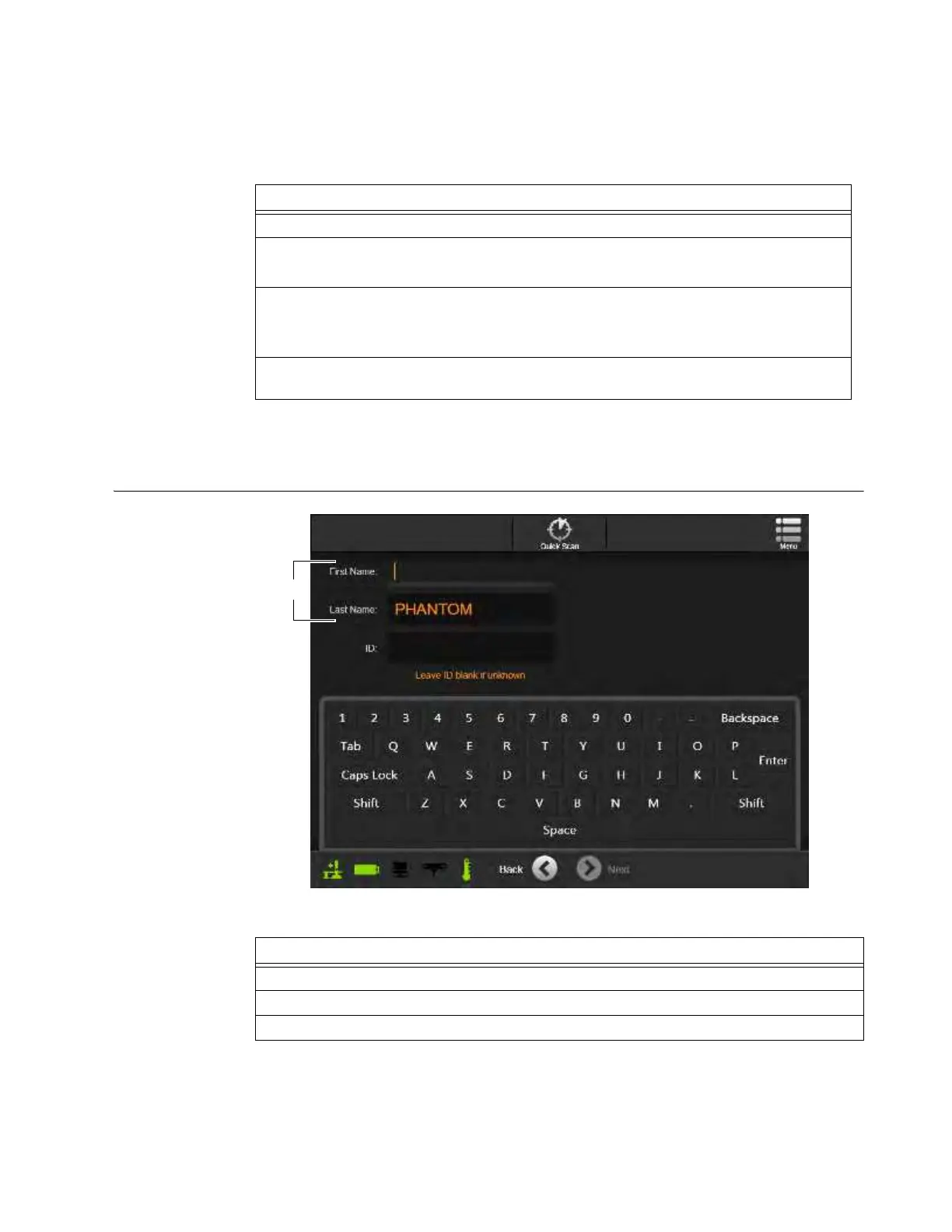
How to Add a New
Phantom
Figure 116
Steps
1. From the Hospital Service screen, select Configure. See Figure 112.
2. From the System Configuration screen, select QC Pattern. See Figure 113.
The QC Pattern appears. See Figure 115.
3. Verify that the “Scaled to...” message matches the resolution of the Pendant.
• 600 x 600 for the hardwired Pendant a
• 800 x 800 for the Detachable Pendant
4. Touch the screen to move successively through each corner of the pattern at full pendant
resolution, and then back to the System Configuration screen. See Figure 113.
Steps
1. Select Add New Phantom from the Hospital Service screen.
2. Type a first and last name for the new Phantom
a.
3. Touch Next.



 To Next Page