92 MI-42-0001 Rev. 19
SCANNING: Typical Scan Sequence: New Scan
Rotating the Ring
After Confirm Scan
Direction Screen
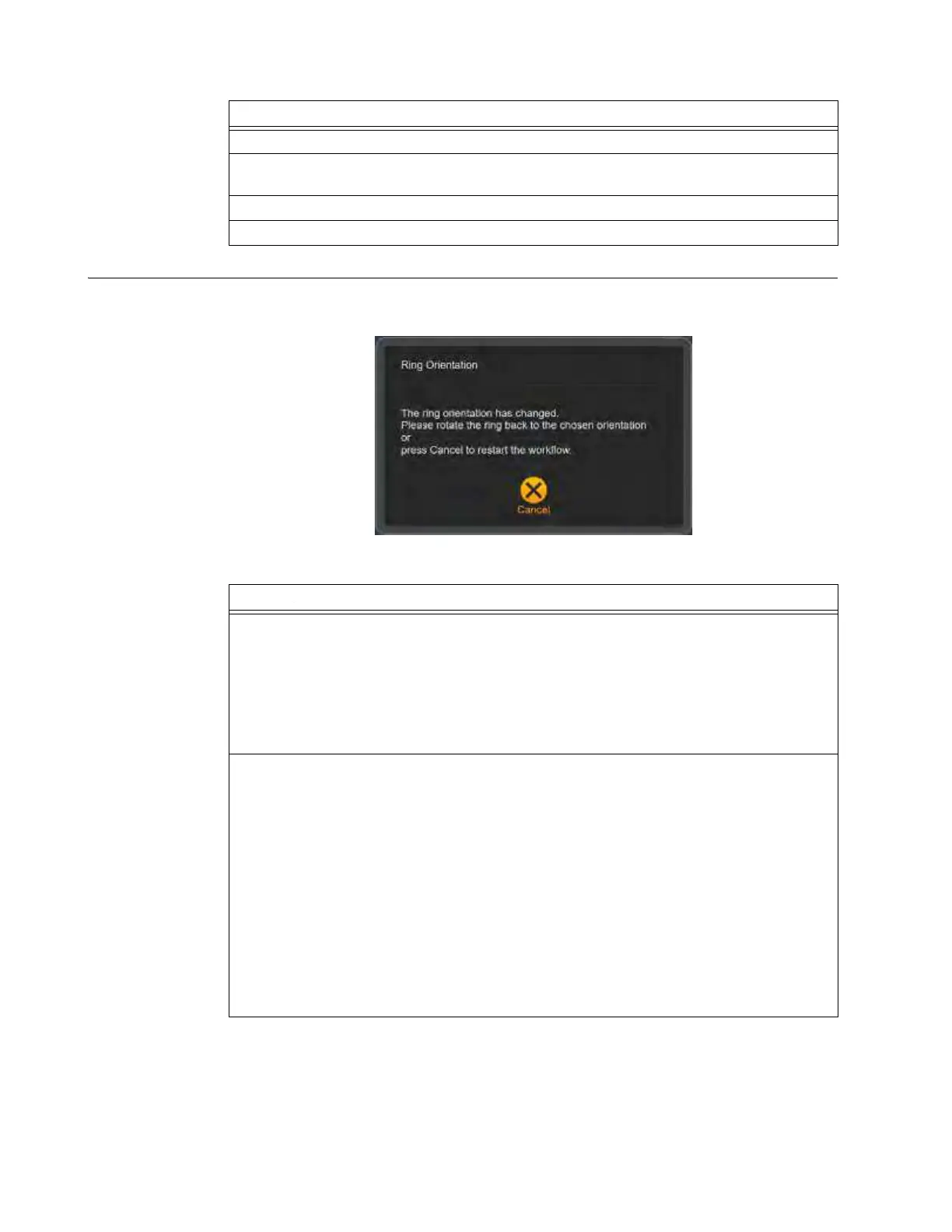
If operators rotate the Ring at any screen in the scan setup workflow after this “Confirm Scan
Direction...” screen, AIRO interrupts scan setup with the “Ring Orientation” dialog.
Figure 63
Options
If the Ring is not locked in the +90°/-90° position, you are prompted to lock the Ring.
If the Ring is in the wrong orientation, move the table and rotate the Ring to the correct
orientation. See section 3.3.6 Rotating and Latching the Ring in Transport or Scan Position.
To change parameters, touch Back.
To proceed, touch Next.
Options
• Resume the workflow in the initial scan direction.
1. Rotate the Ring back to the original orientation. See section 3.3.6 Rotating and Latching
the Ring in Transport or Scan Position.
The dialog closes when the Ring is locked into position.
2. If prompted, hold down the Pendant's Green Button to “home” the Ring's tilt.
3. Resume the original scan setup workflow where it was interrupted.
• Restart the workflow for scan setup in the new scan direction.
1. Press
Cancel
on the dialog.
2. If prompted, hold down the Pendant's Green Button to “home” the Ring's tilt.
The system returns to the Confirm Scan Direction screen, showing the new Ring
orientation and scan direction with the indicator arrow and icon. See Figure 61 and
Figure 62.
• If the initial screen was “Confirm Scan Direction Towards Column” (STC), the new
screen will be “Confirm Scan Direction Away From Column” (SAC).
• If the initial screen was “Confirm SAC,” the new screen will be “Confirm STC.”
3. Accept the new scan direction by touching
Next
.
4. Restart the scan setup process. See section 6.8.7 Selecting Patient Type and Patient
Category.



 To Next Page