78 MI-42-0001 Rev. 19
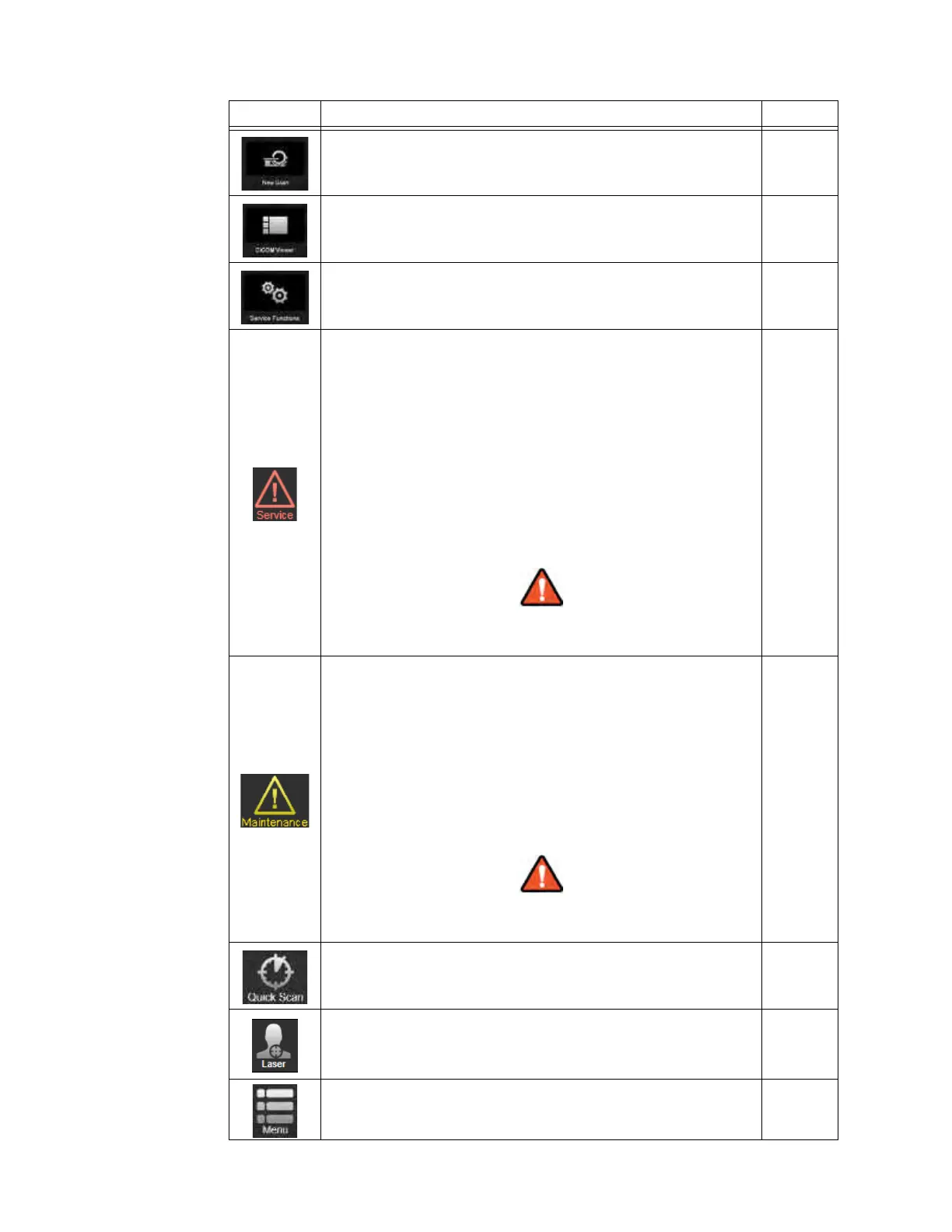
SCANNING: Welcome Screen
Options Function See
Select to start the scan workflow. 6.8.1
Select to launch the DICOM Viewer and display existing images that
are on the system.
6.8.3
Select to view the Service Functions screen and access system
configuration and maintenance features.
7.2
Service
warning icon:
• Appears when the system requires service.
• Touch to display a Service Warning dialog about the issue(s)
requiring service. Possible warnings are:
- Application settings have been changed
- Adjacent bad detectors
- Bad detector limit exceeded
- Detector verification failed
NOTE: If the
Detector verification failed
message appears, try
rebooting the system. If the warning persists, stop using the system
and contact service.
If the Service warning icon appears, stop using the system and
contact service or technical support for your region.
1.2.1
Maintenance
warning icon:
• Appears when AIRO requires maintenance, quality scans, or both.
• Touch to display a Required Maintenance Scans dialog that lists all
required activities.
•See Figure 44 to view possible requirements.
• If the dialog lists
Warm-up Scan
, touching
OK
may launch the
scan. See section 6.7 Daily Warm Up Scan.
NOTE:If the dialog lists more than
Warm-up Scan
, ask the on-site
hospital technician to perform system maintenance.
Performing patient scans when the Maintenance warning icon
appears may result in poor image quality and unused dose.
6.7
7.2.5
7.3
7.2.9
Select to perform Emergency Scan (skip patient data entry). 6.10
Touch Laser at any time to turn on/off the positioning lasers.
• When the icon is Gray, the laser is
OFF
.
• When the icon is Orange, the laser is
ON
.
2.7.9
Select to open the universal option Menu in Scan mode. 6.7.4



 To Next Page