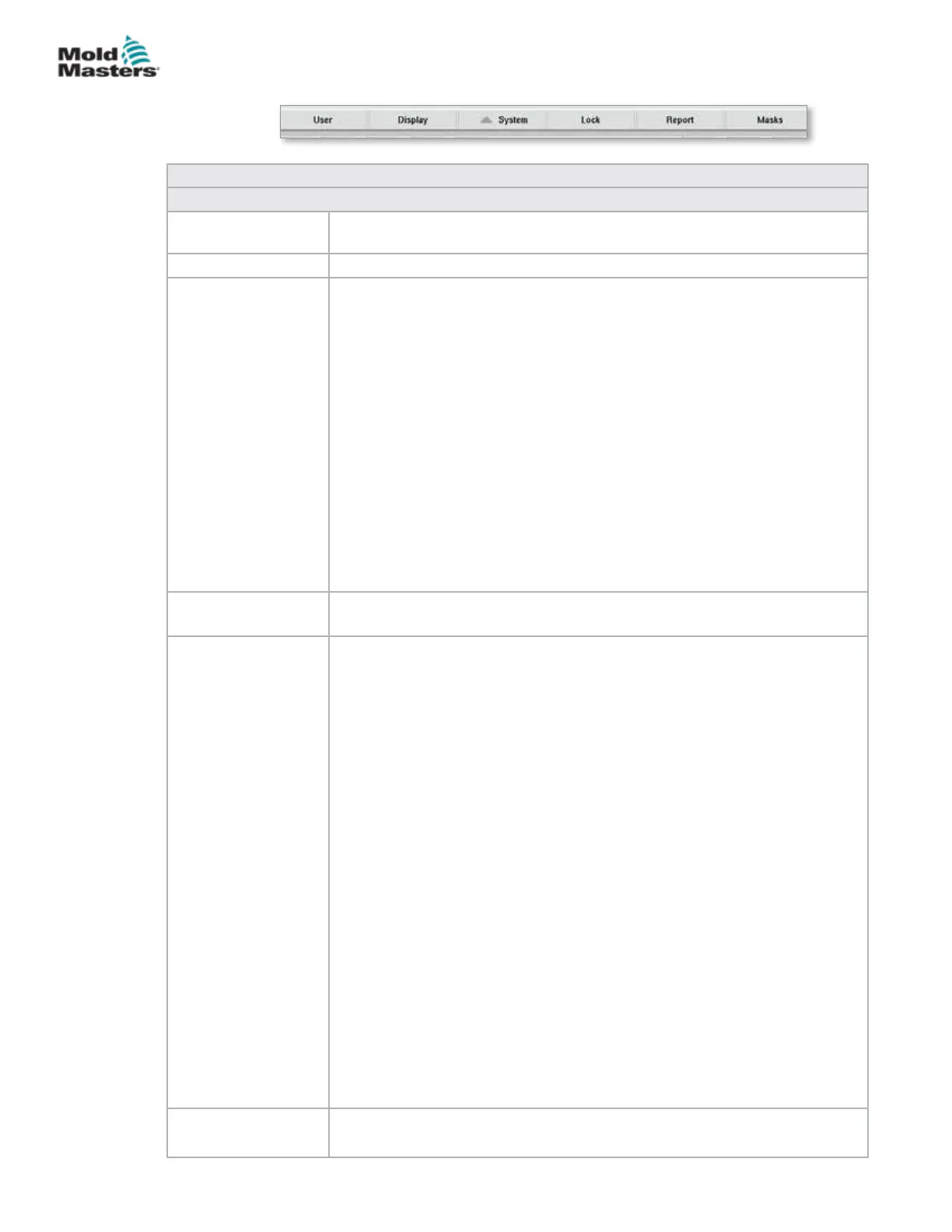
Table 7-37 System Settings Screen Lower Menu Buttons
Menu Buttons
User Opens the user login dialog. User administration may also be performed
here.
Display Adjust the brightness and contrast of the display.
System This button is used to access additional menu buttons.
Restart HMI
: Reinitializes the visualization software.
Details: Displays a dialog box for further system information.
System: Shows an overview of the conguration settings of the
visualization and the startup times of the loaded screens.
SysVars: Shows an overview of the system variables the system is
communicating with.
Update: Refreshes the display.
Logle: Saves the overview of the communicating system variables in
the le hmi.log (normally in the root directory of the system drive).
Versions: This dialog shows the system and application versions for the
control and the visualization.
Network: Opens the dialog for setting and displaying the network
conguration.
Lock Locks the HMI so it can be cleaned.
Screen unlocks automatically after 10 seconds.
Report Pressing this button on a local station opens a le selection dialog, in
which the status report can be saved on a drive with a specied name.
The drives and directories which are available can be specied in the HMI
conguration.
Pressing the [status report] button on a remote station will store the status
report in the root directory of the system drive of the controller.
The status report contains the following information:
• PMA stack (up to 4 les)
• HMI event trace (key presses)
• Boot log (optional)
• System catalog
• Info log
• Current PCB conguration
• Task analysis (WVR le)
• Status report info le
• Network status
• KNet status
• KNet error
• Performance log
Note: An operator may be asked to save a status report for troubleshooting
purposes.
Masks (Screens) Shows additional diagnostic screens by selecting them in the dialog and
pressing the conrmation button.
7.22.1 Lower Menu Buttons
Figure 7-26 System settings screen lower menu buttons
7-63
© 2020 Mold-Masters (2007) Limited. All Rights Reserved.
E-MULTI CONTROLLER HMI INTERFACE
E-Multi Controller User Manual


 To Next Page