Table 7-42 Info-Log Menu Buttons
Filter Allows a lter to be selected. Pressing the button restricts the
display according to the lter settings.
The lters for alarms, system, errors and application are
predened.
By selecting lter o, all entries may again be displayed.
Setup Independent lters may be dened via menu item Filter and the
entries searched for text or time of occurrence.
Also settings for the display of events may be made (display of
long text, log le on and chronological display of events).
Save The entire info log may be saved to a user selectable location.
View Opens a sub menu for the selection of the following views:
Compact:
Only the connection designations and the status icons are
displayed.
Normal:
The assigned system variable is displayed besides the
connection designations and the status icons.
List:
Shows the connections in tabular form.
Print Opens a printer-dialog and prints out the Info-Log.
All currently displayed messages will be printed.
Help Displays the corresponding help page for the selected line
(help for the Info-Log class).
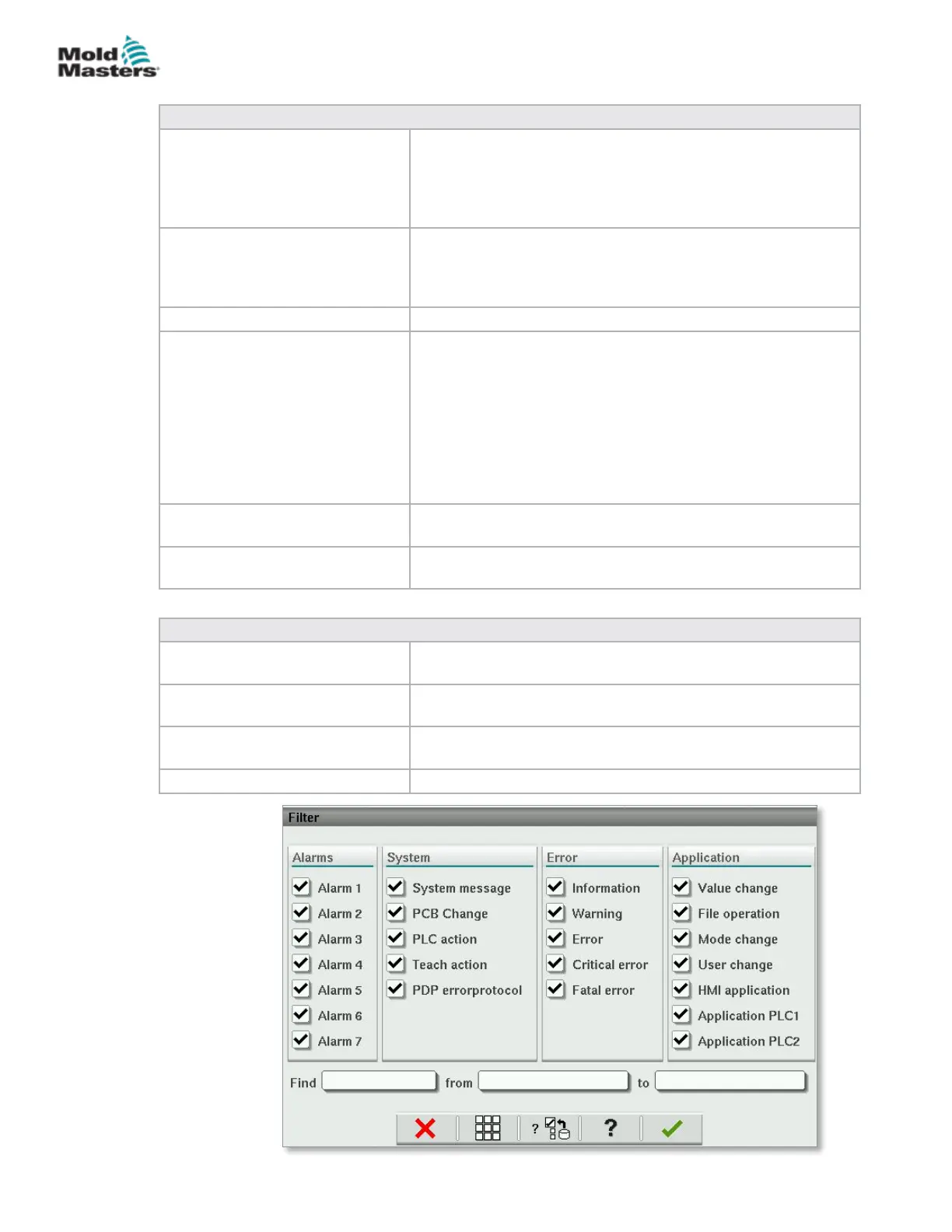
Table 7-43 Info-Log Filter Elements
Check boxes (Alarm, System,
etc.)
The corresponding Infolog class is displayed by selecting a
check box. All Info-log classes are selected by default.
Find The Info-Log entries are searched for the search term entered
here and displayed with OK.
from / to A specied time period may be entered in these input elds
which restricts the Info-Log entries displayed.
OK Conrm the entries.
Info-Log Screen - continued
7-69
© 2020 Mold-Masters (2007) Limited. All Rights Reserved.
E-MULTI CONTROLLER HMI INTERFACE
E-Multi Controller User Manual


 To Next Page