Printing in the Windows Environment 2-133
2.8 Appendix: Manual Installation Process of the Printer Driver
2
10 Select the folder on the CD-ROM containing the desired printer driver, then click [Open].
% Select the folder according to the printer driver, operating system, and language to be used.
Selectable printer drivers: PCL driver, PS driver, and XPS driver
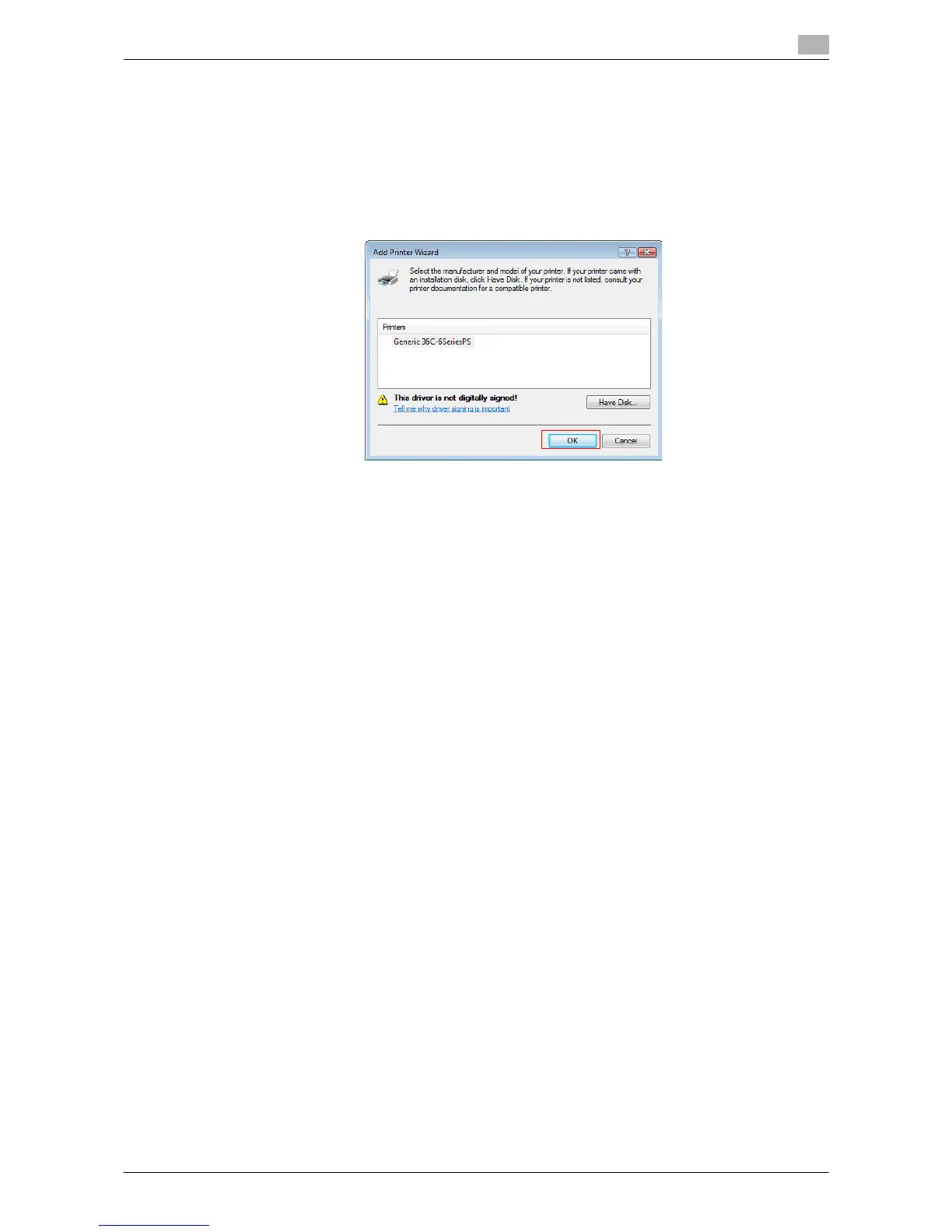
11 Click [OK].
The [Printers] list appears.
12 Click [OK].
13 Follow the instructions on the pages that follow.
% If the [User Account Control] window appears, click [Continue] or [Yes].
14 Click [Finish].
15 After finishing the installation, make sure that the icon for the installed printer is displayed in the [Print-
ers] or [Devices and Printers] window.
16 Remove the CD-ROM from the CD-ROM drive.
This completes the installation process of the printer driver.
The procedure for installing the printer driver by creating a new port is as follows:
0 Administrator privileges are required to perform this task.
0 Since the printer is searched for during the installation, be sure to connect this machine to the network
before turning it on.
1 Insert the printer driver CD-ROM into the CD-ROM drive of the computer.
2 From the Start menu, click [Control Panel].
3 Select the printer functions from [Hardware and Sound].
% In Windows 7/Server 2008 R2, click [View devices and printers] under [Hardware and Sound]. When
[Control Panel] is displayed in an icon view, double-click [Devices and Printers].
% In Windows Vista/Server 2008, click [Printer] under [Hardware and Sound]. When [Control Panel] is
displayed in Classic View, double-click [Printers].


 To Next Page
 Loading...




