Printing
QL-300 User Guide 134
3 On the File menu, click Print > Print.
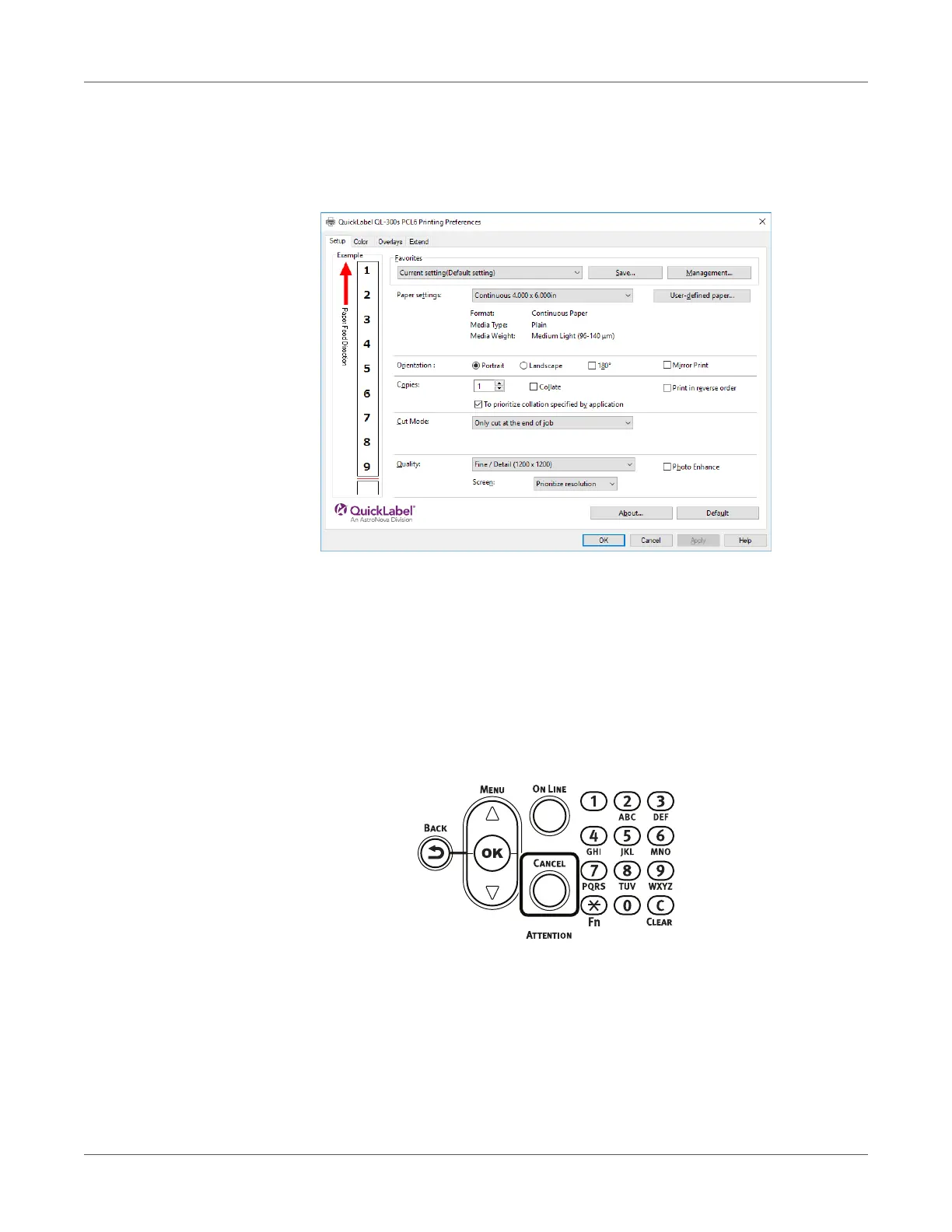
4 Click Preferences.
5 On the Setup tab, configure Paper settings.
Configure the Cut Mode setting on the Setup tab as required.
6 When the settings are complete, click OK in the “Setup” screen.
7 Click Print in the “Print” screen to print.
Canceling a Print Job
Use the procedure below to cancel a print job from the printer’s control panel.
1 On the control panel, press the CANCEL button.
2 If a verification message appears, select Yes, and then press the OK button.


 To Next Page