QL-300 User Guide 405
14
Web Utility
Operating Environment
Computer with Microsoft Internet Explorer, Safari, Google Chrome, or Firefox installed
Computer running TCP/IP
Note: Check to make sure that the security setting of the web browser is MEDIUM.
Starting Up
1 Start up a web browser on your PC.
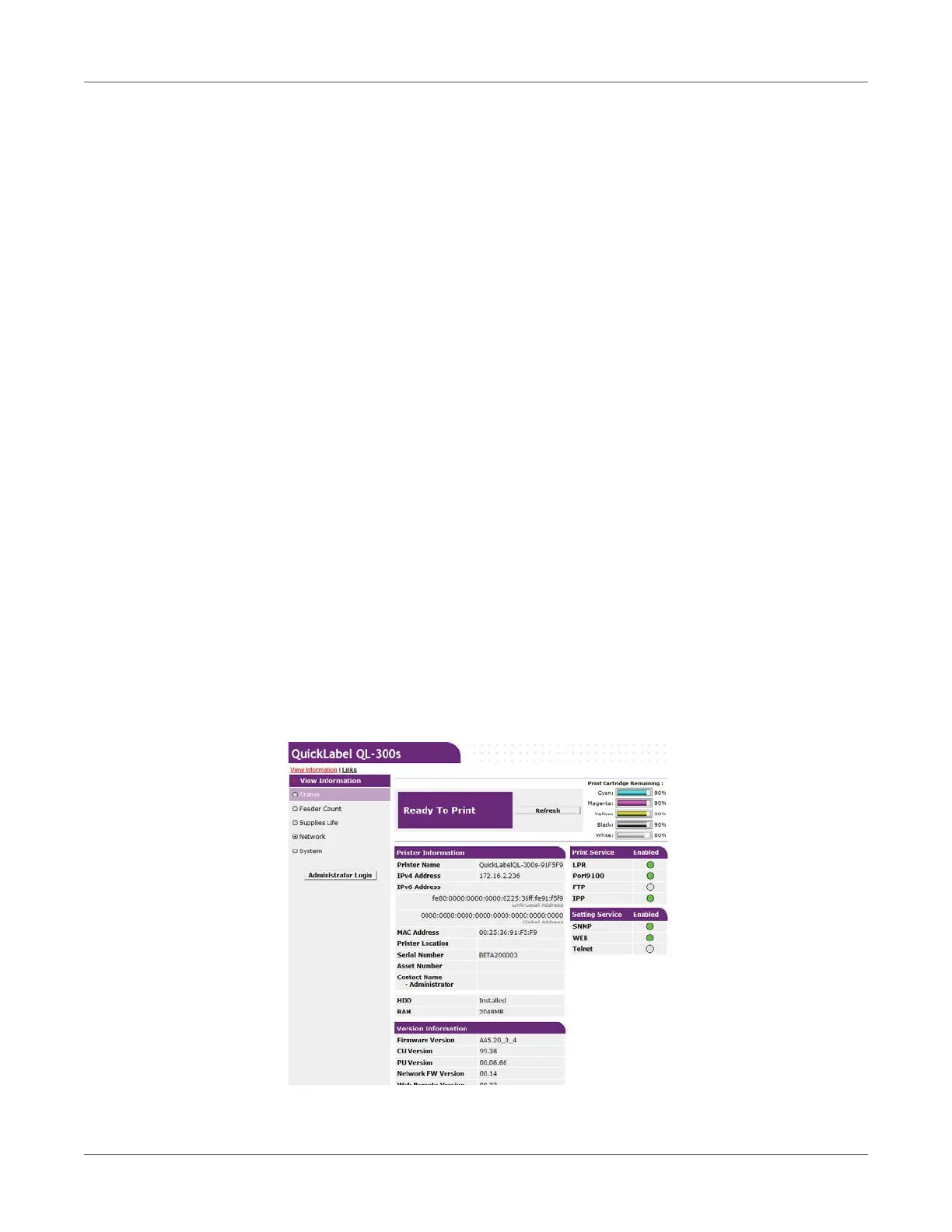
2 In the address bar, enter the following URL then press Enter: http://<printer IP address>/.
This displays the printer status screen.
If the IP address includes a one-digit or two-digit number, do not enter leading zeros. Doing
so may cause communication problems.
Example: Correct: http://192.168.0.2/
Incorrect: http://192.168.000.002/
Logging in as an Administrator
To change printer settings using a web browser, you need to log in as a printer administrator.
1 Click Administrator Login.
2 For Username enter “root”, for Password enter the current password, and then click OK.


 To Next Page