223
EFM Option
6.4.3 Troubleshooting the EFM
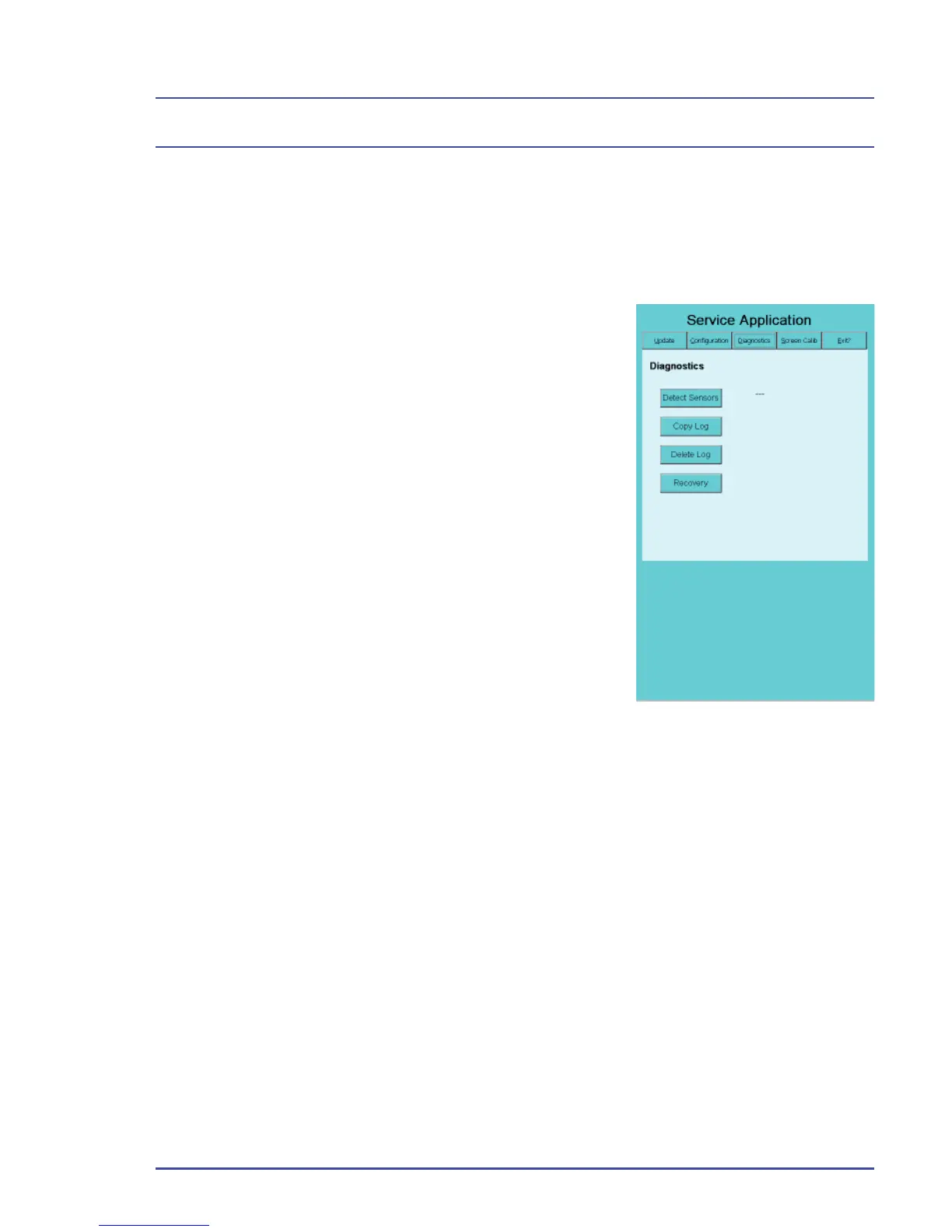
If you suspect a sensor or software problem, use the Diagnostics panel.
On this panel you can identify faulty sensor(s), extract and delete logs and
recover the fl ash drive.
1. Remove the label covering the EFM SD
Card Reader located on the left side of the
EFM (as you face the unit).
2. With the machine power off, insert the EFM
SD card into the EFM SD Card Reader.
3. Turn on the machine to boot to the SD
Card. After about 1 minute, the EFM
Service Application opens. The startup
screen displays the Software Update
Panel.
4. Select the Diagnostics tab (Figure 165),
then select the function that best suits your
needs. See the descriptions that follow for
more information.
Note: If the touch screen does not function, reboot the system.
5. Remove the SD card when you have completed the required diagnostics
and store it in a secure place. Place a new label over the EFM SD Card
Reader.
Figure 165 - Diagnostics Panel


 To Next Page