CDM-625A Advanced Satellite Modem MN-CDM625A
Updating Firmware Revision 4
4–9
4.3.3 Perform the Ethernet FTP Upload Procedure
You may proceed with the firmware update procedure assuming that:
• Your CDM-625A is connected to a user-supplied, Windows-based PC, and:
o Your PC serial port is connected to the CDM-625A “Remote Control” port
with a standard user serial cable.
o Your PC Ethernet port is connected to a CDM-625A “10/100 Ethernet”
port with a user-supplied hub, switch, or direct Ethernet cable
connection.
o Your PC is running a terminal emulation program (for operation of the
CDM-625A Serial Interface) and a compatible Web browser (for operation
of the CDM-625A HTTP Interface).
• Your CDM-625A firmware and Ethernet Traffic/Management IP Address has
been noted using either the CDM-625A Serial Interface or the CDM-625A
HTTP Interface ‘Admin | Firmware | Base Modem’ and ‘Configuration | LAN |
IP’ pages, respectively.
• The latest firmware files have been downloaded or otherwise received from
Comtech EF Data and are available on the User PC in an accessible temporary
folder.
1) Send a “ping” command to confirm proper connection and communication between the
User PC and the CDM-625A:
• Use Command-line: Type “ping xxx.xxx.xxx.xxx” at the Command-line prompt (where
‘xxx.xxx.xxx.xxx’ is the unit Ethernet Traffic/Management IP Address).
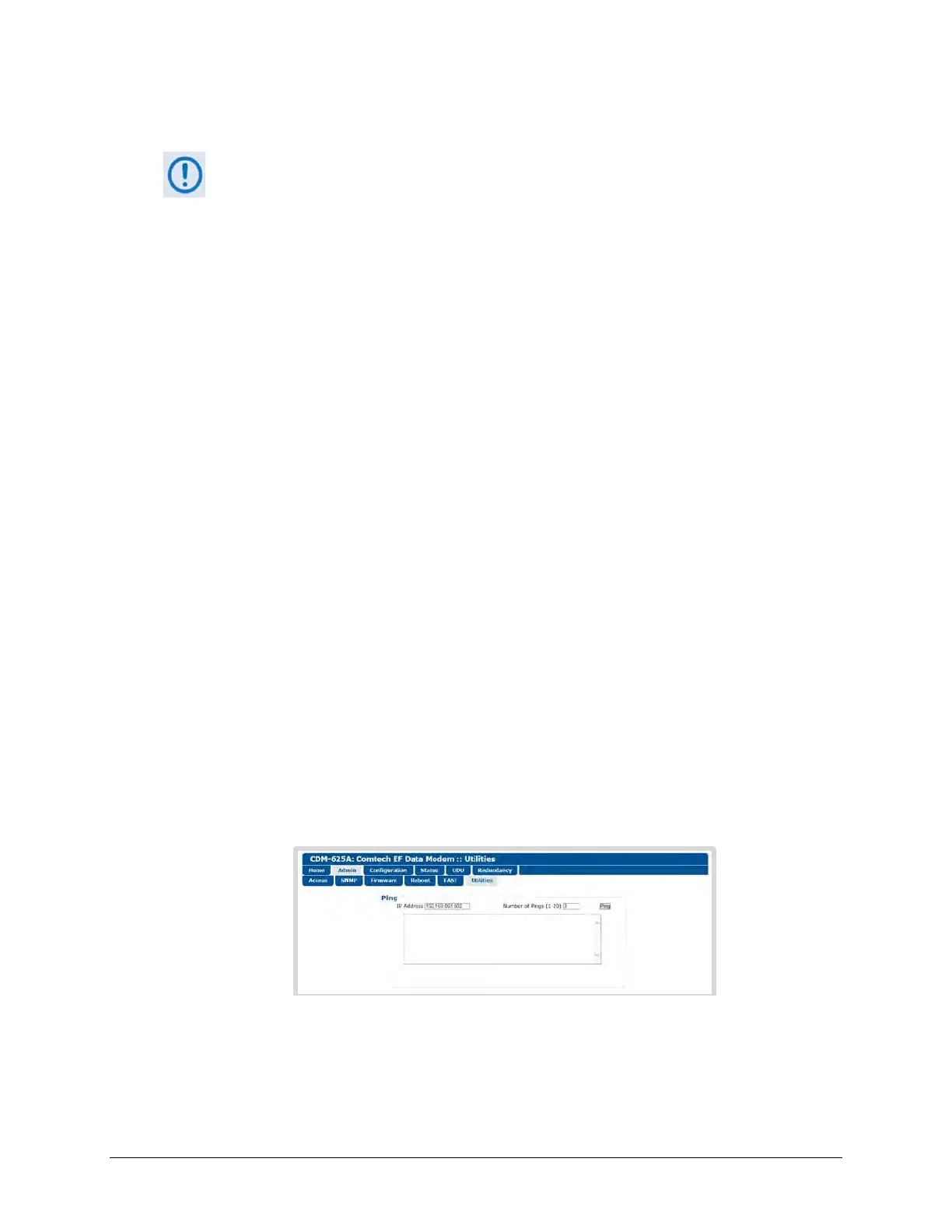
• You may alternately use the CDM-625A HTTP Interface ‘Admin | Utilities’ page, as
shown in this example:
For either method, the response should confirm whether the unit is properly connected
and communicating.
2) Use Command-line to transfer (FTP) the files from the User PC to the CDM-625A:



 To Next Page