CDM-625A Advanced Satellite Modem MN-CDM625A
Updating Firmware Revision 4
4–3
4.3 Ethernet FTP Upload Procedure
4.3.1 Getting Started: Prepare for the Firmware Download
1) First, identify the CDM-625A firmware (number/revision letter/version number) and the
assigned Ethernet Traffic/Management IP Address.
User-supplied items needed:
• A Microsoft Windows-based PC, equipped with available serial and Ethernet ports; a
compatible Web browser (e.g., Internet Explorer); and a terminal emulator program
(e.g., Tera Term or HyperTerminal).
• A 9-pin serial cable and a standard CAT5 Ethernet cable to connect the CDM-625A to the
User PC.
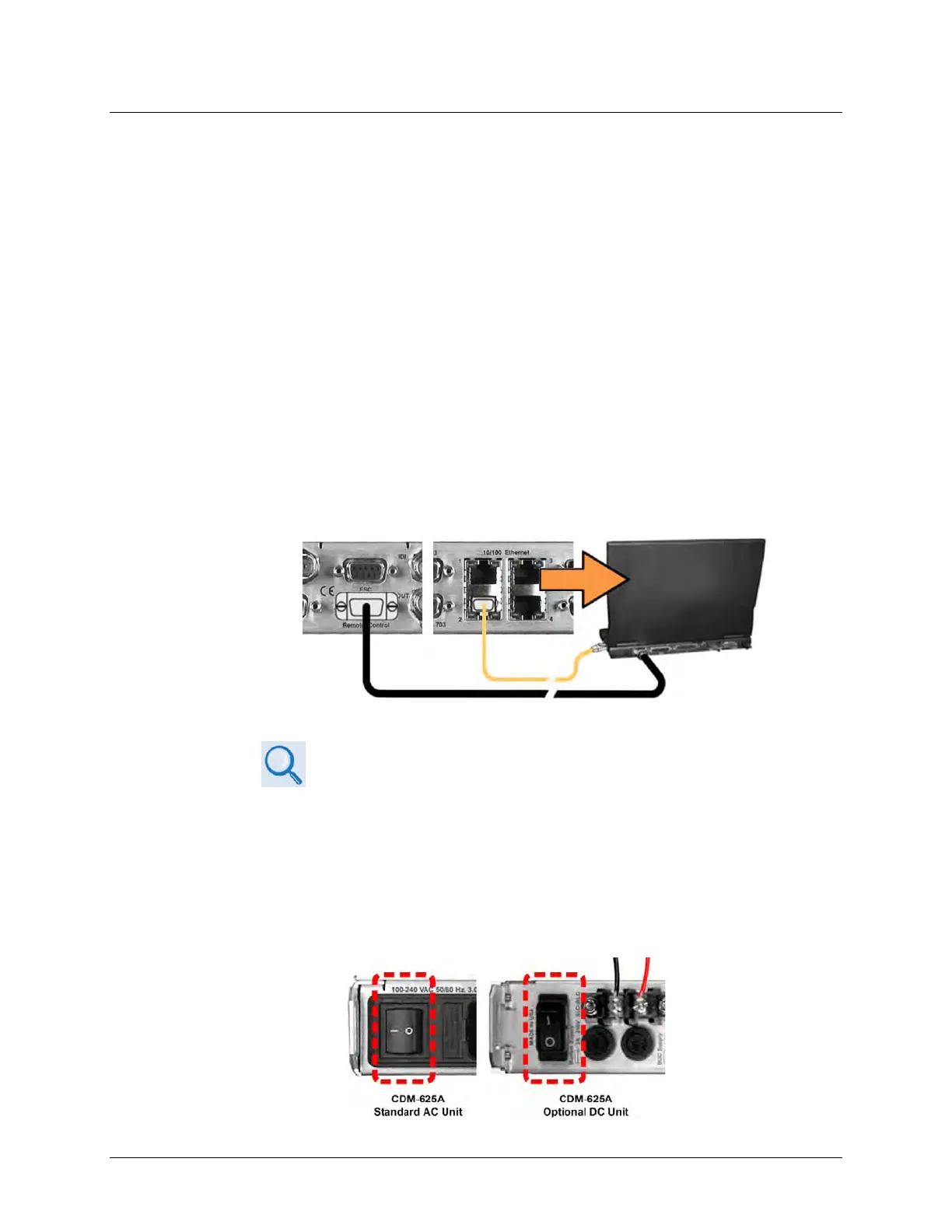
A. Use the 9-pin serial cable to connect the CDM-625A ‘Remote Control’ port to a
serial port on the User PC. Use an Ethernet hub, switch, or a direct CAT5 Ethernet
cable connection to connect a CDM-625A “10/100 Ethernet” port to the User PC.
B. On the PC: Open the terminal emulator program.
Refer to your terminal emulator program HELP feature or user guide for
operating and configuration instructions.
Configure the utility program serial port communication and terminal display
operation:
• 38400 bps (Baud Rate) • 8 Data Bits • 1 Stop Bit
• Parity=NO • Port Flow Control=NONE • Display New line Rx/Tx: CR
• Local Echo=ON
C. On the CDM-625A: Turn on/connect the power source:



 To Next Page