CDM-625A Advanced Satellite Modem MN-CDM625A
Ethernet-based Remote Product Management Revision 4
7–8
7.5 HTTP (Web Server) Interface
A user-supplied Web browser allows the full monitor and control (M&C) of the CDM-625A from
its HTTP Interface. The CDM-625A’s embedded web application is designed for, and works best
with, Microsoft’s Internet Explorer Version 9.0 or higher. Comtech EF Data does not recommend
setting your browser to IE7 Compatibility Mode.
7.5.1 User Login
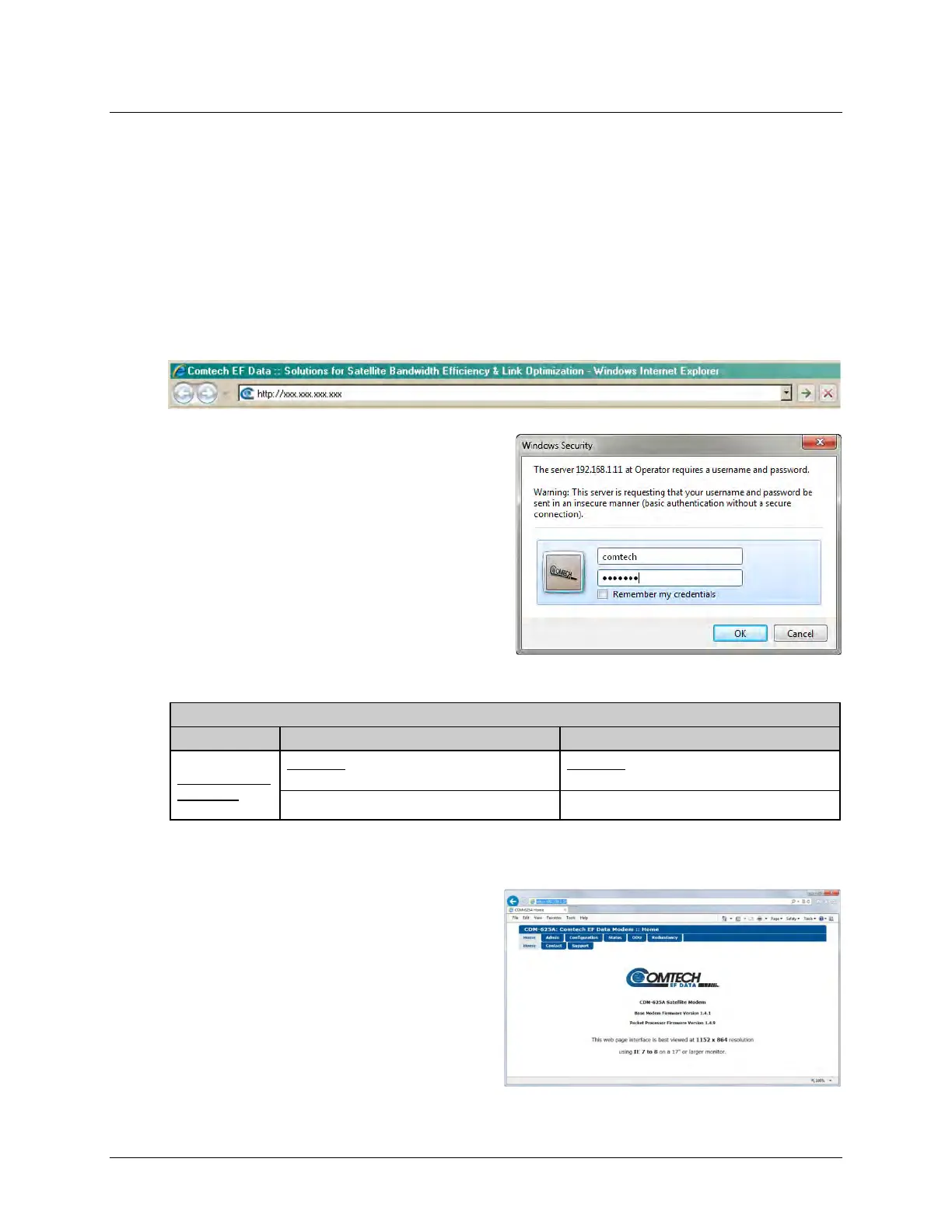
Type the CDM-625A’s Traffic/Management IP Address (shown here as http://xxx.xxx.xxx.xxx)
into the Address area of the user PC Web browser:
The Login window will appear, similar to the
example shown here, opens. Enter the
assigned User name and Password. The HTTP
Interface default user names and passwords
are as follows:
• Admin comtech/comtech
• Read/Write opcenter/1234
• Read Only monitor/1234
HTTP Login User Access Levels are further defined as follows:
HTTP Login User Access Level
Full Access to all
web pages.
No Access to Admin or IP Packet Processor-
related web pages.
No Access to Admin or IP Packet Processor-
related web pages.
Full Access for all other web pages View Only Access for all other web pages.
Type the User Name and Password, and then click [OK].
Once the valid User Name and Password is
accepted, you will see the CDM-625A HTTP
Interface “splash” page, as per the following
example (note that the Base Modem and
optional IP Packet Processor Firmware
Versions listed here are subject to change):
To properly access the CDM-625A HTTP
Interface, you must first set remote control
access for the unit to Ethernet mode. If you
attempt to log in to the HTTP Interface and



 To Next Page