IMS.OM.002949.DRM Page 125 of 310 Version 1.4
Doremi Labs
● Selecting the Revert button will close a document without saving the changes. Use this
with caution (Figure 135).
12.5.3 Inserting Actions into Macro Cues
● Go to the Administration tab, and then select Macro Editor.
● Highlight the Macro to be affected.
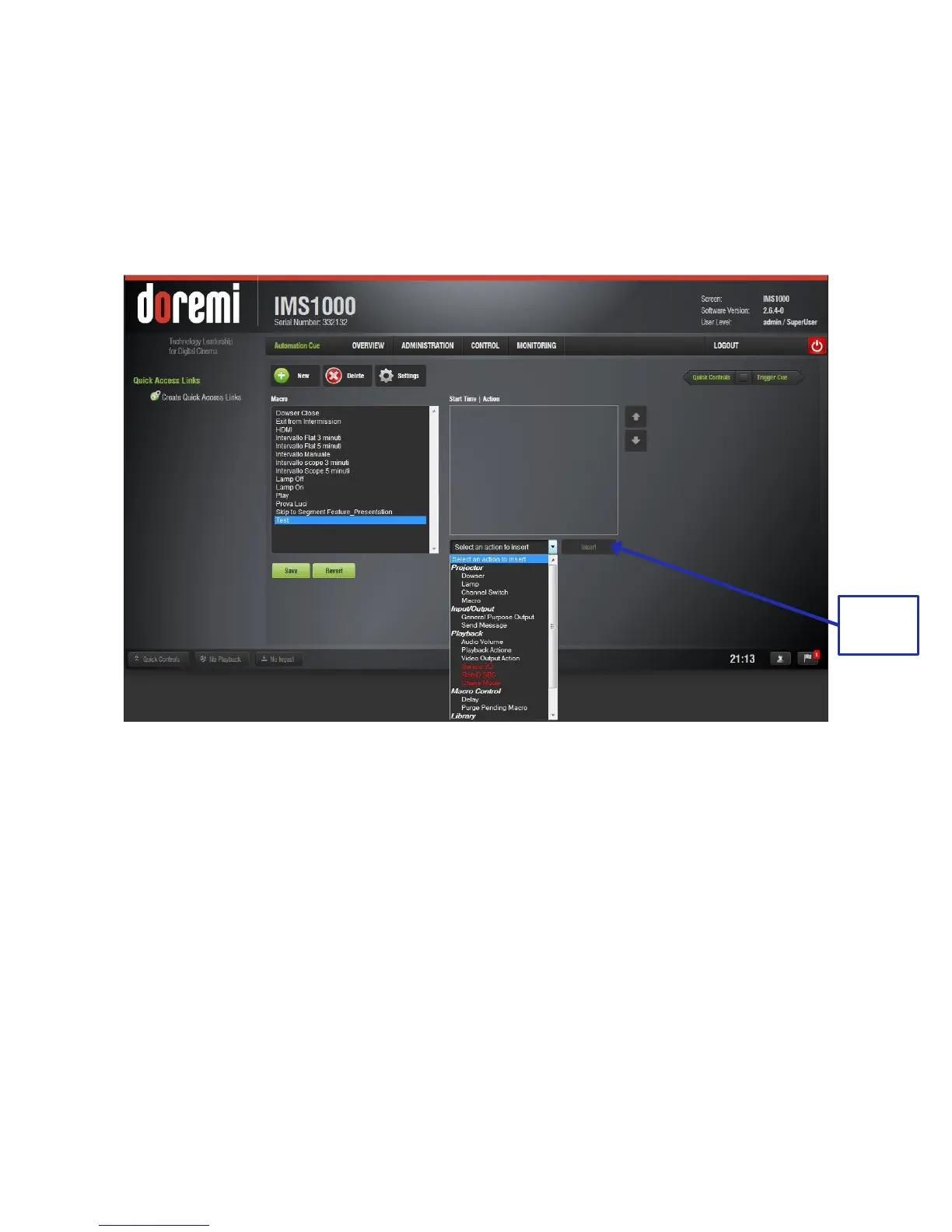
● Click the Select an Action to Insert drop-down menu (Figure 136).
Figure 136: Add a New Action Window
● To add an action to the Macro Automation Cue, click on its corresponding action and
click the Insert button (Figure 136).
● The actions available include the following:
● Projector:
○ Dowser: open or close the selected projector dowser.
○ Lamp: power on or off the selected projector lamp.
○ Projector Channel Switch: switch the selected projector channel.
○ Macro: execute the macro defined in the selected projector.
● Input/Output:
○ General Purpose Output: configure a GPO line.
○ Send Message: send a message to the connected device.
● Playback:
○ Audio Volume: control the audio volume output.
○ Playback Actions: change the playback state.
○ Video Output Actions: change the default video output format.
○ Sensio3D: enable or disable the Sensio3D output format.



 To Next Page