IMS.OM.002949.DRM Page 127 of 310 Version 1.4
Doremi Labs
● Select the proper playback action between Play, Pause, Toggle Play/Pause, Re-cue
Show, Rewind, Skip to Next Clip, Skip to ShowPlaylist Segment, or Exit from
Intermission, and click the Ok button.
12.5.6 Video Output Action Insertion
● To add a Video Output Actions, highlight the desired Macro Cue.
● Select the Video Output Actions option which is located in the Playback section in the
Select an Action to Insert drop-down menu (Figure 136).
● Click the Insert button.
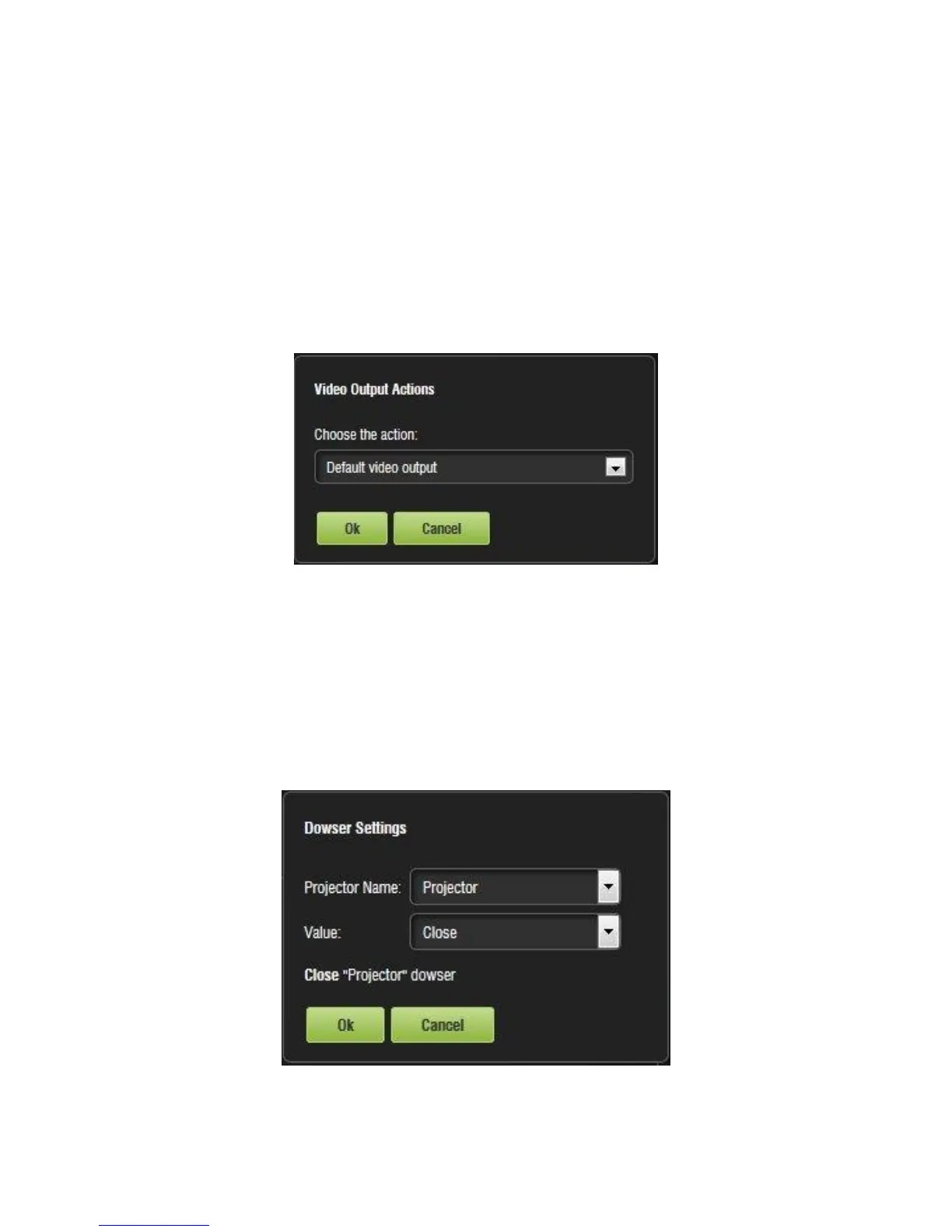
● The following window will appear (Figure 139):
Figure 139: Video Output Set Up Window
12.5.7 Dowser Action Insertion
● To add a Dowser Action, highlight the desired Macro Cue.
● Select the Dowser Action option which is located in the Projector section in the Select an
Action to Insert drop-down menu (Figure 136).
● Click the Insert button.
● The following window will appear (Figure 140):
Figure 140: Add a New Action Window - Dowser



 To Next Page