IMS.OM.002949.DRM Page 184 of 310 Version 1.4
Doremi Labs
13 Control Tab
13.1 Show Management Using CineLister
CineLister is based on a Graphical User Interface (GUI) that allows the creation, management,
editing, and playback of SPLs and other ingested content. CineLister also has the capability to
schedule playbacks.
To configure Cinelister, see Section 12.15.
13.2 CineLister Editor Tab
● To access the CineLister GUI, go to Control → CineLister.
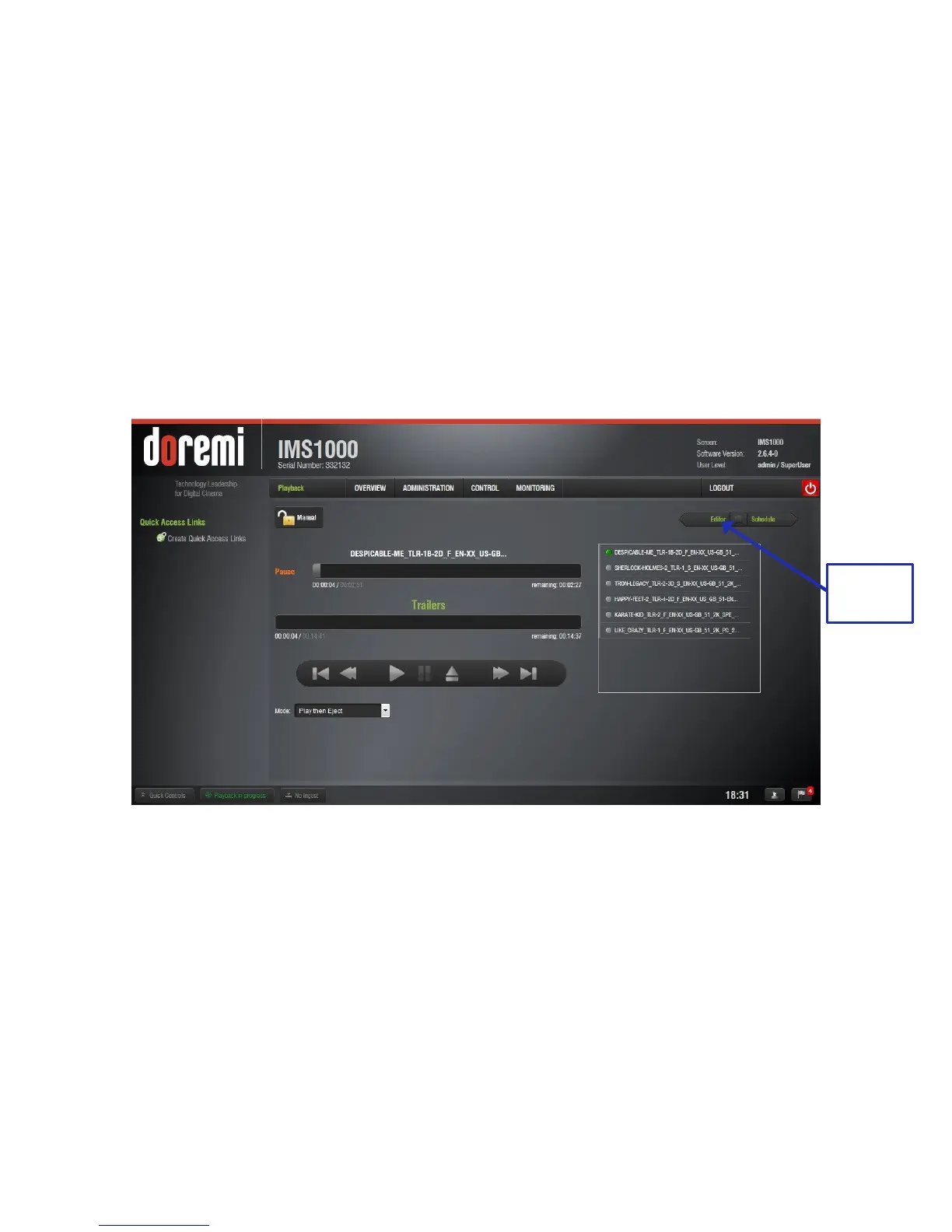
● The user will be prompted to CineLister's Playback tab. The Playback tab is the default
tab that CineLister displays every time the application is opened (Figure 218).
Figure 218: CineLister GUI Playback Tab
● To access the Editor tab, click on the green arrow button on the right side of the GUI
(Figure 218).
● The Editor tab is composed of two different parts (Figure 219):
o The left pane displays all of the content (e.g., features, trailers, advertisements)
and Automation and Trigger Cues.
o The right pane is used to display the content of a given Show Playlist.



 To Next Page