IMS.OM.002949.DRM Page 126 of 310 Version 1.4
Doremi Labs
○ RealD SBS: enable or disable the RealD SBS output format.
○ Chase Mode: enables synching of incoming time code
● Macro Control:
○ Delay: insert a delay between actions.
○ Purge Pending Macro: purge the current macro execution stack.
● Library:
○ Offers control using Certainty, eCNA, JNior, JNior Expansion Module, and more.
● System:
○ System Shutdown: allows the user to shut down the player.
Click Cancel to stop adding an action.
12.5.4 Add a GPO Action to the Macro Automation Cue
● To add a GPO action, highlight the desired Macro Cue.
● Select the General Purpose Output option which is located in the Input/Output section in
the Select an Action to Insert drop-down menu (Figure 136).
● Click the Insert button.
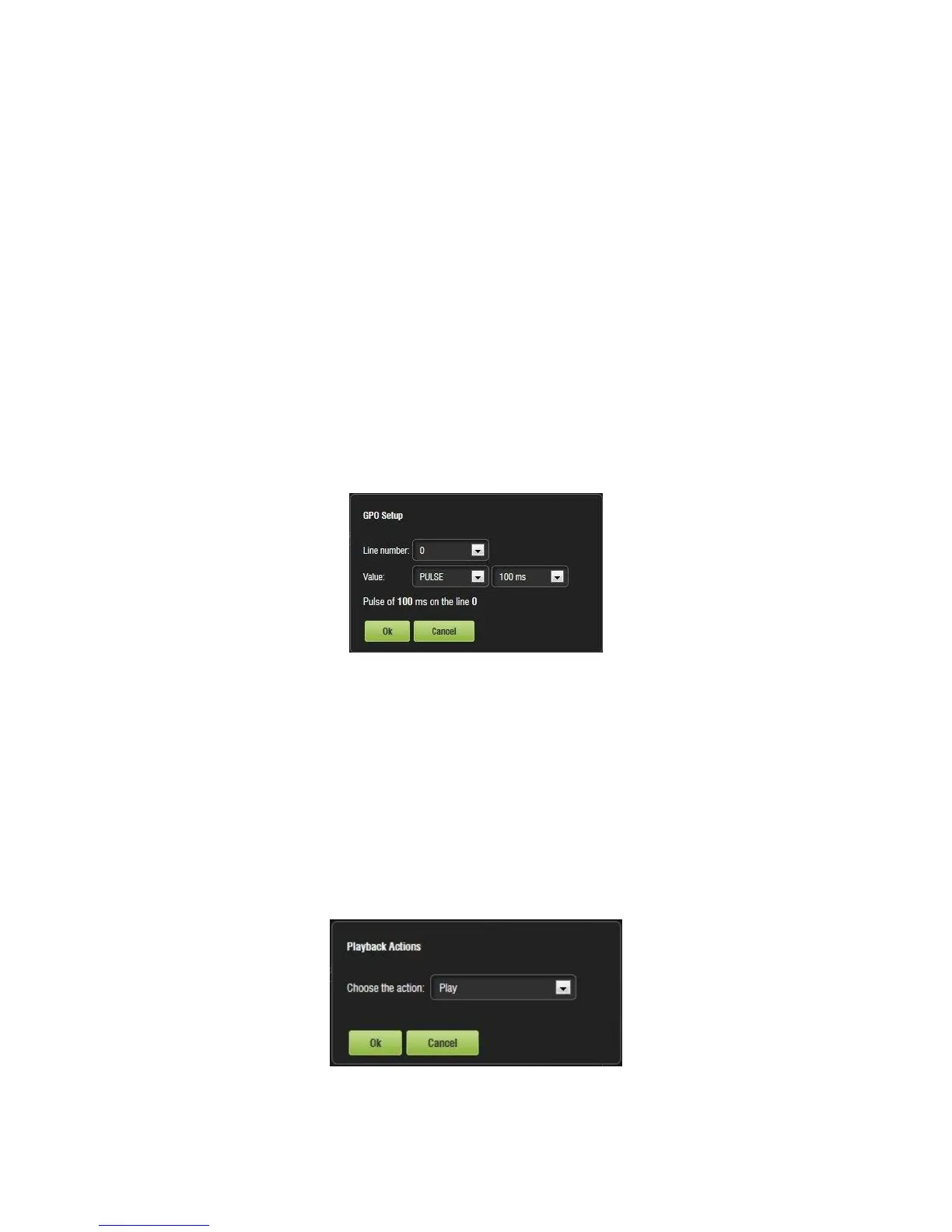
● The following window will appear (Figure 137):
Figure 137: GPO Setup Window
● Set the line number and value according to the usage and click the Ok button.
12.5.5 Playback Action Insertion
● To add a Playback Action, highlight the desired Macro Cue.
● Select the Playback Actions option which is located in the Playback section in the Select
an Action to Insert drop-down menu (Figure 136).
● Click the Insert button.
● The following window will appear (Figure 138):
Figure 138: Playback Actions Setup Window



 To Next Page