IMS.OM.002949.DRM Page 222 of 310 Version 1.4
Doremi Labs
○ Note: When the SPL is ingested, the Ingest Manager GUI will show all of the
components that make up the SPL.
● Lock icons represent Key Delivery Messages (KDMs), which contain the required
decryption keys allowing playback of the corresponding CPLs.
13.9.1.2 Ingesting Content From A USB Drive
If the content to ingest is on a USB drive, plug the drive into the IMS1000’s USB Port and go to
the Ingest Manager.
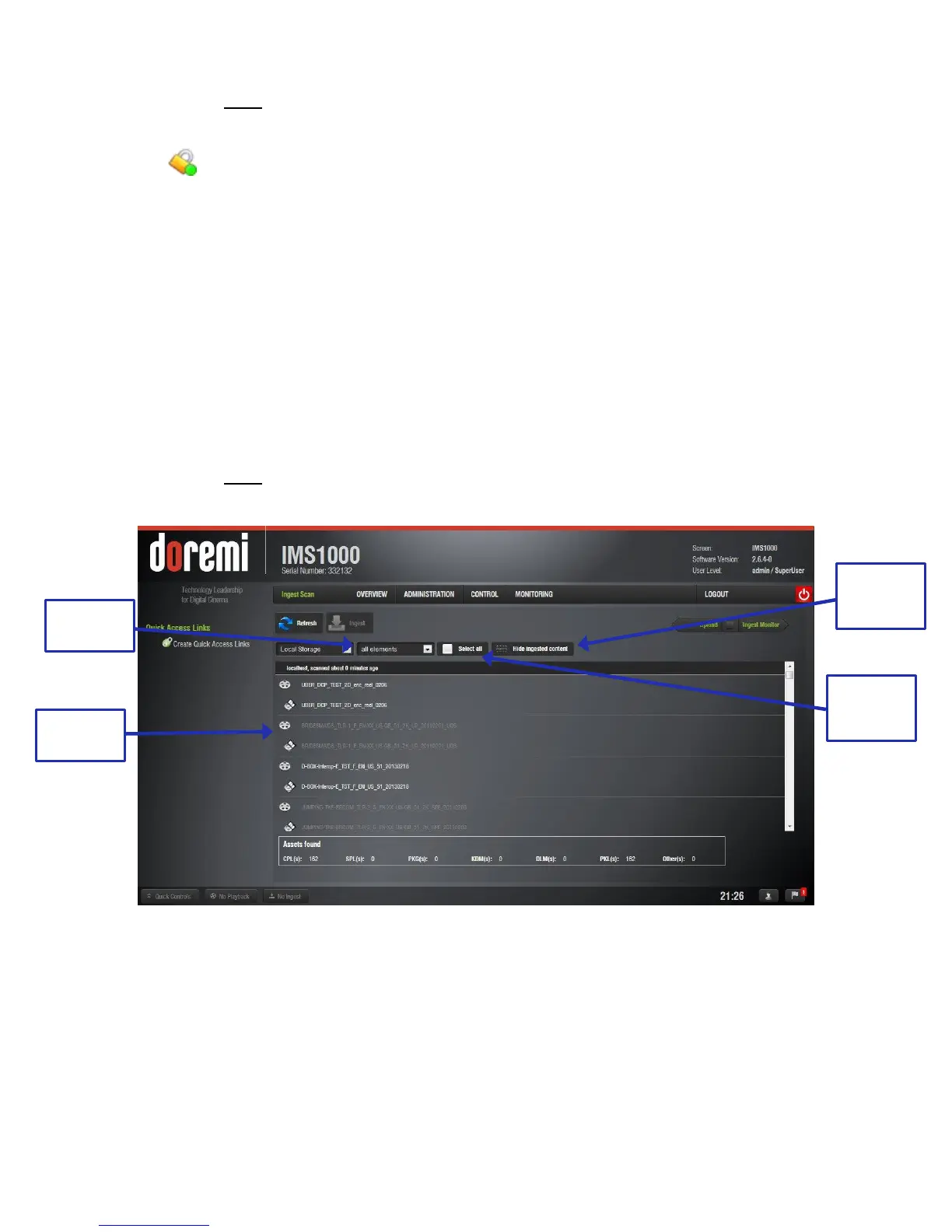
From the drop-down window, select Local Storage and hit the Refresh button (Figure 273).
● Select an item.
○ To select, or unselect, all items, use the Select All button (Figure 274).
● To search for an item, use the search field (Figure 274).
● Click on the Ingest button (Figure 273). The ingest process will begin.
● If an item was already ingested, it will appear in gray (Figure 274).
○ Note: To hide all ingested content, select the Hide Ingested Content button
(Figure 274).
Figure 274: USB Ingest
The user will be prompted to the Ingest Monitor tab to view the progress of the ingest.
13.9.1.3 Ingesting Content from a FTP Site
Use a File Transfer Protocol (FTP) connection to ingest an item from a central server or a
cinema server over a network.



 To Next Page