10. Manual Updates
10-12
10.6 Using Manual Update Editor with True Symbols
.
Go Back
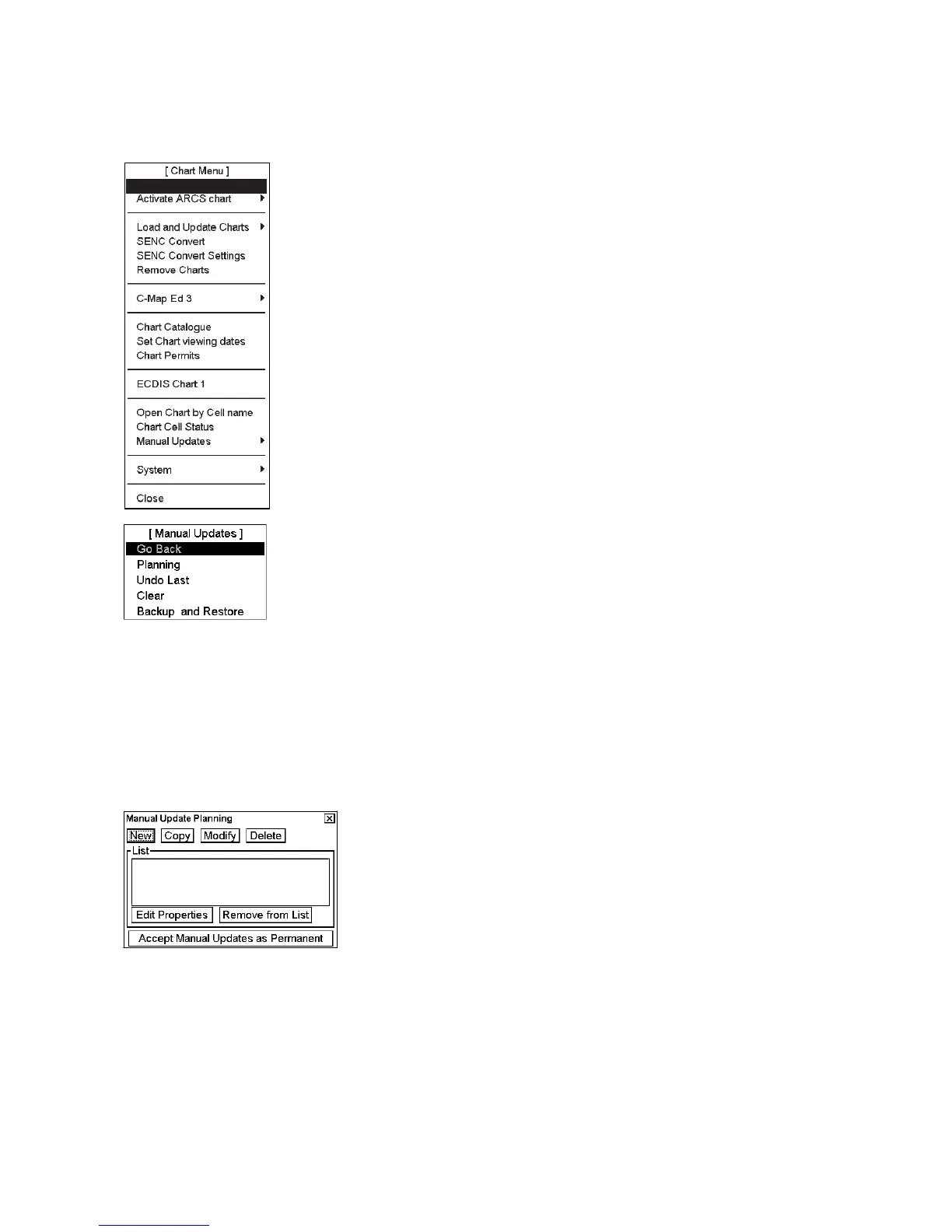
The manual update editor has the following features:
• Planning: Operate with new manual updates.
• Undo Last: Remove last accepted manual update planning session. By
repeating Undo Last you can remove any amount of old manual update
planning session.
• Clear: Remove all manual update in a single operation.
• Backup and Restore: Make a backup or to recall already recorded backup.
• With an ARCS chart, you also have "Set chart viewing dates" to set viewing
date of manual updates. This is done with "Set Chart viewing dates" in the
Chart menu.
10.6.1 Manual update planning
The manual update editor operates in sessions. You create a session when you activate the Manual Update Planning
dialog box. You can freely delete, modify, copy or create chart objects until you feel finished with your session.
Then, you terminate your session by clicking the Accept Manual Updates as Permanent button and the ECDIS
stores your manual updates permanently. If you need to leave your manual update session and discard all
modifications made during the current session, click X in upper right corner.
Note: The manual update editor is only available in the North Up or Course Up orientation mode.
New, Copy, Modify, Delete: These buttons are used to collect chart objects into a list shown in a Manual Update
Planning dialog box for further editing during current session of manual update planning. New creates an object
from scratch. Copy creates an object using an existing object as an example. Modify changes an existing object.
Delete removes an existing object.
Remove from List: If you made a manual update by mistake, you can remove it if you haven't accepted it yet as
permanent. You can remove it by choosing (highlighting) chart object in the List then clicking the Remove from
List button.
Edit Properties: You can edit properties of chosen (highlighted) chart object by using the Edit Properties button.


 To Next Page