8. Vector Chart Material
8-23
8.4.6 Using SENC convert window to initiate SENC conversion
Normally automatic SENC conversion is chosen and there is no need to initiate SENC conversions from the SENC
convert window. If you do not use the automatic SENC conversion, you need to manually initiate SENC conversion.
Another case where you need to manually initiate SENC conversion is if you upgraded or reloaded the ECDIS
software from the ECDIS software CD ROM.
To initiate SENC conversions manually, do the following:
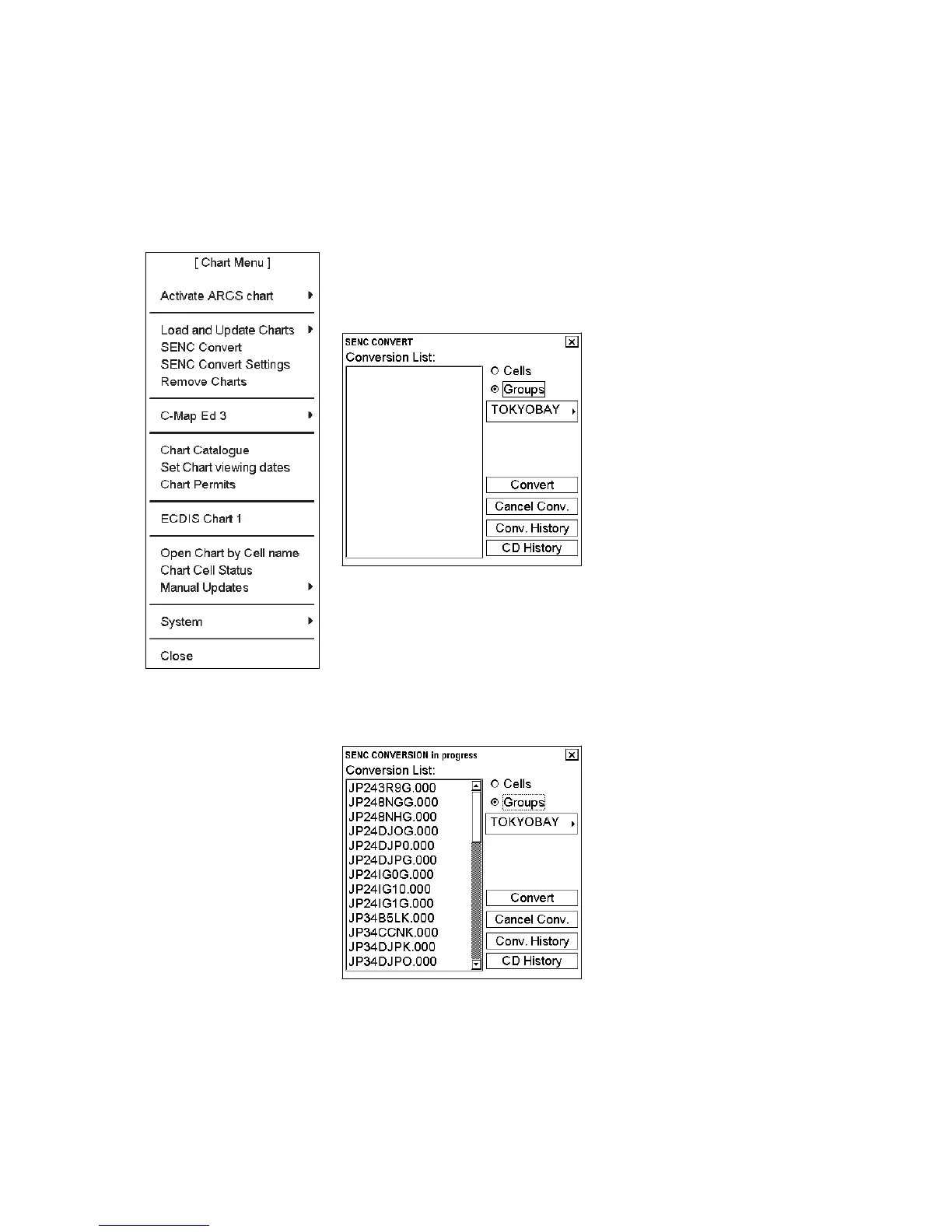
1. Spin the scrollwheel to display Menu/Info/Chart Menu in the mouse functions area
then push the right mouse button.
2. Choose SENC Convert from the menu and push the scrollwheel. The SENC
Convert window appears:
3. Use the Cells button to choose an individual chart or use the Groups button to
choose a group of charts.
4. Click the Convert button to initiate the SENC conversion of the charts. Note that
Convert only converts those charts that are not currently converted into the SENC
format. If your chosen chart or all members of your chosen group are already in
the SENC format, the Conversion list remains empty. If all or some charts are not
yet in the SENC format, they are added to the Conversion list (see the example
below). If, for some reason, you need to force SENC conversion of an already
converted chart, refer to section 8.15 Other Features of Vector Charts.
Note 1: You may remove charts from the conversion list at any time. Use the cursor
to highlight the charts to remove then click the Select button. Finally, click the Cancel
Conv. button to remove chosen charts from the SENC conversion queue.
Note 2: You can view the results of the finished SENC conversions at any time. Click
the Conv. History button to view the conversion log.



 To Next Page