Appendix 6: Route Backup
AP-69
A6.1.2 Importing route data from Excel file into ECDIS
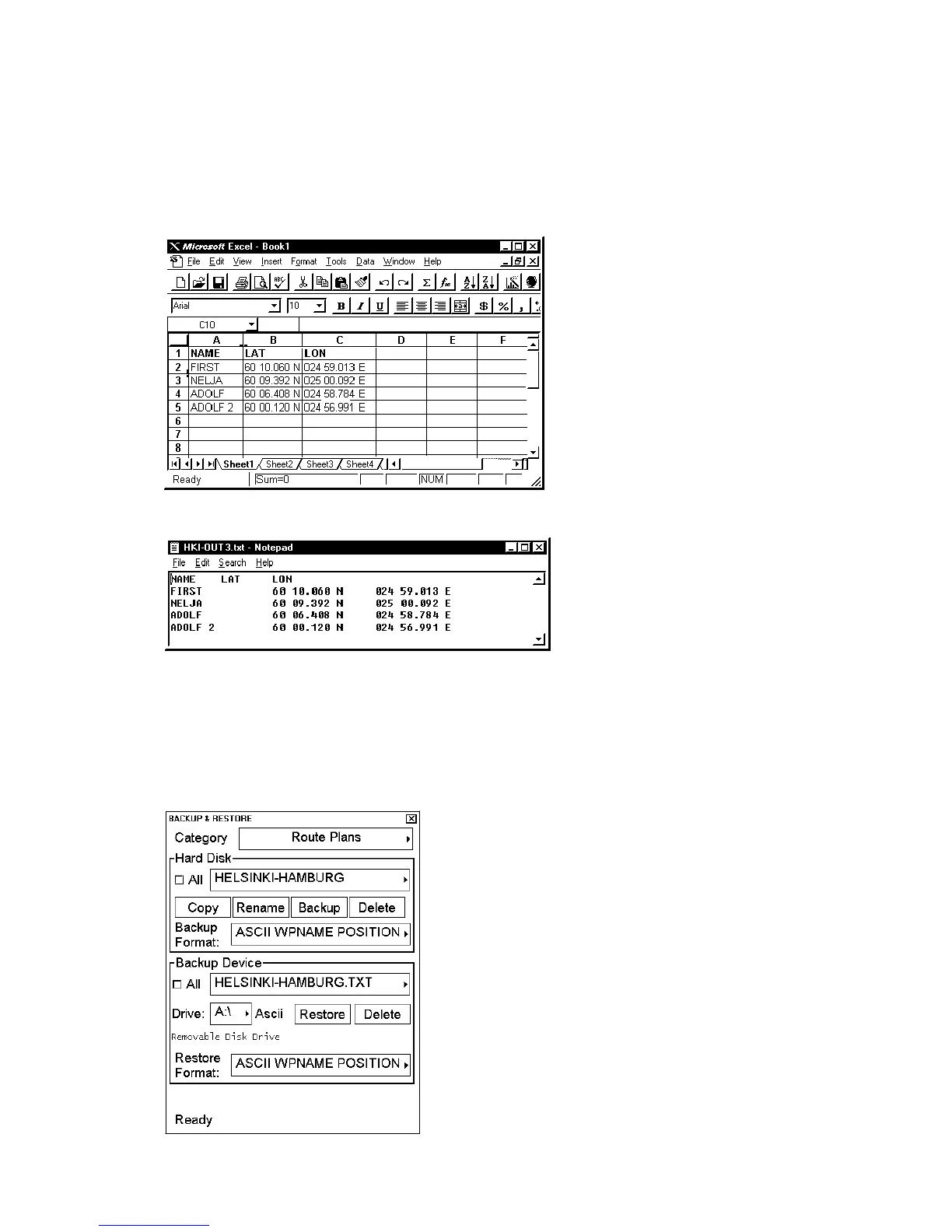
Below is an example of how to import waypoints' name and latitude/longitude values from a Microsoft Excel table
into ECDIS. Limit the length of waypoint names to eight alphanumeric characters and route names to 30
alphanumeric characters.
1. Open the MS Excel, which contains the route data you want to import to the ECDIS. Copy desired columns to
the clipboard: Highlight data in MS Excel then choose >Copy.
Content of MS Excel may look something like this.
2. You can paste text to Notepad (First activate Notepad then select Edit>Paste)
Content of Notepad looks something like this.
3. Place the cursor on Route in the status bar then click the Plan button to open the Plan Route dialog box. Place
the cursor on the triangle in the dialog box, choose Backup and Restore from the menu then push the
scrollwheel.
4. In the Backup Device field, choose desired Restore Format (ASCII WPNAME POSITION).
5. Insert floppy disk into disk drive in the processor unit. Choose backup drive (A:\) from the Backup Device field.
Choose desired route from the list box in the Backup Device field then click the Restore button.



 To Next Page