iZ Technology Corporation
WAVEFORM DISPLAY
There are several options for controlling the current view of the waveforms displayed on RADARView.
These options are accessed via the Session Controller or the KC-24 keyboard.
SESSION CONTROLLER
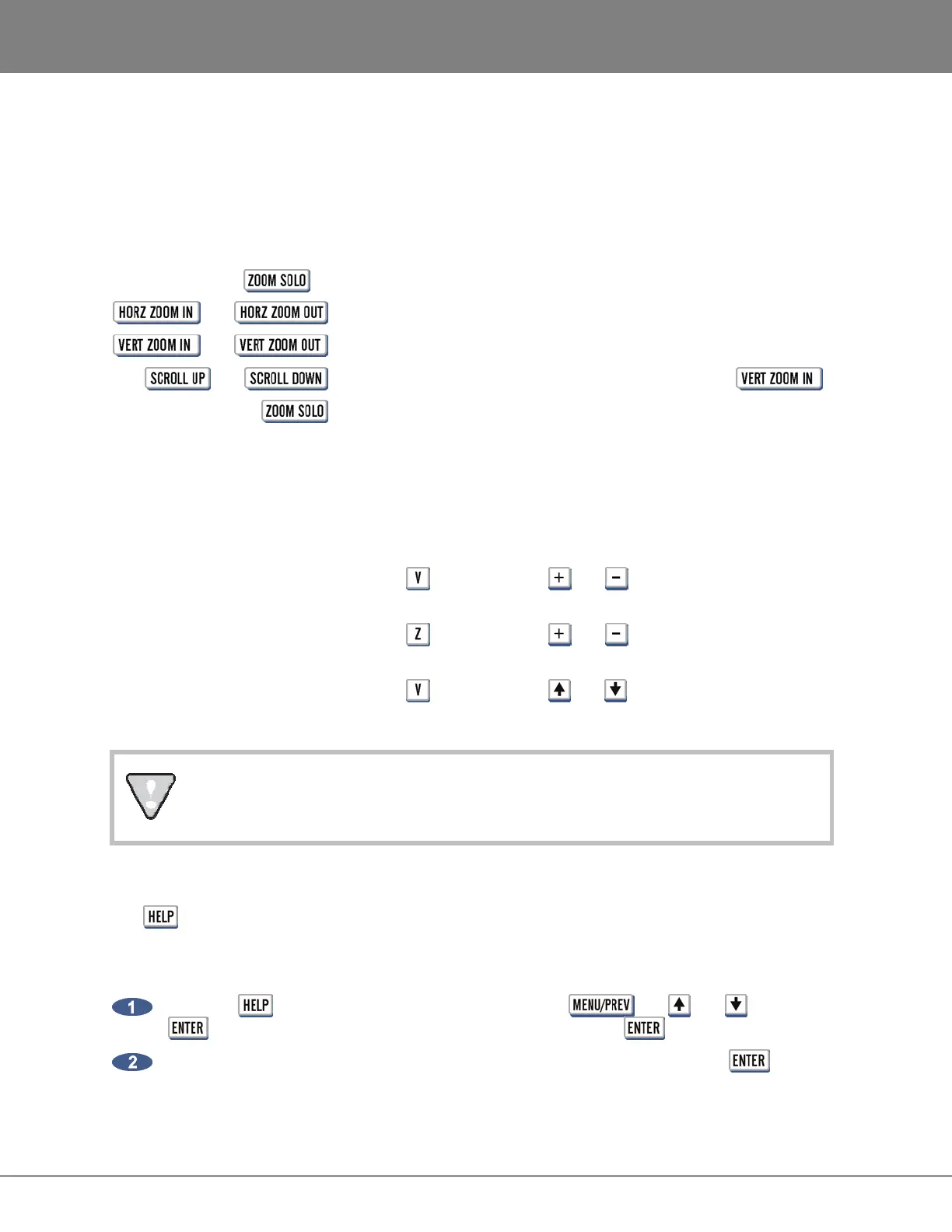
The Session Controller has dedicated buttons for horizontal zoom, vertical zoom, scrolling and a special
function key called .
and
Control the amount of time currently displayed.
and
Control the number of tracks currently displayed.
and
Used to adjust the current track(s) displayed when using .
Used to select viewable tracks using the track arming keys. The tracks
will fill the track display in groups of one, two, four, eight, twelve or
twenty-four, depending on the number of tracks selected.
KC–24 KEYBOARD
The KC-24 uses different keystrokes for horizontal zoom, vertical zoom and scrolling.
HORZ ZOOM IN
and HORZ ZOOM OUT
Hold the key and use the and keys to adjust.
VERT ZOOM IN
and VERT ZOOM OUT
Hold the key and use the and keys.
SCROLL UP
and SCROLL DOWN
Hold the key and use the and keys to adjust.
ZOOM SOLO is not available with the KC-24.
ON SCREEN HELP
The key or the MAIN MENU / HELP menu launches the PDF viewer and loads The Operator’s
Manual or the latest software Release Notes for viewing on the RADARView display.
To launch the help viewer:
Press the key on the Session Controller or use the , the and keys and the
key to go to the MAIN MENU / HELP menu and press the key.
Select either the Operator’s Manual or the software Release Notes and press the key.
For PDF Viewer navigation keystrokes, please see REFERENCE: RADAR PDF VIEWER



 To Next Page