www.izcorp.com • 1.800.776.1356
a. Use the and keys to select REFORMAT, ACCEPT or VIEW and then press the
key.
b. If SELECTED FILES was chosen use the and keys in conjunction with the and
keys, or the
and keys, to add or remove individual files from the PCM
XX/XX TRK: dialogue. The Track Arm keys through may also be used to select
which track the file will import to. When finished making the selection(s) press the
key.
When importing stereo files, RADAR will split the file into two mono files to be placed on
two adjacent RADAR tracks.
The IMPORT dialogue will appear while RADAR processes the files. When the operation is
finished the MAKING WAVES dialogue will appear while RADAR processes the waveform files.
When it is finished the IMPORT COMPLETE dialogue will appear. Press any key to dismiss the
dialogue and return to normal operation.
Cancel an import at any time by pressing the key.
After you have finished using a USB drive, make sure you unmount it before unplugging it
from RADAR. You can access the MOUNT/UNMOUNT dialog via the DISK MENU or by
pressing + UNMNT on the Session Controller.
CLIP IMPORT
To import audio into an existing project:
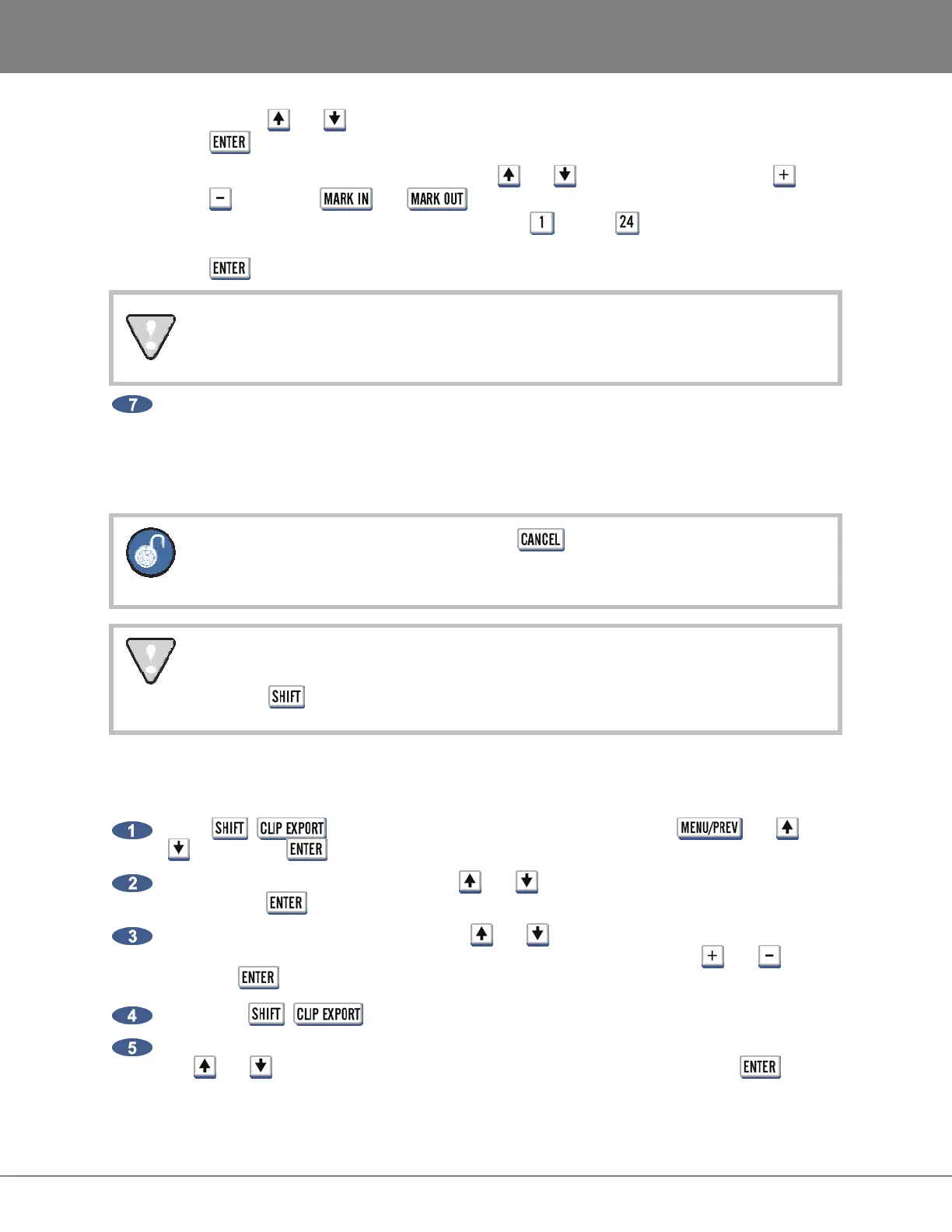
Press + (IMPORT) key on the Session Controller or use the , the and
keys and the key to go to the MAIN MENU / FILE MENU / IMPORT selection.
At the IMPORT FROM: dialogue, use the and keys to select the device to import from
and press the key.
At the SELECT FOLDER: dialogue, use the and keys to locate the folder or <ROOT
DIRECTORY> to import from. Move in and out of a folder/directory using the and keys.
Press the key to select the folder/directory to import from.
If using the + (IMPORT) key on the Session Controller, skip to step 6.
If the import was started by selecting IMPORT from the FILE MENU, use
the and keys to select CLIP from the IMPORT TO: dialogue and press the key.



 To Next Page