162 MI-42-0001 Rev. 19
MAINTENANCE: Daily Gain Calibration
Assess Image
Quality
AIRO automatically addresses many bad detector issues. However, for certain detectors issues the
compensation may not be adequate. Consequently, when Gain Calibration identifies a new bad
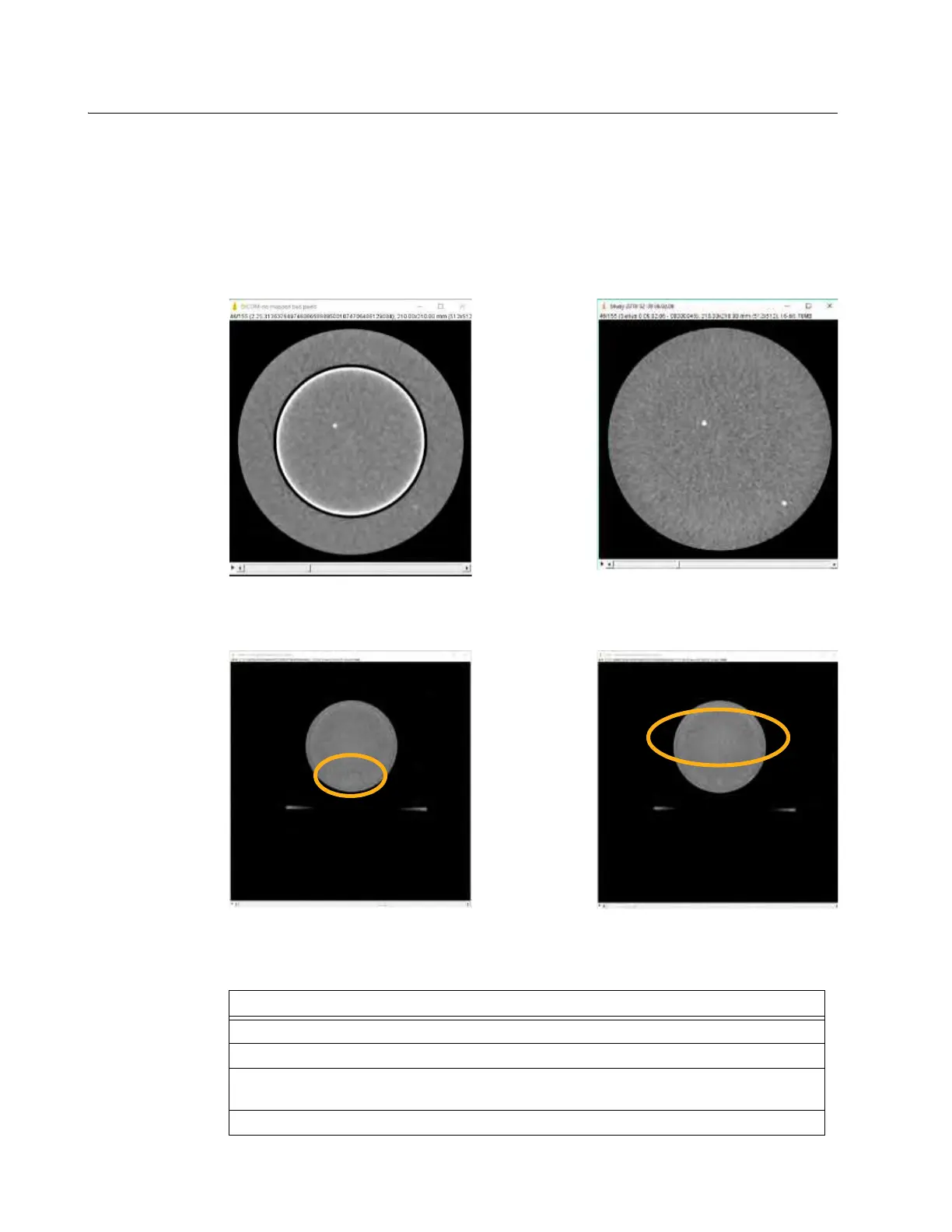
detector, always review the manual scan results. In the images below, Figure 133 shows the
difference between an unmapped bad detector and a successfully mapped bad detector with the
Gammex 464 Phantom positioned at isocenter. Figure 134 shows images from the phantom
positioned above isocenter that have highlighted residual issues.
NOTE: The following procedure outlines viewing the 3D images on the AIRO pendant. Mobius
Imaging recommends exporting the DICOM series for the scans and viewing them on a diagnostic
quality monitor using DICOM viewer software.
Figure 133
Figure 134
Steps
1. From the Home/Choose Mode screen, select
Scan
>
Next
>
DICOM Viewer
.
2. From the patient records screen, select
Phantom, Gammex
.
3. Scroll through the study records, and select the study that matches the date and time of
the image assessment scan you need to view.
4. Touch
Next
.
Unmapped Bad Detector
Successfully Mapped Bad Detector
Isocenter Artifact in Scan at 75mm
FOV Edge Artifact in Scan at 150mm



 To Next Page