Switch Security 6-113
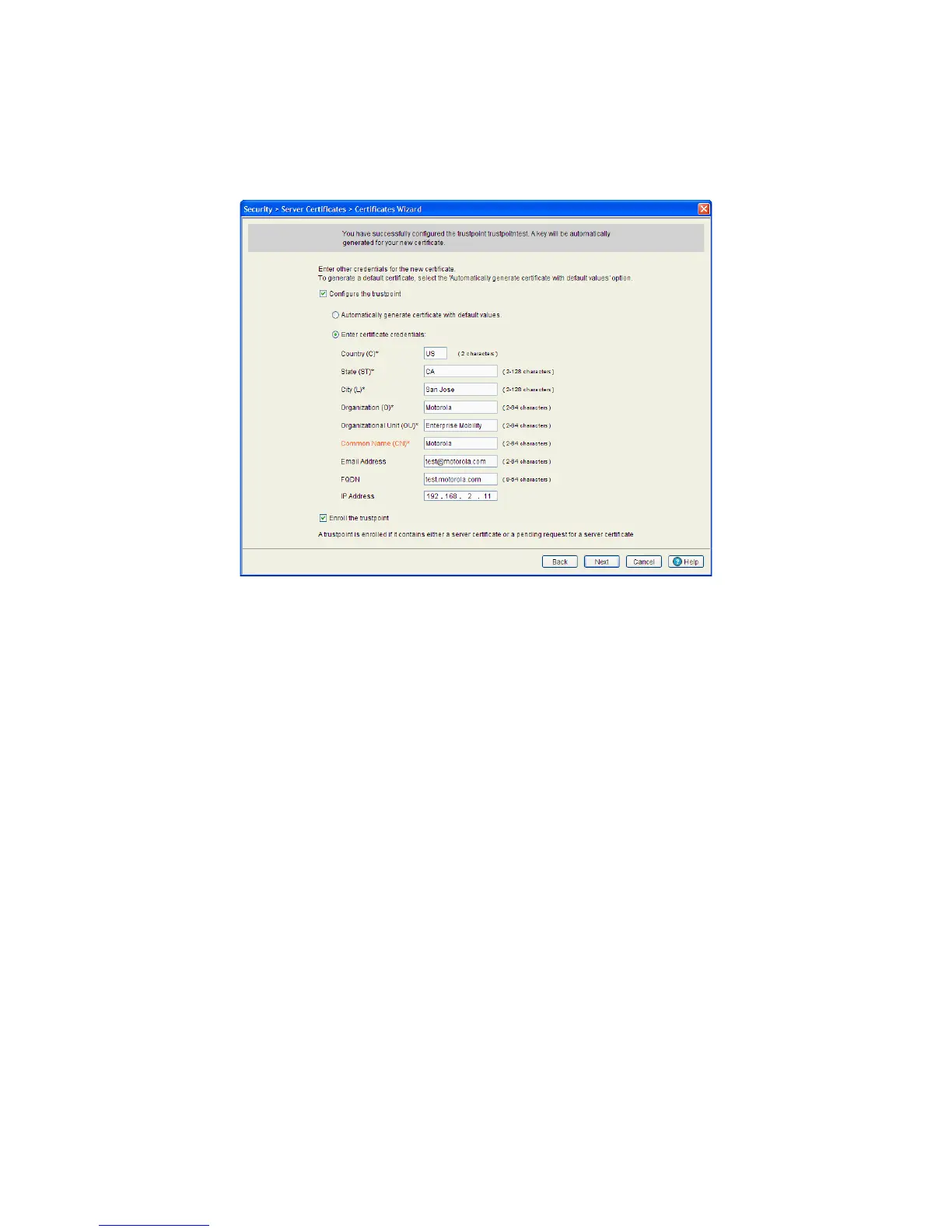
If generating a new self-signed certificate (as selected in page 2 of the wizard), the wizard continues the
installation. Use the third page of the wizard to enter a unique trustpoint name and other credentials
required to create the new certificate.
3. Select the Configure the trustpoint checkbox to enable the new self signed certificate configured as a
trustpoint
.
4. Select the Automatically generate certificate with default values checkbox to create a certificate
using values the switch assigns by default.
This option is recommended for generic certificates that do not represent a unique or custom switch
configuration.
5. Select the Enter certificate credentials radio button to manually enter the values of a unique
certificate. If you anticipate using generic (default) values, consider using the Automatically generate
certificate with default values option.
6. Provide the following information for the certificate:
Country Define the Country used in the Self-Signed Certificate. By default, the Country is
US. The field can be modified by the user to other values. This is a required field
and must not exceed 2 characters.
State Enter a State/Prov. for the state or province name used in the Self-Signed
Certificate. By default, the State/Prov. field is CA. This is a required field.
City Enter a City to represent the city name used in the Self-Signed Certificate. By
default, the City name is San Jose. This is a required field.
Organization Define an Organization for the organization used in the Self-Signed Certificate. By
default, it is Motorola, Inc. The user is allowed to modify the Organization name.
This is a required field.
Organization Unit Enter an Org. Unit for the name of the organization unit used in the Self-Signed
Certificate. By default, it is Wireless Switch Division. This is a required field.


 To Next Page
 Loading...