1.
Navigate to INTERFACES > GNSS Reference, and click the GEAR button next to GNSS
0.
2.
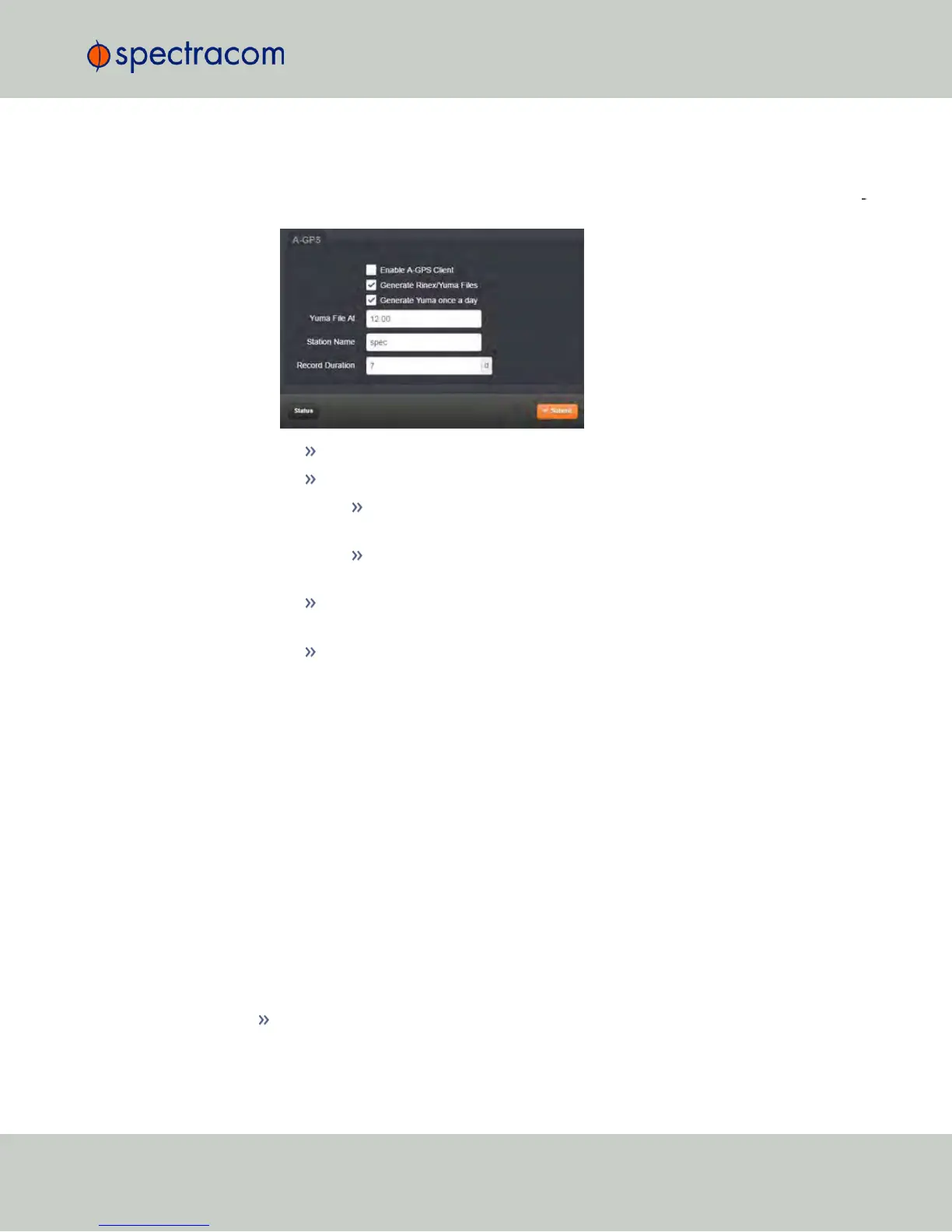
Inthe A-GPS panel, check the box Generate RINEX/YUMA Files and populate the fol
lowing options:
Trimble RES-SMT GG receivers only:
RINEX File Every: [default = 10 s]
Generate YUMA once a day:
If checked [default], enter the desired-time-of-day in the field YUMA File At
[default = 12:00].
If unchecked, determine how often a YUMA file is generated under YUMA
File Every [default=10 s; range = 10s to 86400s (1/day)].
Station Name: Enter an alphanumeric 4-letter station name for the server [default:
spec]. The names of the files generated will include the station name.
Record Duration: Determine the duration for how long to keep the generated
data before it gets overwritten [default: 7 days; range = between 2 and 400
days]
3.
Click Submit to start logging ephemeris and almanac data.
4.
Once you submitted the changes, verify that the setup was successful by clicking on
Status, and confirming that the indicator lamp for Server A-GPS Status is
green/ENABLED. The Server A-GPS Data indicator will be green if the RINEX server is
running and the GPS receiver is valid in time and PPS.
Downloading RINEX/YUMA data
Any device that can use RINEX data, can be directed to the locations where they are stored. For
example, Spectracom's GSG-series GNSSsimulators allow for a server location to be set. With
other equipment, you can also download the data to your computer, and then move the files to
where they are needed.
To download the data to a client computer, toint your computer's web browser to the following
address:
For hourly ephemeris data:
http://[IP address of your unit]/files/pub/gps/data/hourly/[YYYY]/[ZZZ]/hour[ZZZ]0.15n.Z
3.3 Managing Input References
CHAPTER 3 • NetClock User Reference Guide Rev. 16
209



 To Next Page