If this is the case, see above-mentioned instructions for updating NetClock software
(unless this has been addressed at an earlier update).
5.
Perform the actual upgrade by navigating to TOOLS > Upgrade/Backup > Actions:
Update System File: Upload the upgrade software bundle previously downloaded onto
your PC (updateXYZ.tar.gz), and carry out the upgrade, as instructed.
6.
Verify that the upgrade was successful: Tools > Upgrade/Backup, confirm the new SW
version.
Note: In case the update failed, see "Troubleshooting Software Update" on
page334 for additional information.
4.6.2 Applying a License File
Software options—if available for your product—must be activated by applying a license file
(OPT-xyz):
Typically, NetClock units are shipped with the license file pre-installed, reflecting the system con
figuration as ordered. If, however, a feature is to be activated after delivery of the NetClock
unit, please contact your local Spectracom Sales Office first to have a license file generated.
License files are archive files with a tar.gz extension. One license file may contain multiple
licenses for multiple products.
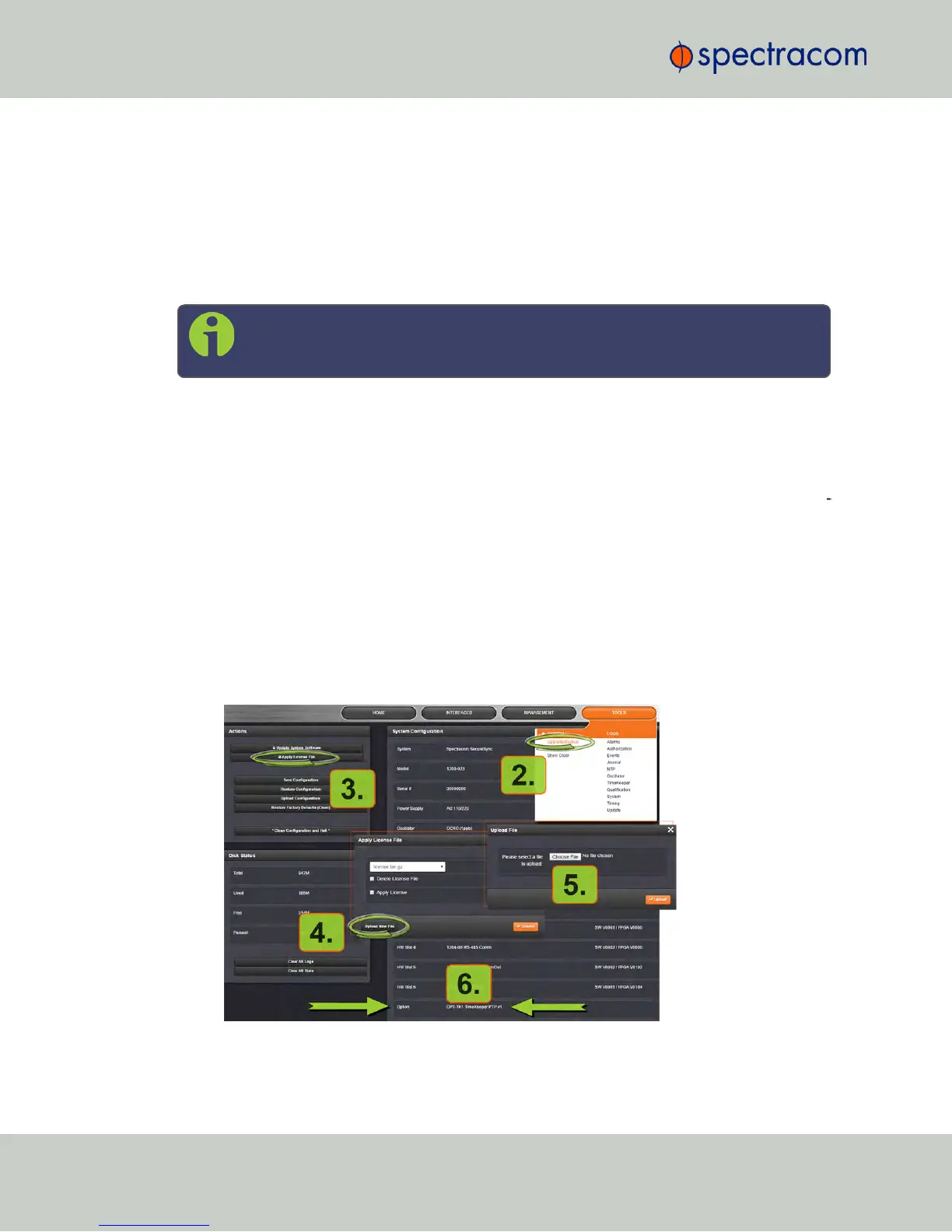
To apply the license file, you need to upload it into your NetClock unit and install it:
1.
Save the license file license.tar.gz to a location on your PC (which needs to be
connected to the same network NetClock is.)
2.
Open the NetClock WebUI, and navigate to Tools > Upgrade/Backup:
3.
In the Actions panel, click Apply License File.
312
CHAPTER 4 • NetClock User Reference Guide Rev. 16
4.6 Updates and Licenses



 To Next Page