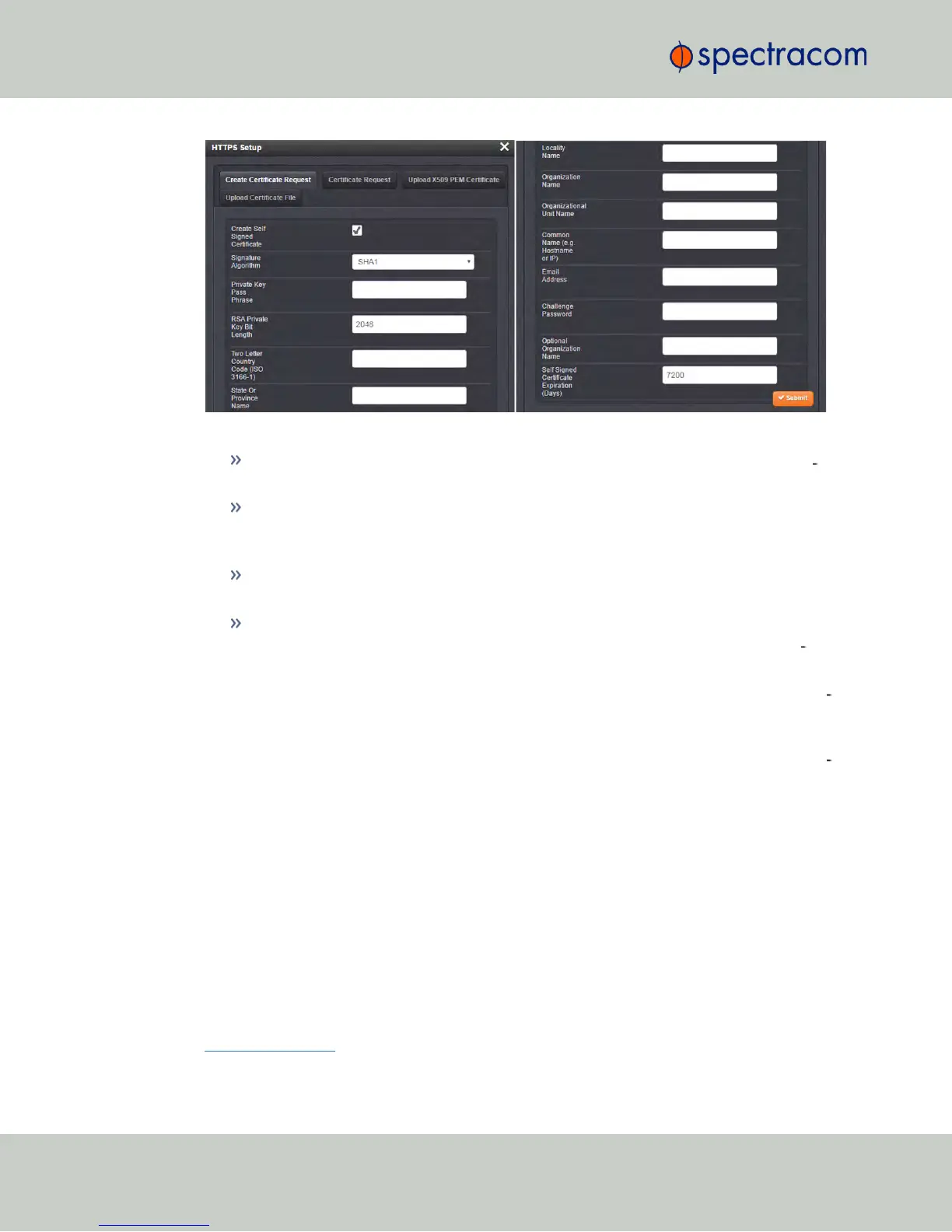
The HTTPS Setup window has four tabs:
Create Certificate Request: This menu utilizes the OpenSSL library to generate cer
tificate Requests and self-signed certificates.
Certificate Request: A holder for the certificate request generated under the Create
Certificate Request tab. Copy and paste this Certificate text in order to send it to
your Certificate Authority.
Upload X.509 PEM Certificate: Use the window under this tab to paste your X.509
certificate text and upload it to NetClock.
Upload Certificate File: Use this tab to upload your certificate file returned by the
Certificate Authority. For more information on format types, see "Supported Cer
tificate Formats" on the facing page.
Exit the HTTPS Setup window by clicking the X icon in the top right window corner, or by click
ing anywhere outside the window.
Should you exit the HTTPS Setup window while filling out the certificate request parameters
form
before
clicking the Submit button, any information you entered will be lost. When switch
ing between tabs within the HTTPS Setup window, the information you have entered will be
retained.
2.14.6.2 About HTTPS
HTTPS provides secure/encrypted, web-based management and configuration of NetClock
from a PC. In order to establish a secure HTTPS connection, an SSL certificate must be stored
inside the NetClock unit.
NetClock uses the OpenSSL library to create certificate requests and self-signed certificates. The
OpenSSL library provides the encryption algorithms used for secure HTTP (HTTPS). The
OpenSSL package also provides tools and software for creating X.509 Certificate Requests,
Self Signed Certificates and Private/Public Keys. For more information on OpenSSL, please
see www.openssl.org.
68
CHAPTER 2 • NetClock User Reference Guide Rev. 16
2.14 Configuring Network Settings



 To Next Page