3.
Under the Stratum1 tab:
enable Stratum 1 Operation (this allows System holdover if GPS and the NTP serv
ers happen to become unavailable for a period of time)
disable Prefer Stratum1
disable Stratum1 1PPS, and click Submit.
(The NTP Status Summary panel in the NTP Setup screen should now display Stratum 2.
For additional information, see "Configuring "NTP Stratum Synchronization"" on
page104.)
4.
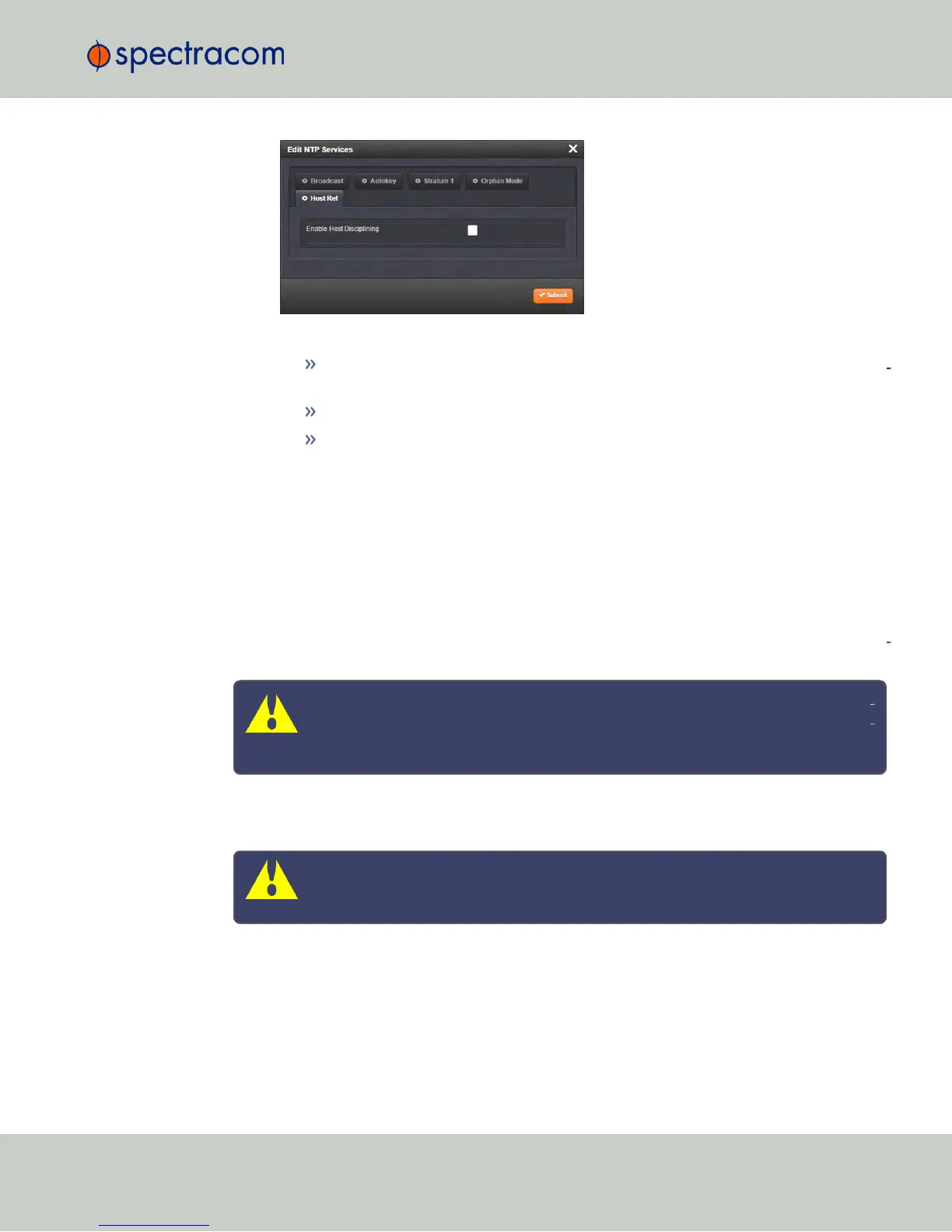
Under the Host Ref tab, enable Host Disciplining, and click Submit. You do NOT have
to stop and re-start the NTP Service; NetClock will do this for you.
2.15.15 NTP Expert Mode
Advanced NTP configuration is possible via the NTP Expert Mode, which allows you to write dir
ectly into the NTP.conf file (the syntax is similar to the one used with CISCO routers).
Caution: NTP Expert Mode should only be utilized by advanced users, as incor
rectly altering the NTP.conf file can cause NTP to stop working (if NTP is con
figured as an input reference, NetClock could lose synchronization).
To access the NTP Expert Mode, navigate to MANAGEMENT > NTP Setup. The switch for the
NTP Expert Mode is in the panel NTP Services.
Caution: Any configurations made in NTP Expert Mode will be lost as soon as
NTP Expert Mode is disabled.
NTP utilizes the NTP.conf file for its configuration. Normally, configuration of this file is
indirectly performed by a user via the integrated configuration pages of the NetClock Web UI.
However, it may be desired in certain circumstances to edit this file directly, instead of using
the web-based setup screens. When Expert Mode is enabled, the user has direct access to the
NTP.conf file.
2.15 Configuring NTP
CHAPTER 2 • NetClock User Reference Guide Rev. 16
133



 To Next Page