2.
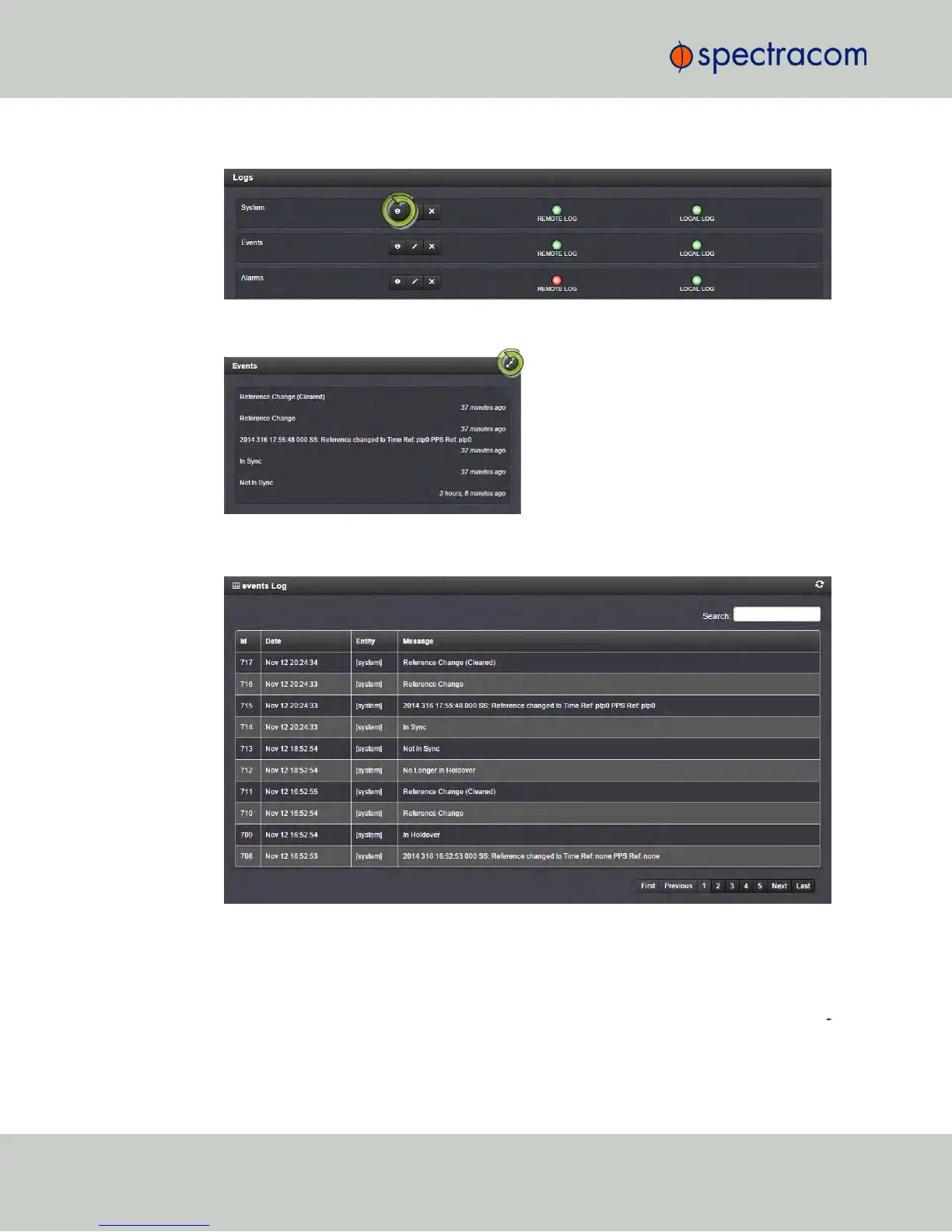
The Logs screen will be displayed:
3.
Click on the INFO button for the desired log category.
4.
A short log will be displayed, showing recent entries. Click on the ARROWS icon in the
top-right corner to expand to the full Logs view:
4.5.2.5 Saving and Downloading Logs
The NetClock Web UI offers a convenient way to save, bundle, and download all logs in one
simple step. This feature may be useful when archiving logs, for example, or for troubleshoot
ing technical problems: Spectracom Technical Support/Customer Service may ask you to send
them the bundled logs to remotely investigate a technical concern.
302
CHAPTER 4 • NetClock User Reference Guide Rev. 16
4.5 Quality Management



 To Next Page