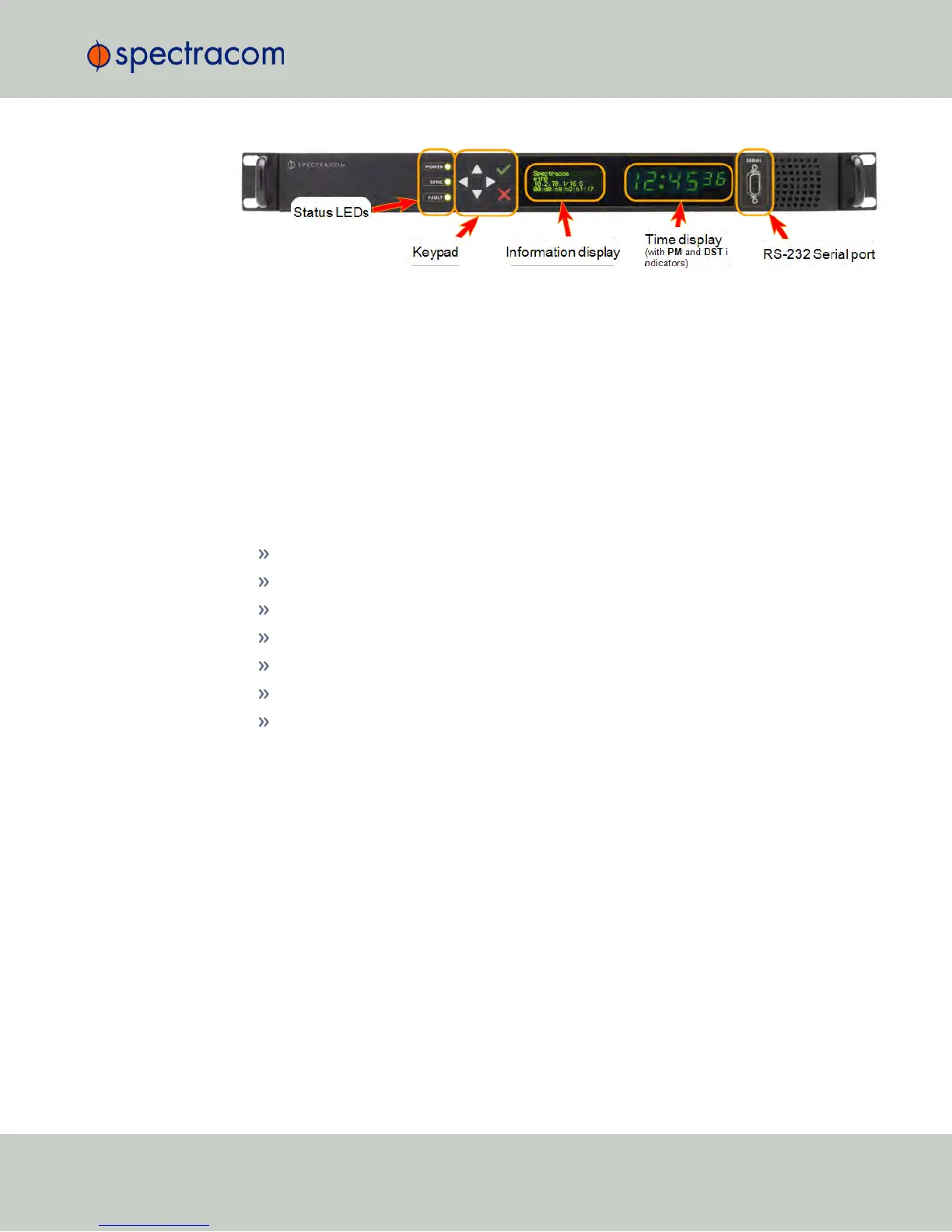
For more information on the Status LEDs, see "Status LEDs" on page8.
For more information on the Information Display, see "Configuring the Front Panel" on
page257.
It is also possible to display the front panel information display on the Web UI: Navigate to
MANAGEMENT > Front Panel.
4.5.1.2 Status Monitoring via the Web UI
While the NetClock front panel status LEDs provide an indication of the current operating status
of the system (see "Status Monitoring via Front Panel" on the previous page), more detailed
status information can be accessed via the NetClock Web UI, such as:
Time synchronization status, including references
GNSS satellites currently being tracked
NTP sync status and current Stratum level
Estimated time errors
Oscillator disciplining
Temperature monitoring
Status of outputs and presence of DC input power.
The HOME screen provides time server status information, while the TOOLS > System Monitor
screen also displays hardware status data, e.g. temperature curves:
Status Monitoring via the HOME Screen
The HOME screen of the NetClock Web UI provides a system status overview (see also "The
Web UI HOME Screen" on page15).
The HOME screen is divided into four panels:
4.5 Quality Management
CHAPTER 4 • NetClock User Reference Guide Rev. 16
267



 To Next Page